
Own Changing Values with SwiftUI State
Own Changing Values with SwiftUI State
A ticket picker must update a quantity and its total immediately, stop at the allowed range, and reset predictably. Use one owned quantity rather than keeping a second mutable total that can drift out of sync.
You will learn: Own a small value with private @State; distinguish a derived result from stored state; enforce UI boundaries; understand what a body re-evaluation and a relaunch mean.
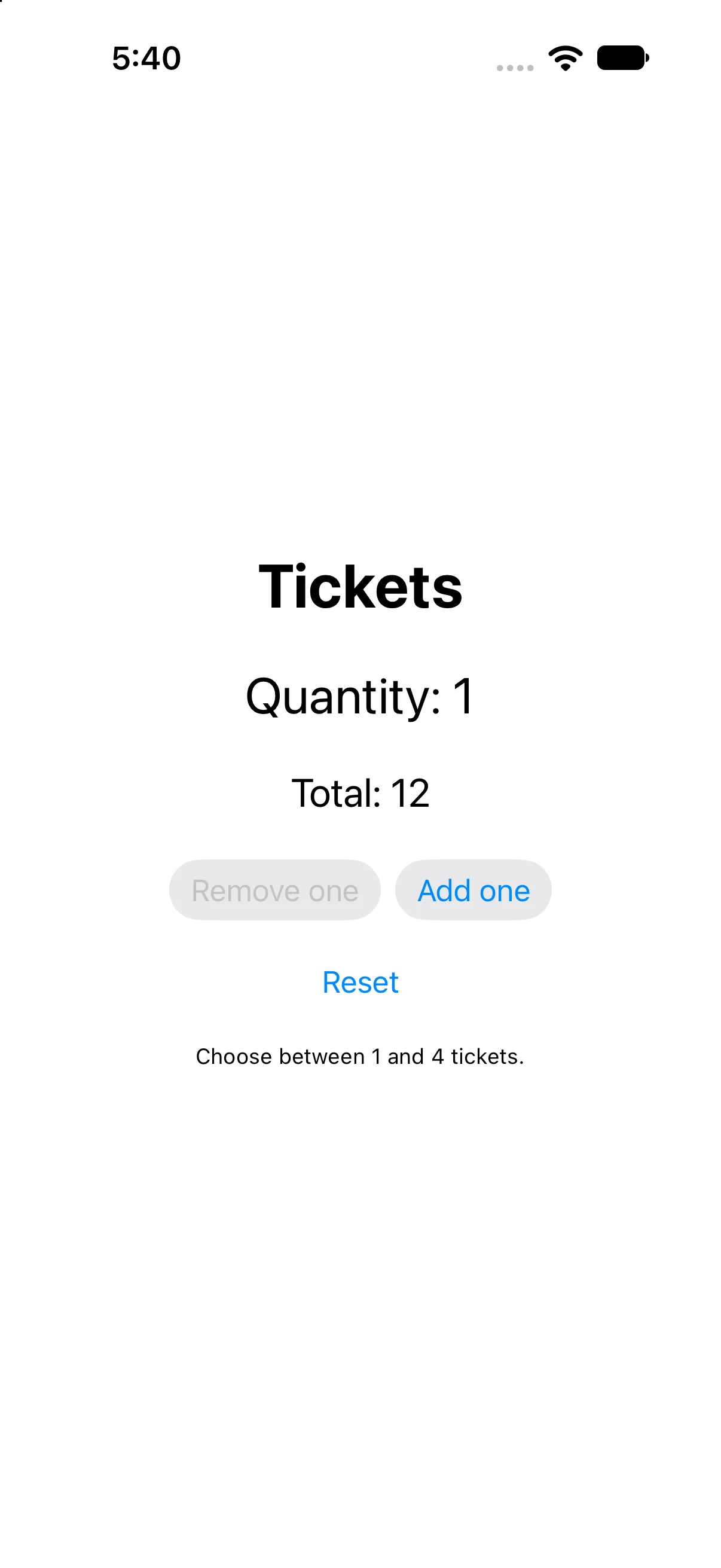
Prerequisites: the earlier SwiftUI Foundations lessons and Swift values/closures. These projects use the installed iOS SDK and local in-memory fixtures. They do not modify personal data or contact a server. The screenshot shows the initial screen before the interaction sequence.
Put ownership at the view that manages the value
The ticket screen creates and changes quantity, so it owns that state. private prevents other code from treating the property as a public initialization input. SwiftUI manages state storage associated with a view’s identity; body can be evaluated repeatedly without resetting the quantity on every evaluation.
@State private var quantity = 1
private let ticketPrice = 12
A plain local variable inside body would be recreated with that evaluation. A plain immutable property is useful for fixed input but cannot represent this interactive mutation. @State is not a database: destroying the relevant identity or restarting the process is a different boundary from recomputing body.
Calculate the total from the current quantity
Each ticket costs 12 fixture units. When quantity changes, the displayed expression reads the new value. Do not store a second @State total and remember to change it in Add, Remove and Reset. That duplicates the relationship and creates extra places for mistakes.
Text("Quantity: \(quantity)")
Text("Total: \(quantity * ticketPrice)")
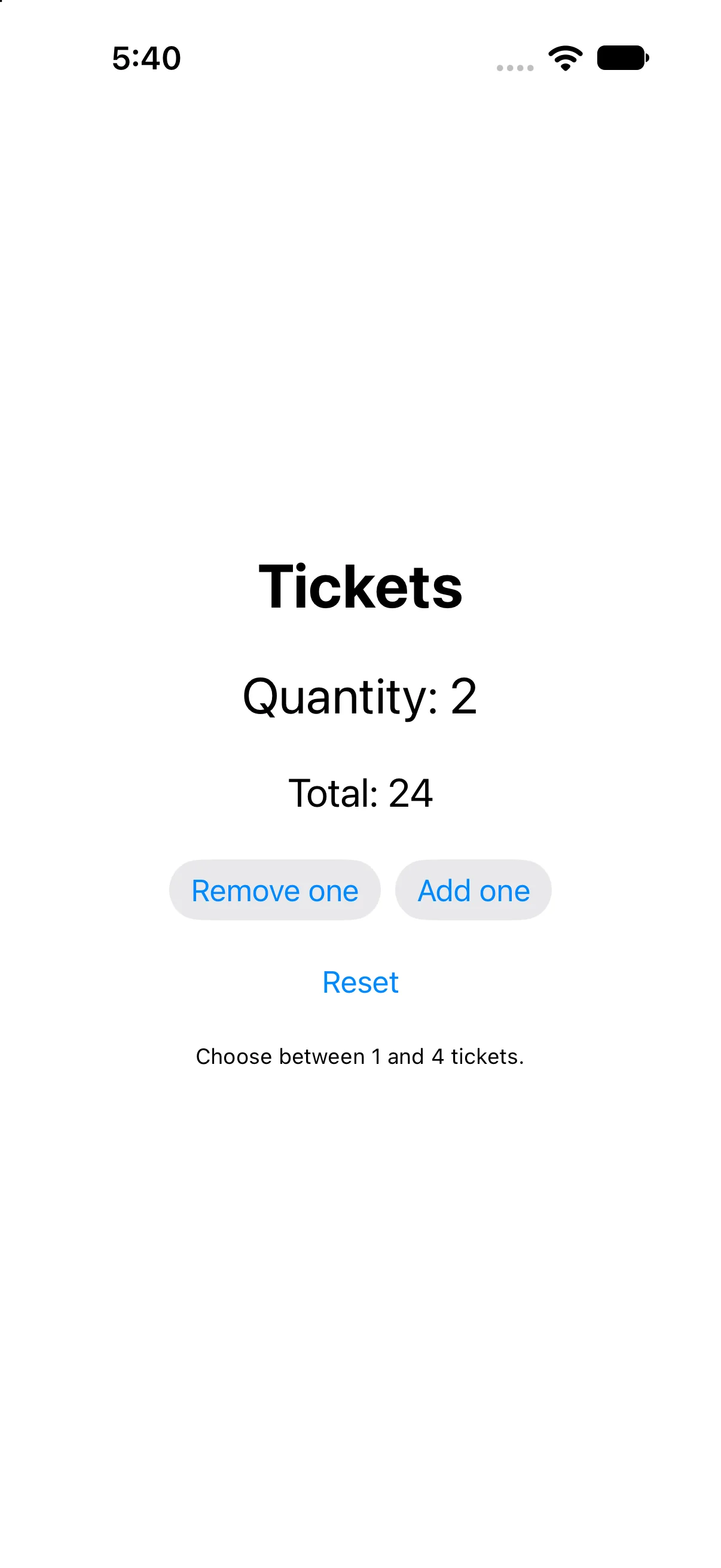
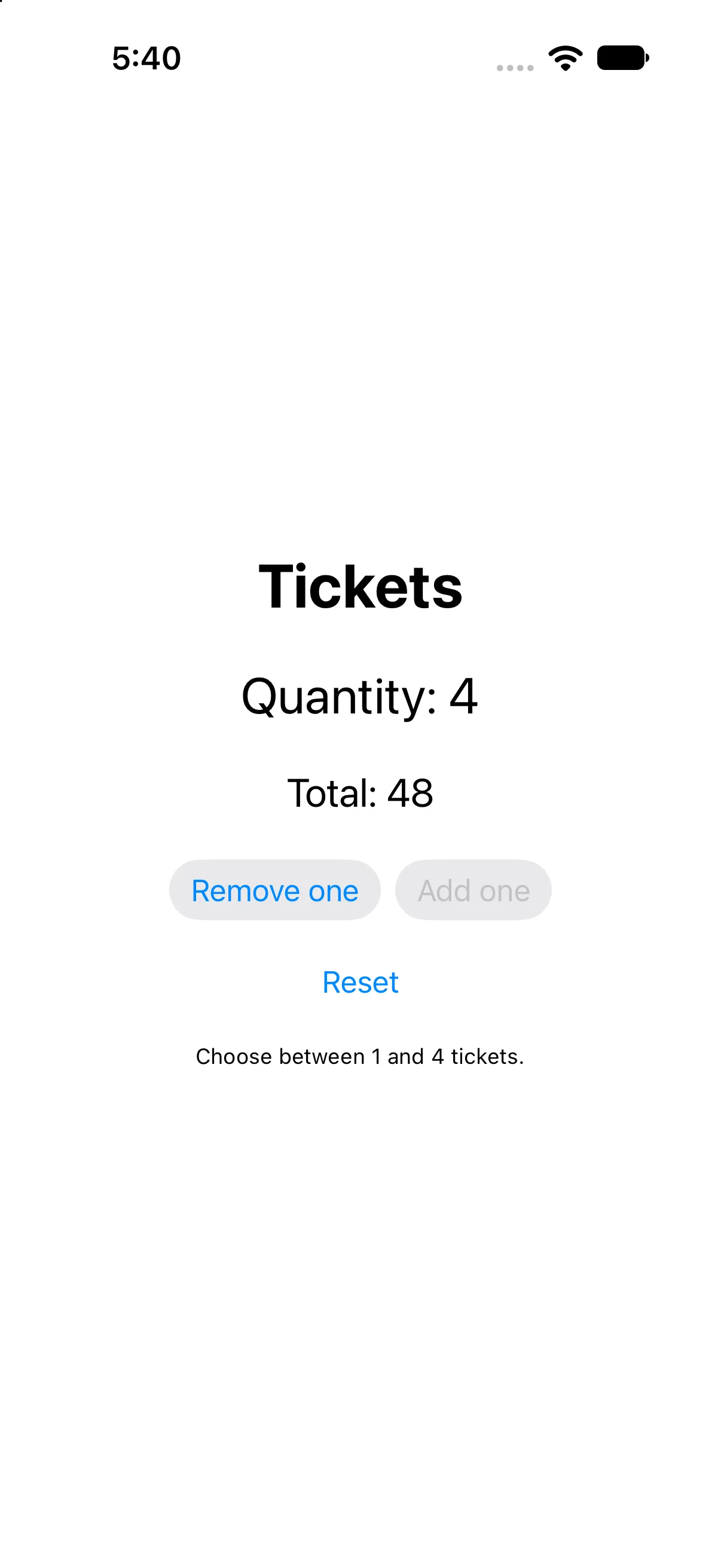
With quantity 2 the total is 24, and with quantity 4 it is 48. These are integer teaching prices; a real checkout needs a deliberate currency/amount model, rounding policy and formatting rather than assuming raw text multiplication is a complete payment system.
Express limits and reset behavior explicitly
The picker allows one to four tickets. Remove is disabled at one and Add at four. The visible disabled state tells the person why another press is unavailable. Reset assigns the initial value instead of trying to undo an unknown number of previous actions.
Button("Add one") { quantity += 1 }
    .disabled(quantity == 4)
Button("Reset") { quantity = 1 }
This app has only these controlled mutations, so its equality checks match the reachable range. If quantity can also come from a text field, service or deep link, validate the range at that boundary and make mutation helpers enforce it. A disabled button alone does not protect unrelated callers or untrusted data.
Distinguish recomputation from persistence
Read the UI after each action instead of assuming a print from body is a once-only event. SwiftUI is free to recompute descriptions as its dependencies change. State remains associated with the view identity during the relevant lifetime; it is not tied to one particular temporary struct copy.
Do not initialize fresh owned state from an external input and expect later input changes to replace it automatically. Decide whether the parent owns the value or the child owns an independent draft. The binding lesson makes that distinction visible with two views editing one value.
Build the complete example
Download the TicketCounter Xcode project. Open TicketCounter.xcodeproj, select an installed compatible iPhone simulator, and run. The app entry point already presents ContentView. The complete ContentView.swift below is the exact built source; earlier snippets are explanatory excerpts.
import SwiftUI

struct ContentView: View {
@State private var quantity = 1
private let ticketPrice = 12
 var body: some View {
VStack(spacing: 24) {
 Text("Tickets").font(.largeTitle).bold()
 Text("Quantity: \(quantity)").font(.title)
 Text("Total: \(quantity * ticketPrice)").font(.title2)
 HStack {
  Button("Remove one") { quantity -= 1 }.disabled(quantity == 1).accessibilityIdentifier("removeTicket")
  Button("Add one") { quantity += 1 }.disabled(quantity == 4).accessibilityIdentifier("addTicket")
 }.buttonStyle(.bordered)
 Button("Reset") { quantity = 1 }.accessibilityIdentifier("resetTickets")
 Text("Choose between 1 and 4 tickets.").font(.caption)
}.padding(24)
 }
}

#Preview { ContentView() }
Accessibility identifiers in the file provide stable names for local automation; they are not visible menu labels. #Preview is an editor convenience. The following screenshots come from the launched app after actual automated control interactions.
Add a ticket and recompute the total
Press Add one once. Quantity becomes 2 and Total becomes 24. The automated check observed both labels, establishing that the displayed total follows the current state rather than an old string.
Reach the upper limit
Press Add one twice more. Quantity reaches 4 and Total reaches 48. The check also inspects the Add control’s enabled state and confirms it is disabled; a screenshot alone is weaker evidence for a behavioral boundary.
Reset the owned state
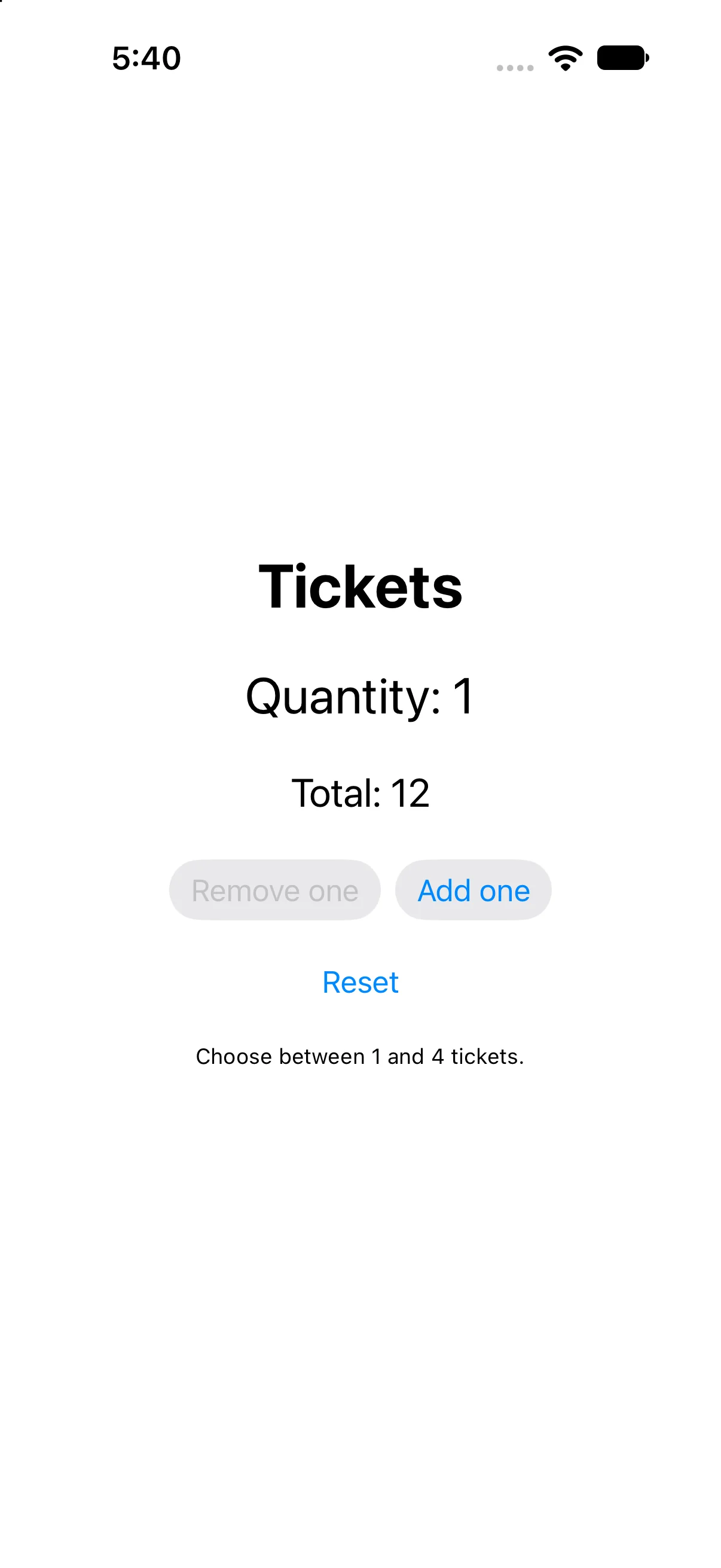
Press Reset. Quantity returns to 1, Total to 12, and Remove one is disabled. Reset is tested after several increments so this is a transition back from the upper boundary, not just a screenshot of initialization.
Check a failure at the right boundary
If your output differs, compare the current input values and the relevant action before changing project settings. Save the complete source, confirm the selected scheme and destination, and inspect the first build diagnostic if compilation fails. A successful build establishes valid source; the action-result checks establish the particular UI transitions shown here.
Practice variations below are proposed changes, not additional captured states. Keep input validation, state ownership and presentation decisions explicit as you extend the project.
Try a new case and explain the result
Raise the maximum to 6. Identify every rule that should change, then predict the total at the new maximum.
Worked answer
Update the Add boundary and explanatory range text; the derived total needs no separate assignment. At six tickets it is 72 fixture units. A small maximum constant used by both the rule and text reduces the risk of updating only one. Keep the supplied baseline at four to match its captures.
Check your understanding
Choose the explanation that follows from the worked example.
What to take forward
You owned a changing value, derived its display, checked boundaries and reset it. Next, let a child edit a value owned by its parent through a binding.
Reaching the recap and completing the quizzes are separate milestones.