
Xcode Project Structure and Assets
Find your way around the project
You have run Hello World. Now learn where its code, resources and build configuration live. By the end, you should be able to find the app entry point, the first view, the asset catalog and the app target without guessing.
Use the project from Hello World. This lesson inspects its existing structure; it does not change the greeting or add a custom image.
Project, target and scheme
A project organizes files and build configuration. Open HelloWorld.xcodeproj in Xcode. A target describes a product to build, including its sources, resources and settings. This project has one app target.
A scheme chooses targets and actions such as Run or Test. The run destination chooses where the app executes. A scheme and a destination are different: HelloWorld is the scheme; an iPhone simulator or your connected iPhone is the destination.
Select the blue project item at the top of the Project navigator to inspect project and target settings. Ordinary Swift files open in the source editor instead.
The files that make this app
HelloWorldApp.swift declares the @main entry point and the window scene. ContentView.swift describes the first interface. Assets.xcassets holds named resources such as colors and app icons.
The navigator is a view of the project organization. Modern Xcode projects may synchronize folders with disk; do not assume every project requires manually adding each file to a legacy group. After moving files, confirm their presence and build the target.
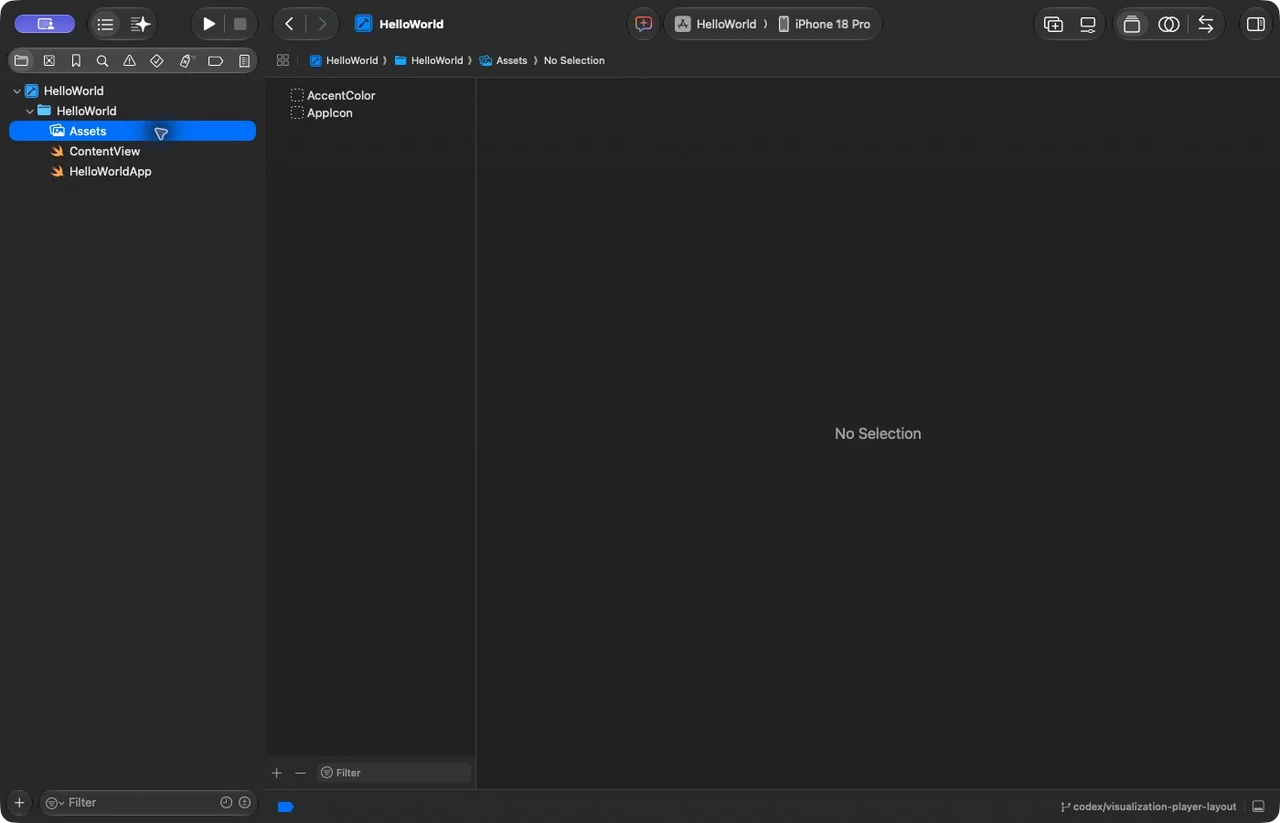
Inspect Assets.xcassets
Click Assets.xcassets in the Project navigator. The starter catalog contains AccentColor and AppIcon. These are named asset sets; their names are not filenames you should add to a Swift import.
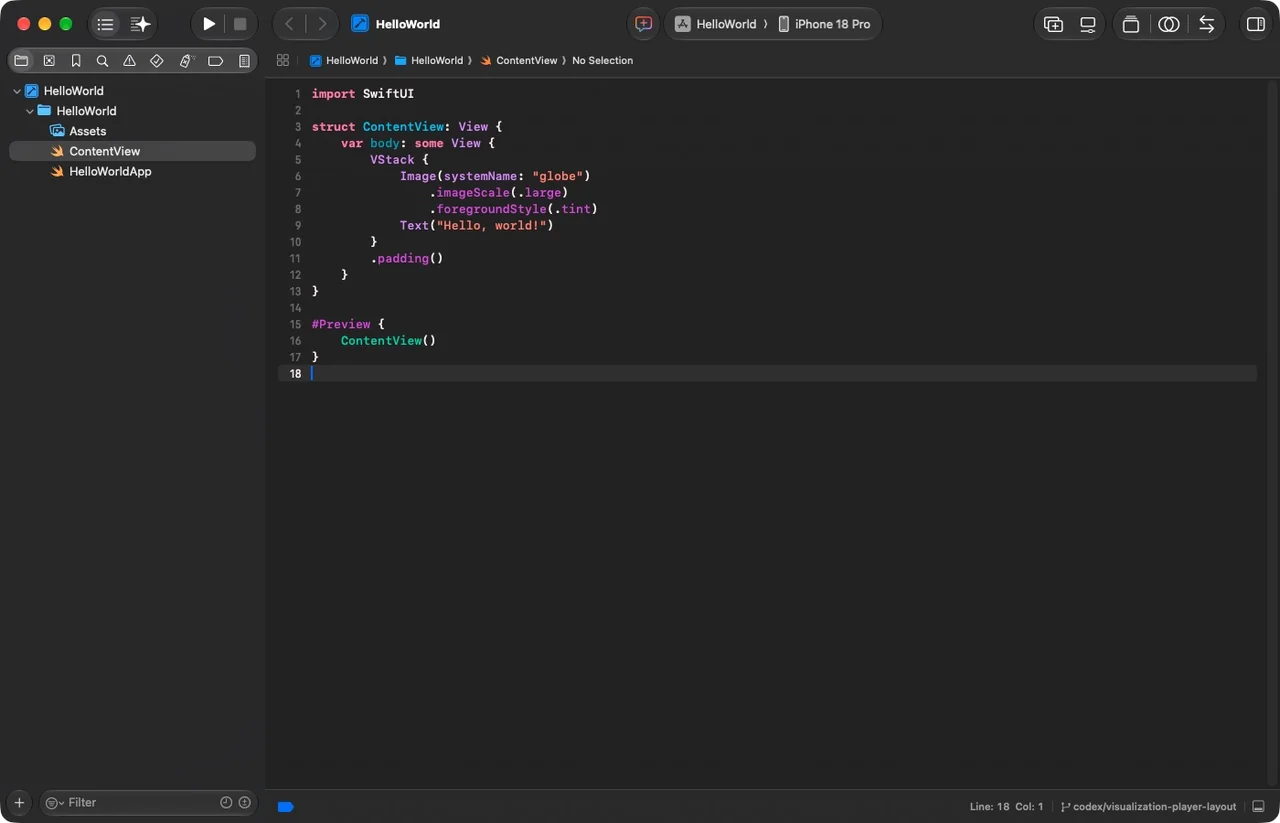
The globe in this app is a system symbol: Image(systemName: "globe"). It does not come from an image set in the catalog. A custom asset named ProfilePhoto would instead be referenced with Image("ProfilePhoto"), after adding that image set and its image data.
This screenshot shows the unmodified starter catalog. The presence of an empty AppIcon set does not mean you have supplied a finished shipping icon.
Connect a resource reference to the view
Here is the complete built view. The systemName: argument is the distinction to notice.
import SwiftUI

struct ContentView: View {
    var body: some View {
        VStack {
            Image(systemName: "globe")
                .imageScale(.large)
                .foregroundStyle(.tint)
            Text("Hello, world!")
        }
        .padding()
    }
}

#Preview {
    ContentView()
}
If you rename a custom asset, update the string used by the view. A missing resource may produce a warning or an empty image rather than a useful compile-time error, so inspect the running screen as well as the build result.
Follow one file and one resource into the app target
Suppose a view file exists in Finder but the app cannot find its type. The useful question is not only “does the file exist?” but “is this source part of the app target that the selected scheme builds?” Inspect the navigator, target membership or synchronized-folder settings as appropriate for that project, then build the intended target. Different Xcode project formats can represent files differently.
Separate three names
The source filename helps you find code. The Swift type name identifies a declaration to the compiler. An asset-set name identifies a resource at runtime. Renaming ContentView.swift does not necessarily rename struct ContentView; renaming an image file inside a catalog does not necessarily rename the catalog’s image set.
Image(systemName: "globe") // system resource
Image("Earth")             // your named asset set
The expanded Images lesson provides an actual Earth.imageset and JPEG, not an imaginary asset name. Open its downloadable project and compare the catalog entry, Contents.json and Image("Earth") reference. The important connection is the named resource and the built target.
A useful investigation
In an exercise copy, rename the asset set and update its Swift reference. Confirm that the image still appears. If you rename only one side, inspect Xcode’s runtime console and the rendered screen. Compilation can succeed even though a resource lookup fails. This is why a build check and a screenshot check establish different things.
Practice finding each responsibility
Find the file that selects the first view, then the line that draws the globe, then the asset catalog. Predict which one you would edit to change only the greeting.
Worked answer
HelloWorldApp.swift selects ContentView() inside WindowGroup. ContentView.swift contains Image(systemName: "globe") and the greeting. Change the string passed to Text to change the greeting; no project-setting or asset-catalog change is required.
Check your understanding
Which statement describes the globe in the sample?
Keep code, resources and build configuration distinct
You can now locate the app entry point, interface and resources, and distinguish a project, target, scheme and destination. Next, run the app on a real iPhone.
Download the verified project. Reference: Apple: Managing assets with asset catalogs.
Reaching the recap and completing the quizzes are separate milestones.