
Present Sheets and Confirmation Alerts in SwiftUI
Present Sheets and Confirmation Alerts in SwiftUI
A draft editor is a temporary task: typing should not immediately replace the saved title, Cancel should discard the local edit, and deletion should ask for a deliberate confirmation. Model those boundaries explicitly.
You will learn: Present a sheet with a Boolean binding; keep draft ownership inside the editor; commit through a callback; dismiss from the presented environment; confirm a destructive action.
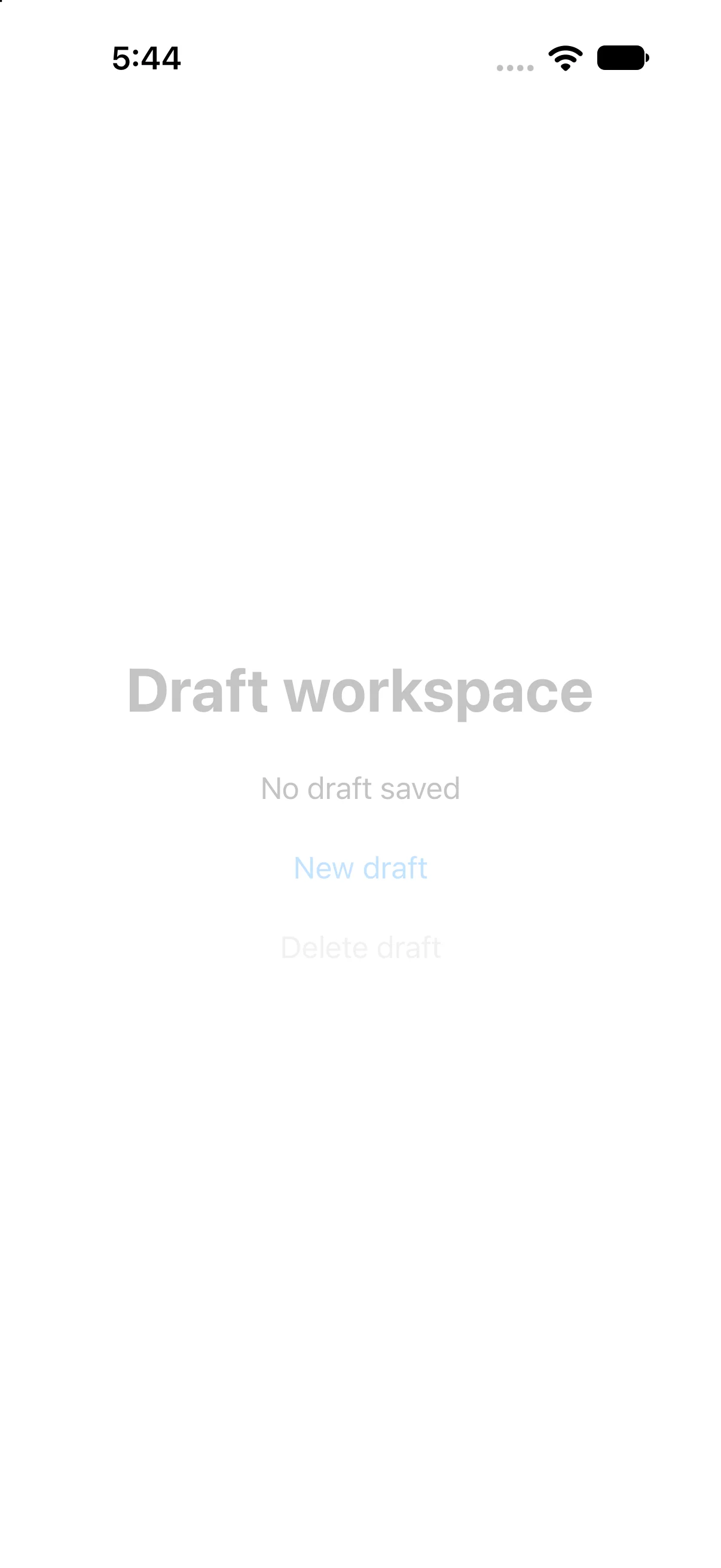
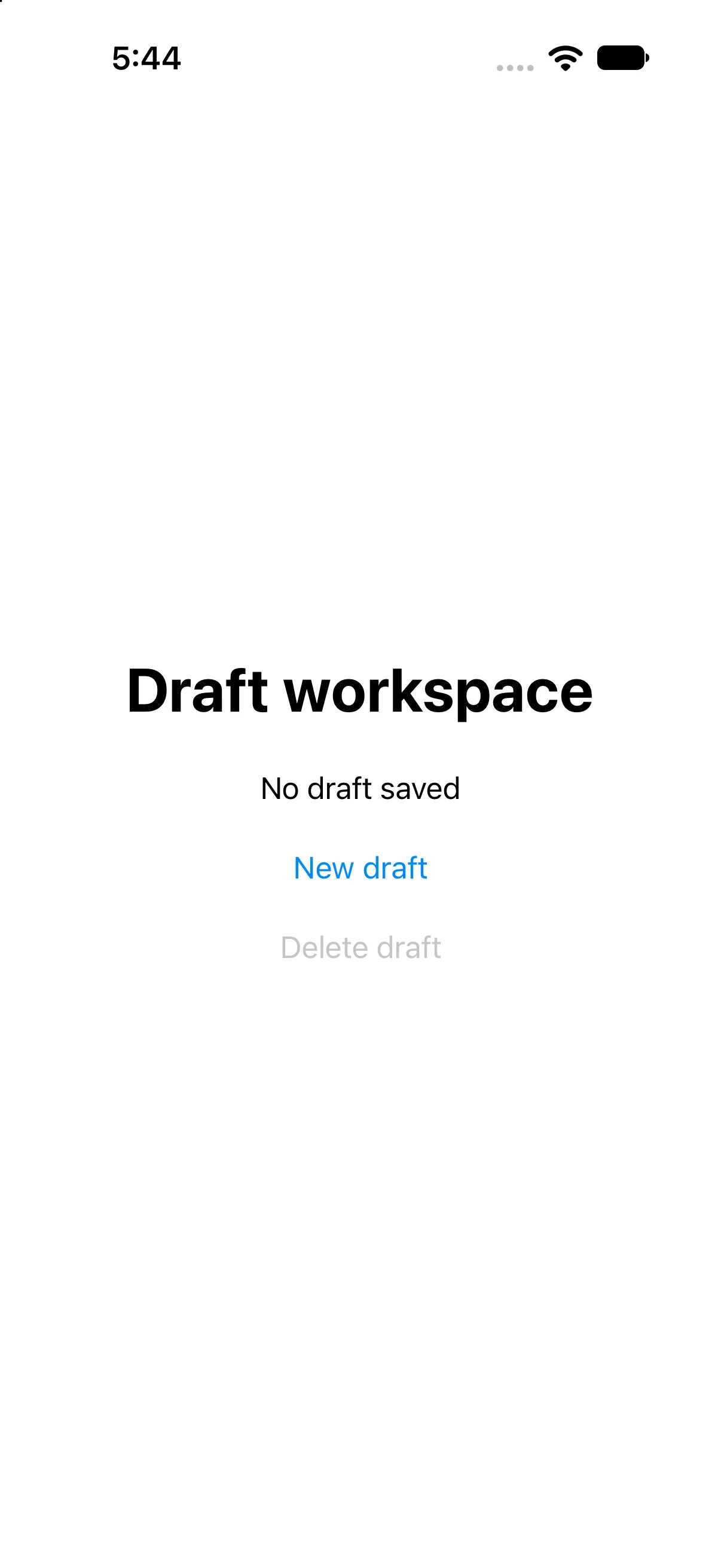
Prerequisites: the earlier SwiftUI Foundations lessons and Swift values/closures. These projects use the installed iOS SDK and local in-memory fixtures. They do not modify personal data or contact a server. The screenshot shows the initial screen before the interaction sequence.
Let presentation follow explicit state
The parent owns showEditor. New draft sets it true, and .sheet(isPresented:) uses its binding to present DraftEditor. The parent also owns savedTitle, which is independent of whether the editor is currently visible.
.sheet(isPresented: $showEditor) {
    DraftEditor { title in savedTitle = title }
}
A Boolean is sufficient because this editor always starts a new fixed sample draft. For presenting a selected identifiable item, sheet(item:) can express the absent/present item directly. Avoid keeping a Boolean and selected item in contradictory states when one model would represent the task better.
Keep editing separate from committing
DraftEditor owns its local title with @State. Save trims it, invokes onSave, then dismisses. Cancel dismisses without calling onSave. This differs from a direct binding that would publish each keystroke to the parent.
@Environment(\.dismiss) private var dismiss
@State private var title = "Weekend plan"
let onSave: (String) -> Void
// Save action:
onSave(title.trimmingCharacters(in: .whitespacesAndNewlines))
dismiss()
Read dismiss inside the presented editor’s environment so it refers to that presentation. The editor has its own NavigationStack to supply a title and toolbar for its independent task; this is a purposeful modal context, not an accidental nested push stack.
Put the destructive mutation behind the confirmation action
Delete draft presents an alert but does not erase savedTitle. Only the alert’s Delete action sets it to nil. Cancel leaves the model unchanged. The destructive role supplies semantics and appropriate presentation; a red foreground color alone would not describe the operation.
.alert("Delete saved draft?", isPresented: $showDeleteAlert) {
    Button("Delete", role: .destructive) { savedTitle = nil }
    Button("Cancel", role: .cancel) { }
} message: {
    Text("This removes only the sample’s in-memory draft.")
}
The complete project uses an ordinary apostrophe in its message. Keep irreversible production operations behind appropriate validation and recovery rules; this app deletes only disposable in-memory teaching data.
Define every dismissal path
Cancel and a standard interactive sheet dismissal both leave the parent unchanged because only Save calls the commit closure. A production editor with substantial unsaved work may need an explicit discard policy and a way to explain why dismissal is prevented.
The automation below verifies sheet presentation, Save, alert presentation and confirmed deletion. It does not claim a captured swipe-dismiss gesture. Try Cancel as the independent exercise and verify the parent status rather than assuming every dismissal is a save.
Build the complete example
Download the DraftPresentation Xcode project. Open DraftPresentation.xcodeproj, select an installed compatible iPhone simulator, and run. The app entry point already presents ContentView. The complete ContentView.swift below is the exact built source; earlier snippets are explanatory excerpts.
import SwiftUI

struct ContentView: View {
@State private var showEditor = false
@State private var showDeleteAlert = false
@State private var savedTitle: String?
 var body: some View {
VStack(spacing: 24) {
 Text("Draft workspace").font(.largeTitle).bold()
 Text(savedTitle.map { "Saved: \($0)" } ?? "No draft saved")
 Button("New draft") { showEditor = true }.accessibilityIdentifier("newDraft")
 Button("Delete draft", role: .destructive) { showDeleteAlert = true }
  .disabled(savedTitle == nil).accessibilityIdentifier("deleteDraft")
}.padding(24)
.sheet(isPresented: $showEditor) {
 DraftEditor { title in savedTitle = title }
}
.alert("Delete saved draft?", isPresented: $showDeleteAlert) {
 Button("Delete", role: .destructive) { savedTitle = nil }
 Button("Cancel", role: .cancel) { }
} message: { Text("This removes only the sample's in-memory draft.") }
 }
}

struct DraftEditor: View {
 @Environment(\.dismiss) private var dismiss
 @State private var title = "Weekend plan"
 let onSave: (String) -> Void
 var body: some View {
  NavigationStack {
   Form { TextField("Title", text: $title) }.navigationTitle("New draft")
    .toolbar {
     ToolbarItem(placement: .cancellationAction) { Button("Cancel") { dismiss() } }
     ToolbarItem(placement: .confirmationAction) {
      Button("Save") { onSave(title.trimmingCharacters(in: .whitespacesAndNewlines)); dismiss() }
       .disabled(title.trimmingCharacters(in: .whitespacesAndNewlines).isEmpty)
       .accessibilityIdentifier("saveDraft")
     }
    }
  }
 }
}

#Preview { ContentView() }
Accessibility identifiers in the file provide stable names for local automation; they are not visible menu labels. #Preview is an editor convenience. The following screenshots come from the launched app after actual automated control interactions.
Present an independent draft editor
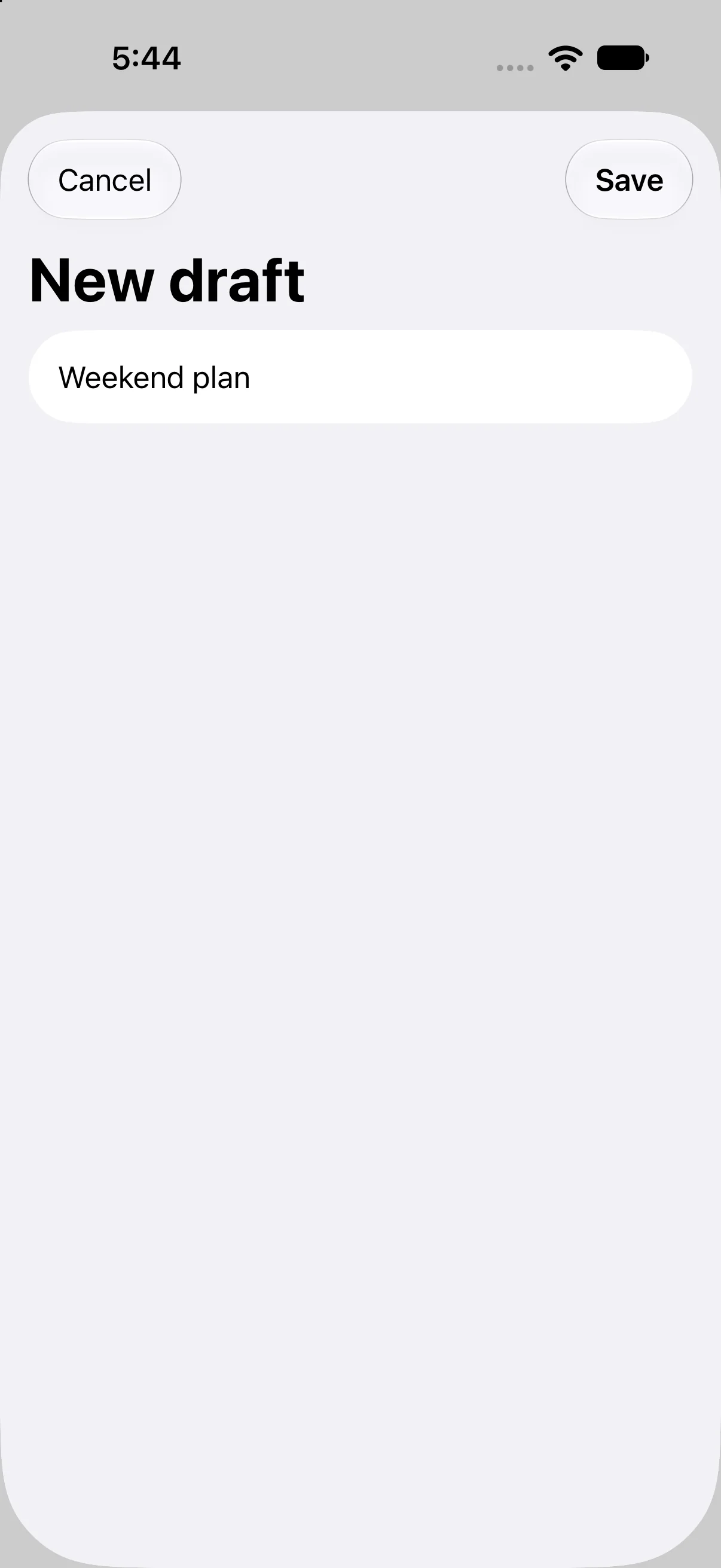
Press New draft. The sheet displays its own navigation title, the local Weekend plan text and Save. The parent has not received a title merely because the editor appeared.
Save through a callback and dismiss
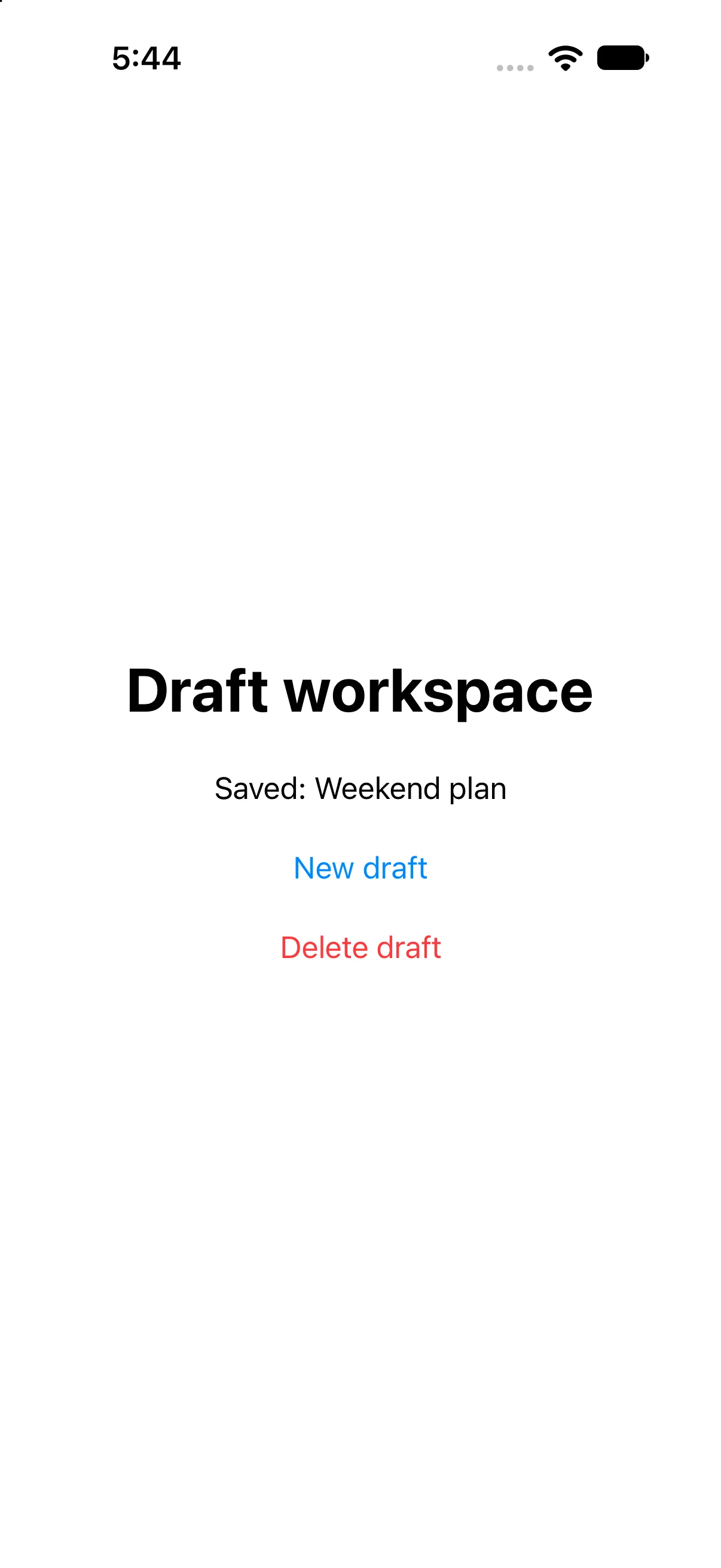
Press Save. The editor calls the parent’s commit closure and dismisses. The parent now reads Saved: Weekend plan and its delete action is enabled.
Ask before deleting the sample draft
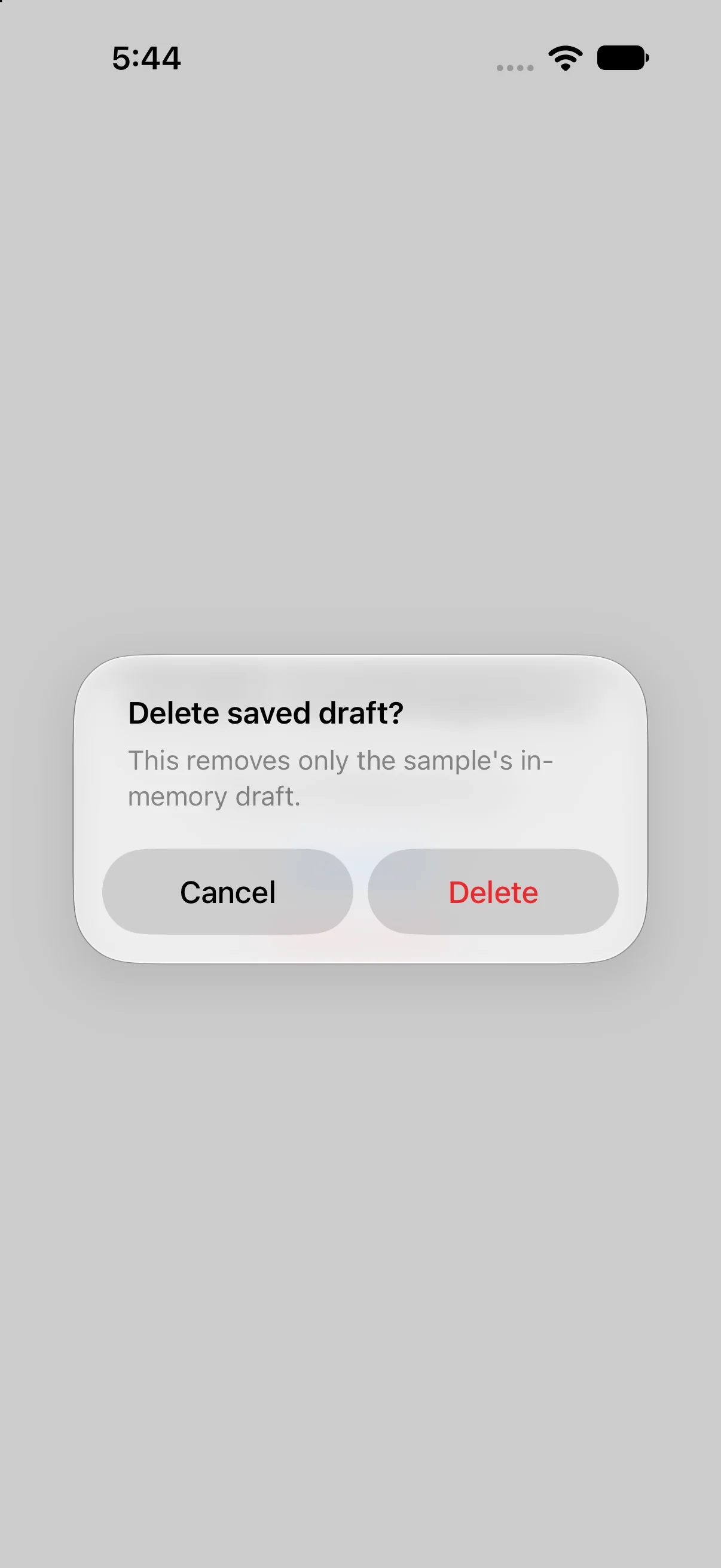
Press Delete draft. The alert asks Delete saved draft? while the saved value still exists behind it. Presentation and mutation are intentionally different steps.
Confirm the destructive action
Confirm Delete. The parent returns to No draft saved. The recorded interaction acts only on the sample’s local data; it does not remove user files.
Check a failure at the right boundary
If your output differs, compare the current input values and the relevant action before changing project settings. Save the complete source, confirm the selected scheme and destination, and inspect the first build diagnostic if compilation fails. A successful build establishes valid source; the action-result checks establish the particular UI transitions shown here.
Practice variations below are proposed changes, not additional captured states. Keep input validation, state ownership and presentation decisions explicit as you extend the project.
Try a new case and explain the result
Open the editor, change its title, then press Cancel. Predict the parent value before doing so.
Worked answer
The parent retains its previous savedTitle because Cancel never calls onSave. The local draft is discarded with the editor lifetime. For editing an existing saved value, pass an initial draft deliberately rather than binding every keystroke unless immediate edits are intended.
Check your understanding
Choose the explanation that follows from the worked example.
What to take forward
You separated presentation, local draft editing, commit and destructive confirmation. Next, organize independent top-level destinations with tabs.
Reaching the recap and completing the quizzes are separate milestones.