
Forms, Validation and Input Focus in SwiftUI
Forms, Validation and Input Focus in SwiftUI
A workshop form needs a name and email, a sensible keyboard flow, and clear feedback when the local input is accepted. Build those pieces separately so “the keyboard looks right” is not mistaken for “the data is valid.”
You will learn: Bind text fields to owned Strings; associate fields with FocusState; distinguish keyboard hints from validation; submit through one guarded operation.
Prerequisites: the earlier SwiftUI Foundations lessons and Swift values/closures. These projects use the installed iOS SDK and local in-memory fixtures. They do not modify personal data or contact a server. The screenshot shows the initial screen before the interaction sequence.
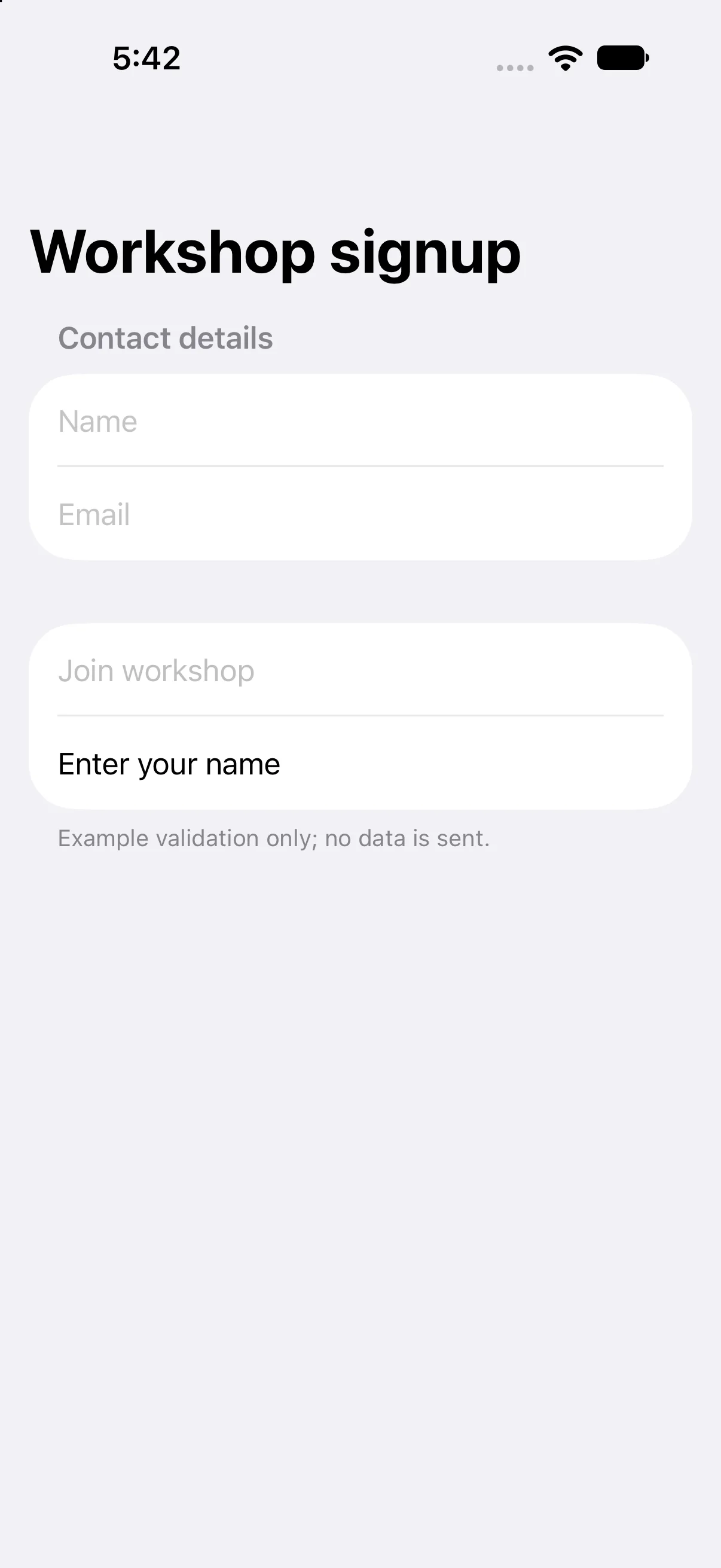
Bind each field to its own editable String
Form groups related controls into a platform-styled container. TextField receives a title and a String binding; typing updates that String. textContentType(.name) supplies an input hint. The email field disables automatic capitalization and correction because those behaviors can corrupt an address.
TextField("Email", text: $email)
    .keyboardType(.emailAddress)
    .textInputAutocapitalization(.never)
    .autocorrectionDisabled()
keyboardType chooses a suitable keyboard; it does not prevent every invalid value. Hardware keyboards, paste and programmatic input can still supply arbitrary text. Treat all validation as an explicit data rule rather than a side effect of keyboard configuration.
Model focus separately from the field values
The optional Field enum has name and email cases, and @FocusState stores which field should be focused. Each .focused association connects the field to one enum value. Name uses the next submit label and transfers focus to email. Email uses done and invokes the same submit helper as the visible button.
enum Field: Hashable { case name, email }
@FocusState private var focusedField: Field?
// On the name field:
.onSubmit { focusedField = .email }
Setting focusedField to nil requests dismissal. Focus is presentation state, not validation state: a field can lose focus while its content is invalid. The keyboard toolbar’s Done button dismisses input without pretending to submit the form.
Guard submission as well as disabling the button
canSubmit trims the name and checks for an @ in the email. The Join button is disabled until that simple rule holds. The submit helper repeats the guard because an onSubmit handler is another entry point; disabled affects the button, not every possible caller.
guard canSubmit else {
    message = "Check your name and email"
    return
}
focusedField = nil
message = "Registered: \(name.trimmingCharacters(in: .whitespacesAndNewlines))"
This is intentionally weak example validation, not an email verification system. A production signup needs appropriate rules, server validation, accessibility announcements and clear error placement. A contains("@") test accepts many malformed addresses; the tutorial does not claim otherwise.
Choose what happens to the draft after submission
Here successful submission keeps the entered values visible and changes the local message. Nothing is sent over the network. Clearing fields, navigating away or persisting a registration would each be a separate product decision with its own failure states.
When reproducing the example, enter the name first, use Next to reach email, then dismiss the keyboard or use Done before pressing Join. If the keyboard covers a control, investigate the form’s scroll/focus behavior instead of adding a permanent bottom offset that only fits one device.
Build the complete example
Download the WorkshopForm Xcode project. Open WorkshopForm.xcodeproj, select an installed compatible iPhone simulator, and run. The app entry point already presents ContentView. The complete ContentView.swift below is the exact built source; earlier snippets are explanatory excerpts.
import SwiftUI

struct ContentView: View {
enum Field: Hashable { case name, email }
@State private var name = ""
@State private var email = ""
@State private var message = "Enter your name"
@FocusState private var focusedField: Field?
private var canSubmit: Bool { !name.trimmingCharacters(in: .whitespacesAndNewlines).isEmpty && email.contains("@") }
 var body: some View {
NavigationStack {
 Form {
  Section("Contact details") {
   TextField("Name", text: $name).textContentType(.name)
    .focused($focusedField, equals: .name).submitLabel(.next)
    .onSubmit { focusedField = .email }.accessibilityIdentifier("nameInput")
   TextField("Email", text: $email).keyboardType(.emailAddress)
    .textInputAutocapitalization(.never).autocorrectionDisabled()
    .focused($focusedField, equals: .email).submitLabel(.done)
    .onSubmit { submit() }.accessibilityIdentifier("emailInput")
  }
  Section {
   Button("Join workshop") { submit() }.disabled(!canSubmit).accessibilityIdentifier("joinWorkshop")
   Text(message).accessibilityIdentifier("formMessage")
  } footer: { Text("Example validation only; no data is sent.") }
 }.navigationTitle("Workshop signup")
 .toolbar { ToolbarItemGroup(placement: .keyboard) { Spacer(); Button("Done") { focusedField = nil }.accessibilityIdentifier("dismissKeyboard") } }
}
 }
}

private extension ContentView {
 func submit() {
  guard canSubmit else { message = "Check your name and email"; return }
  focusedField = nil
  message = "Registered: \(name.trimmingCharacters(in: .whitespacesAndNewlines))"
 }
}

#Preview { ContentView() }
Accessibility identifiers in the file provide stable names for local automation; they are not visible menu labels. #Preview is an editor convenience. The following screenshots come from the launched app after actual automated control interactions.
Focus the name field and inspect the keyboard
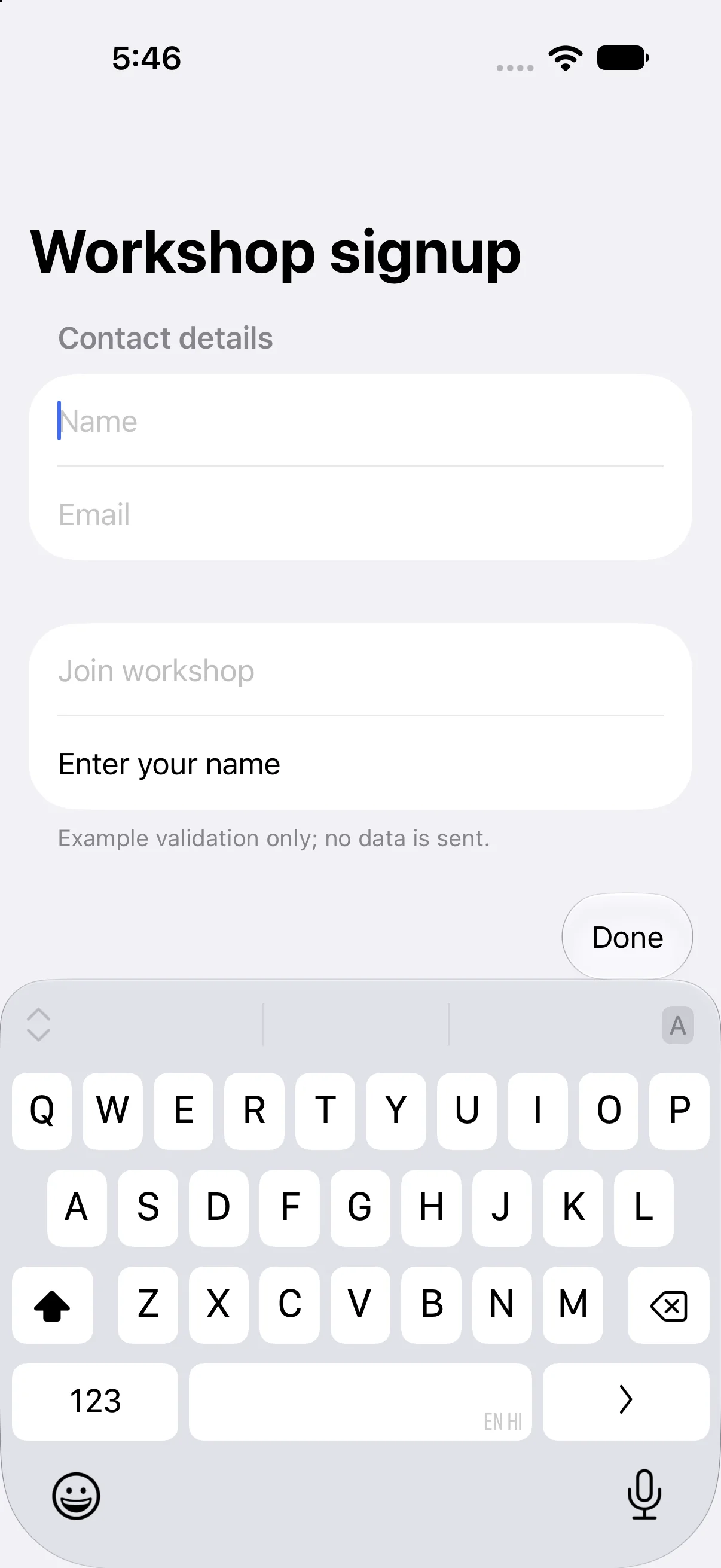
Tap the Name field. The app presents the keyboard and focuses that field without changing the stored input. The native check confirms a visible keyboard; its exact layout depends on the simulator keyboard configuration. Next and Done labels are hints for the return-key flow, separate from the validation rule.
Enter local form data
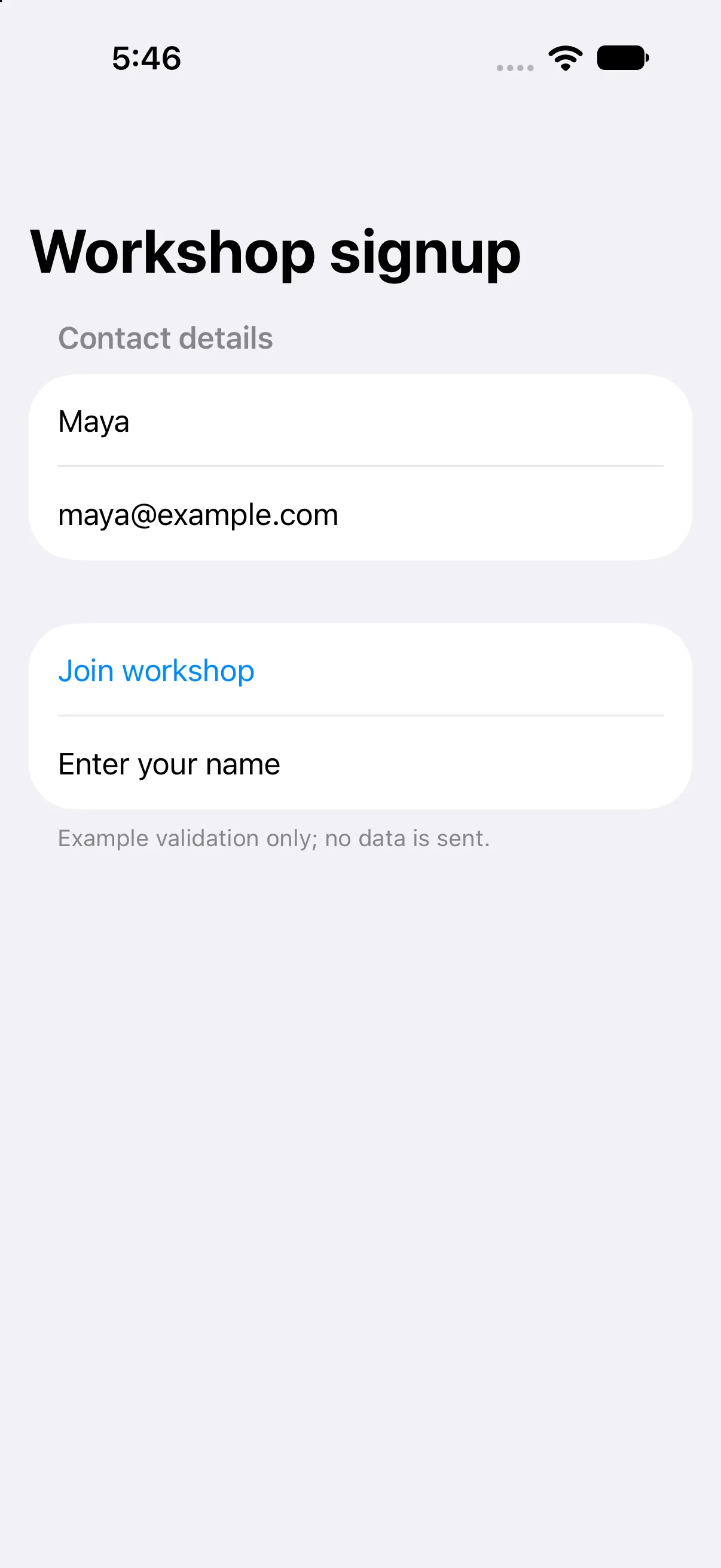
The automation enters Maya and maya@example.com into the actual fields, then dismisses the keyboard with Done. The fields retain their values because focus and text are separate state. This capture establishes the completed local draft before submission.
Validate and dismiss focus
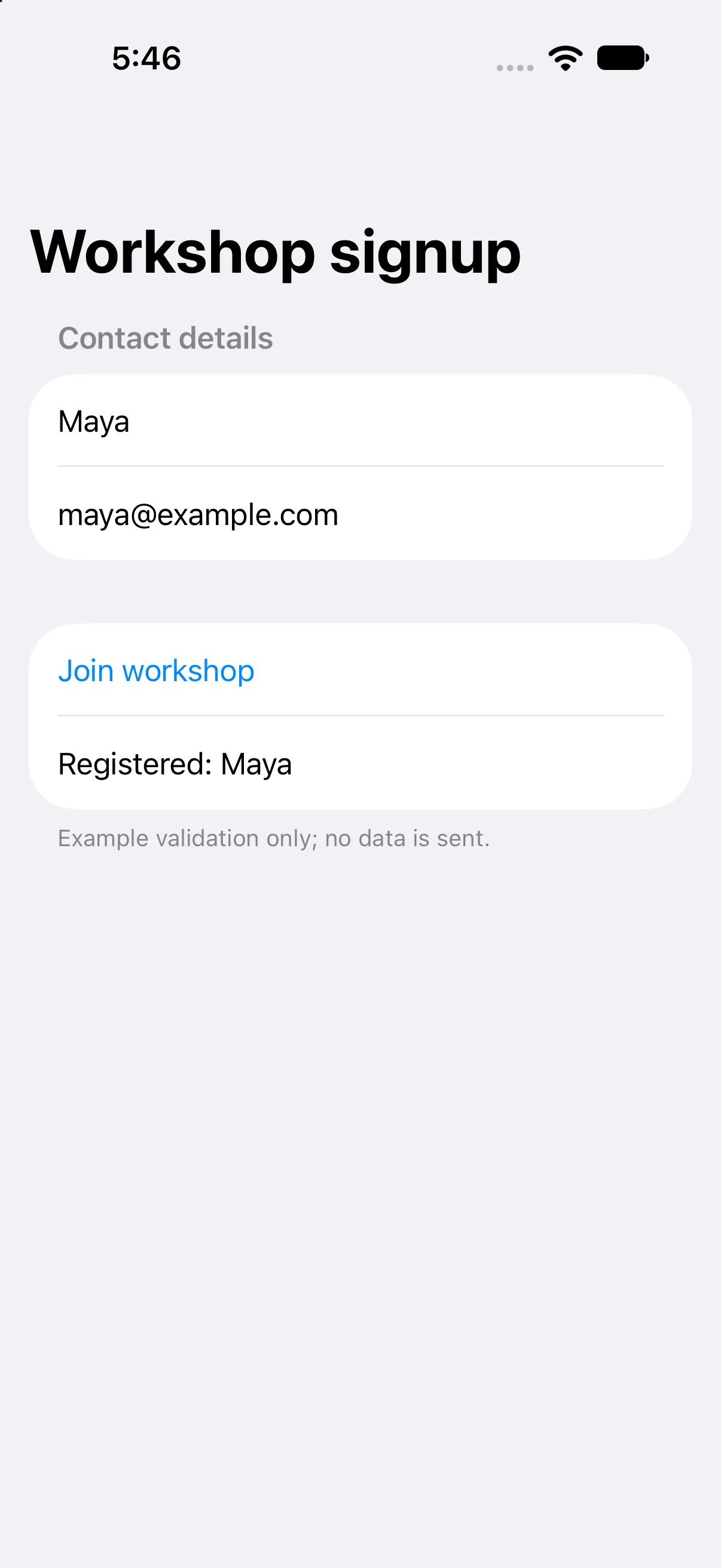
Press Join workshop. The helper validates the same current values, clears focus and displays Registered: Maya. This is local confirmation only; no workshop account or server record is created.
Check a failure at the right boundary
If your output differs, compare the current input values and the relevant action before changing project settings. Save the complete source, confirm the selected scheme and destination, and inspect the first build diagnostic if compilation fails. A successful build establishes valid source; the action-result checks establish the particular UI transitions shown here.
Practice variations below are proposed changes, not additional captured states. Keep input validation, state ownership and presentation decisions explicit as you extend the project.
Try a new case and explain the result
Add a maximum name length of 40 characters. Make both button availability and submit use the same rule.
Worked answer
Extend canSubmit with the trimmed name’s length check and keep the submit guard. Test an empty string, whitespace, 40 characters and 41 characters. Do not merely truncate the visible Text label while silently accepting a longer input value.
Check your understanding
Choose the explanation that follows from the worked example.
What to take forward
You built local text input, coordinated focus and guarded submission. Next, render larger collections with List and stable row identity.
Reaching the recap and completing the quizzes are separate milestones.