
How to Turn Off Always On Display on iOS 27
Open Display & Brightness > Always On Display and switch it off to make the locked screen go dark.
Step 1
Open Settings from the Home Screen
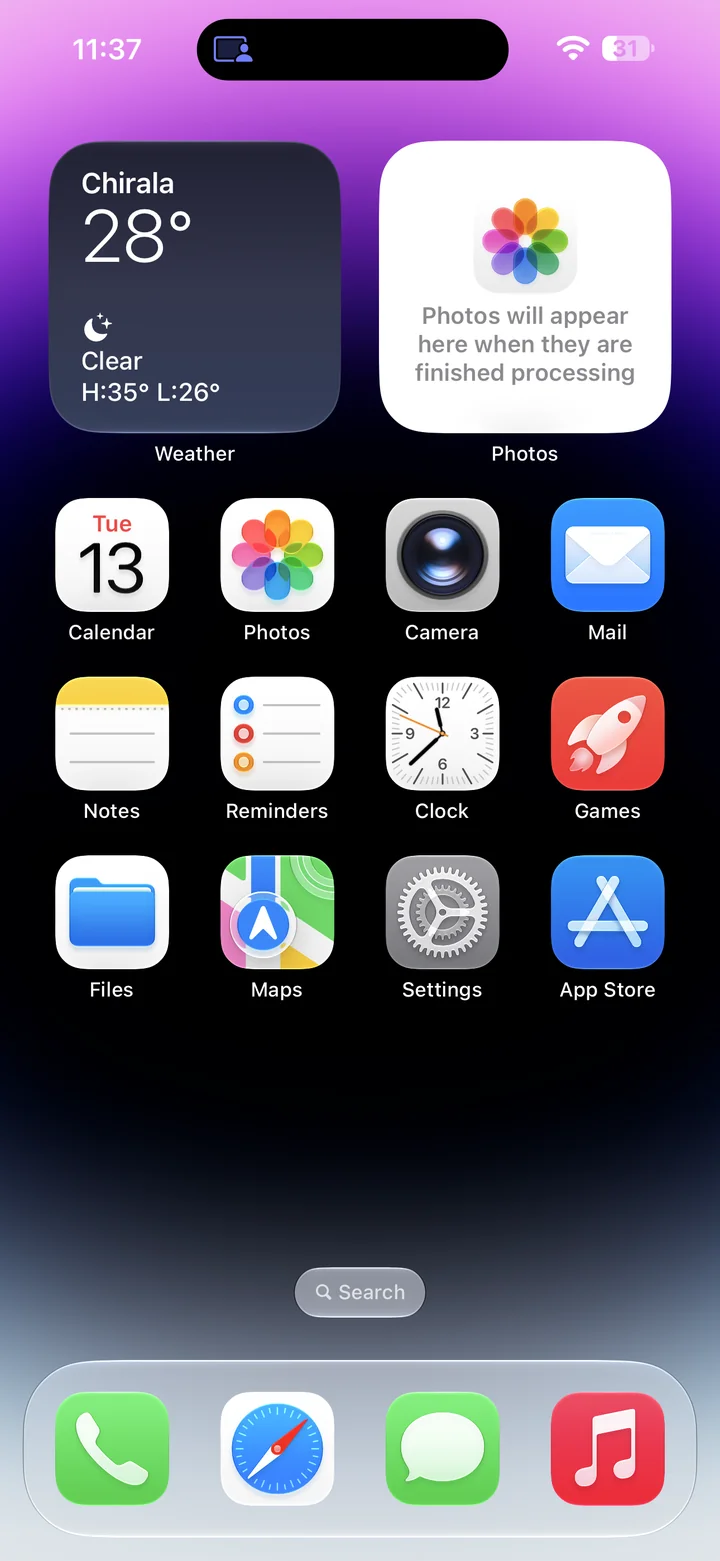
Before you begin: An unlocked iPhone running iOS 27 that supports Always On Display, such as iPhone 14 Pro Max.
Find and tap the Settings app on your Home Screen. Its icon looks like a gray gear.
Step 2
Open Display & Brightness
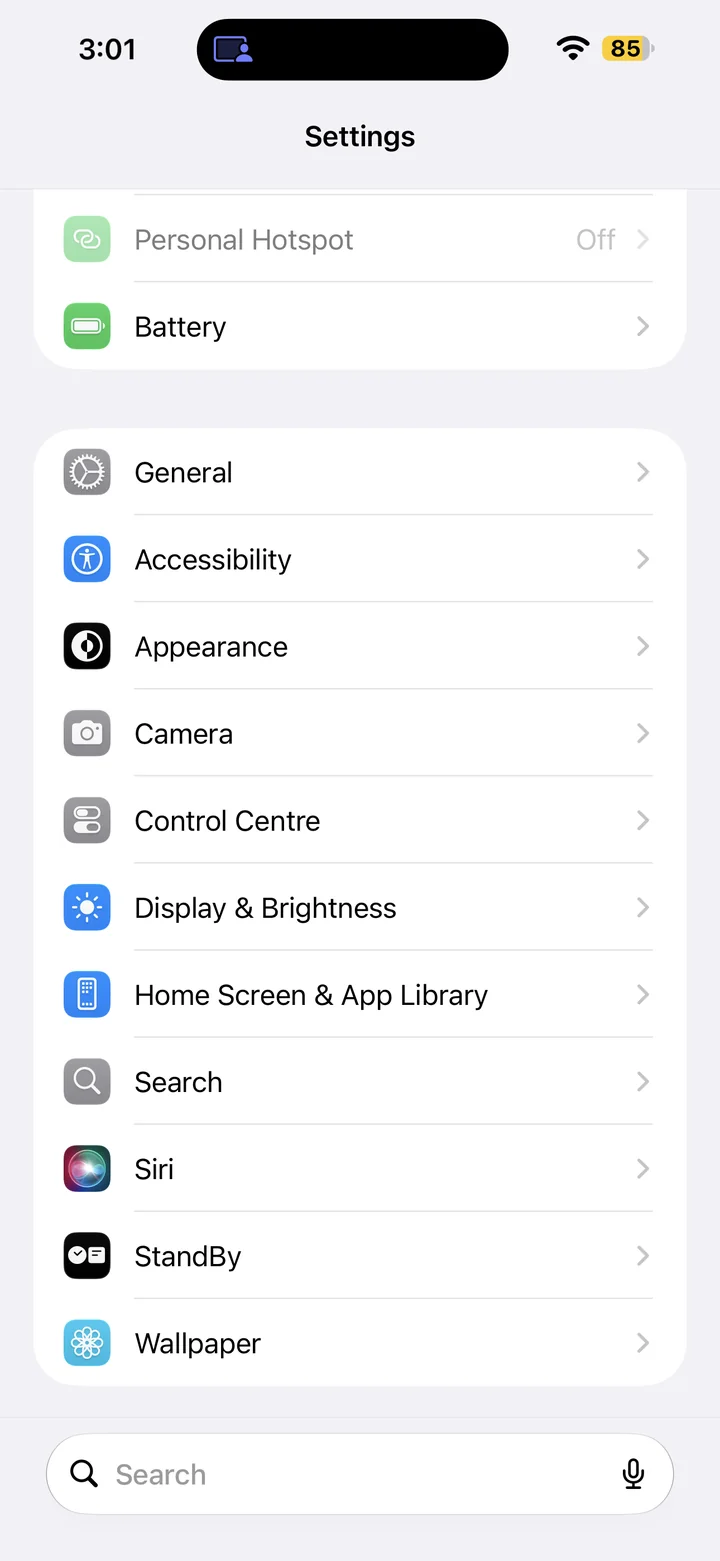
In Settings, scroll if needed and tap Display & Brightness.
Step 3
Open Always On Display
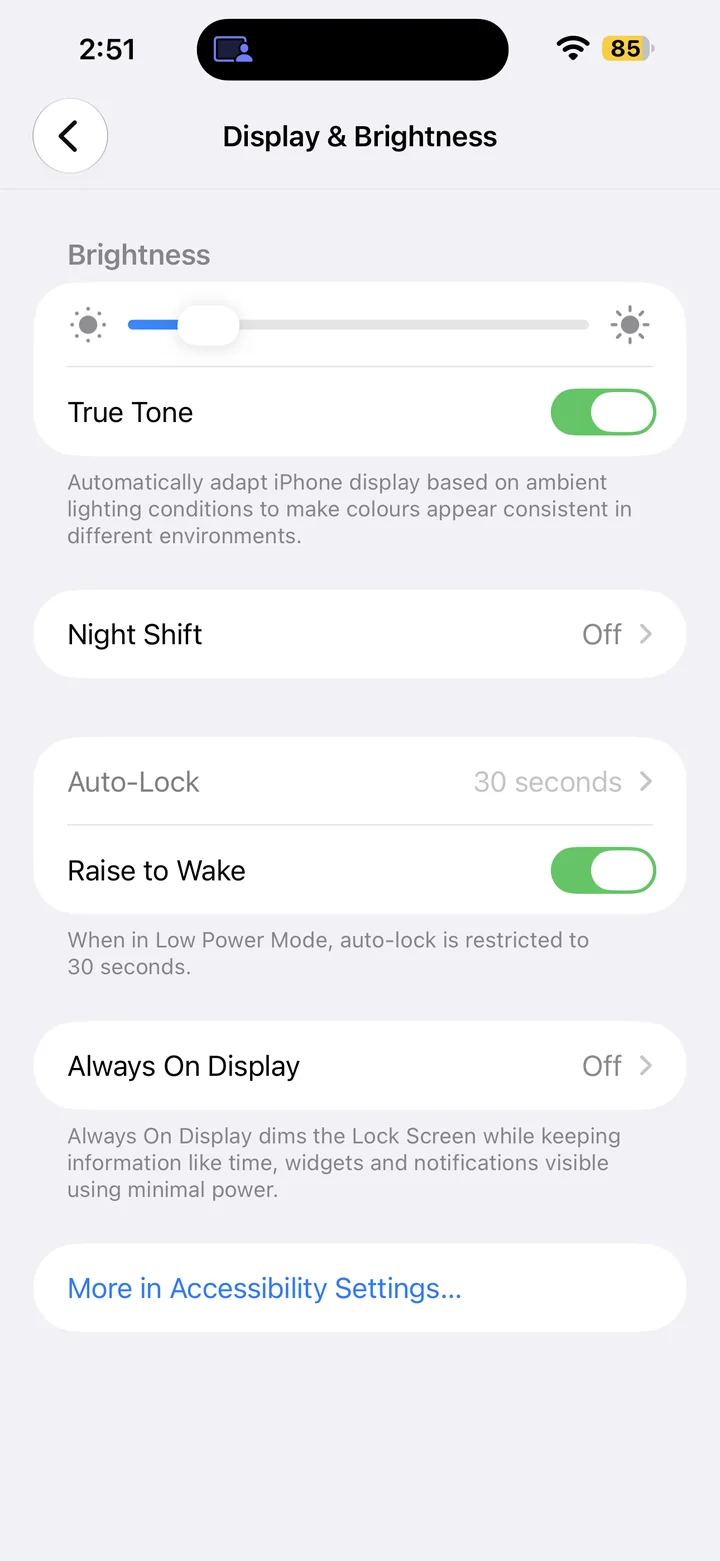
In Display & Brightness, tap Always On Display.
Step 4
Turn off Always On Display
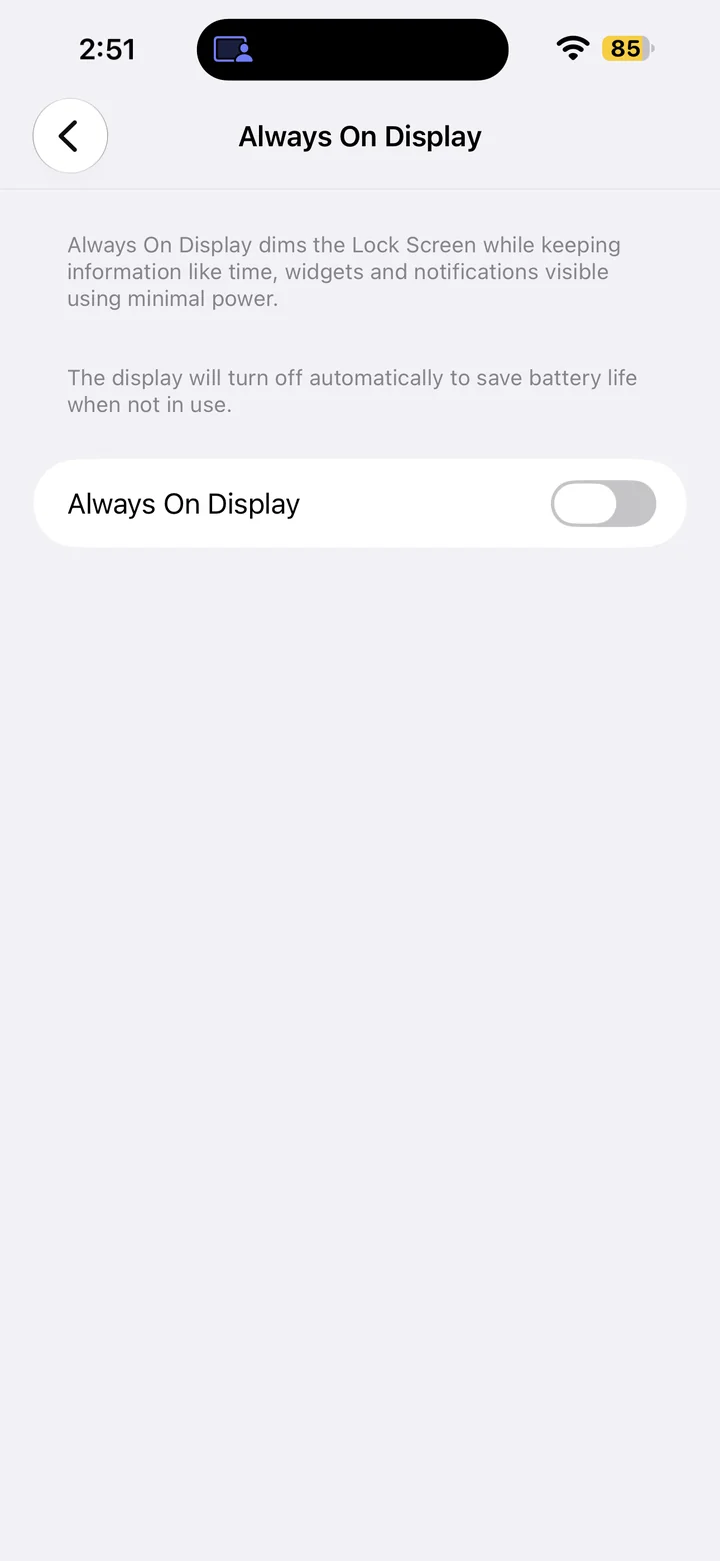
Turn Always On Display off. If the switch is already off, leave it off. Your locked screen will go dark; wake it normally when needed.
Reference
By ProgramGuru
Published: 2026-10-14
Updated: 2026-10-14
Instructions reviewed against Apple documentation on 2026-10-14.