
How to Show the Metal Performance HUD on iOS 27
Show the Metal Performance HUD on iOS 27 to inspect graphics performance in supported development and TestFlight apps.
Open Settings from the Home Screen
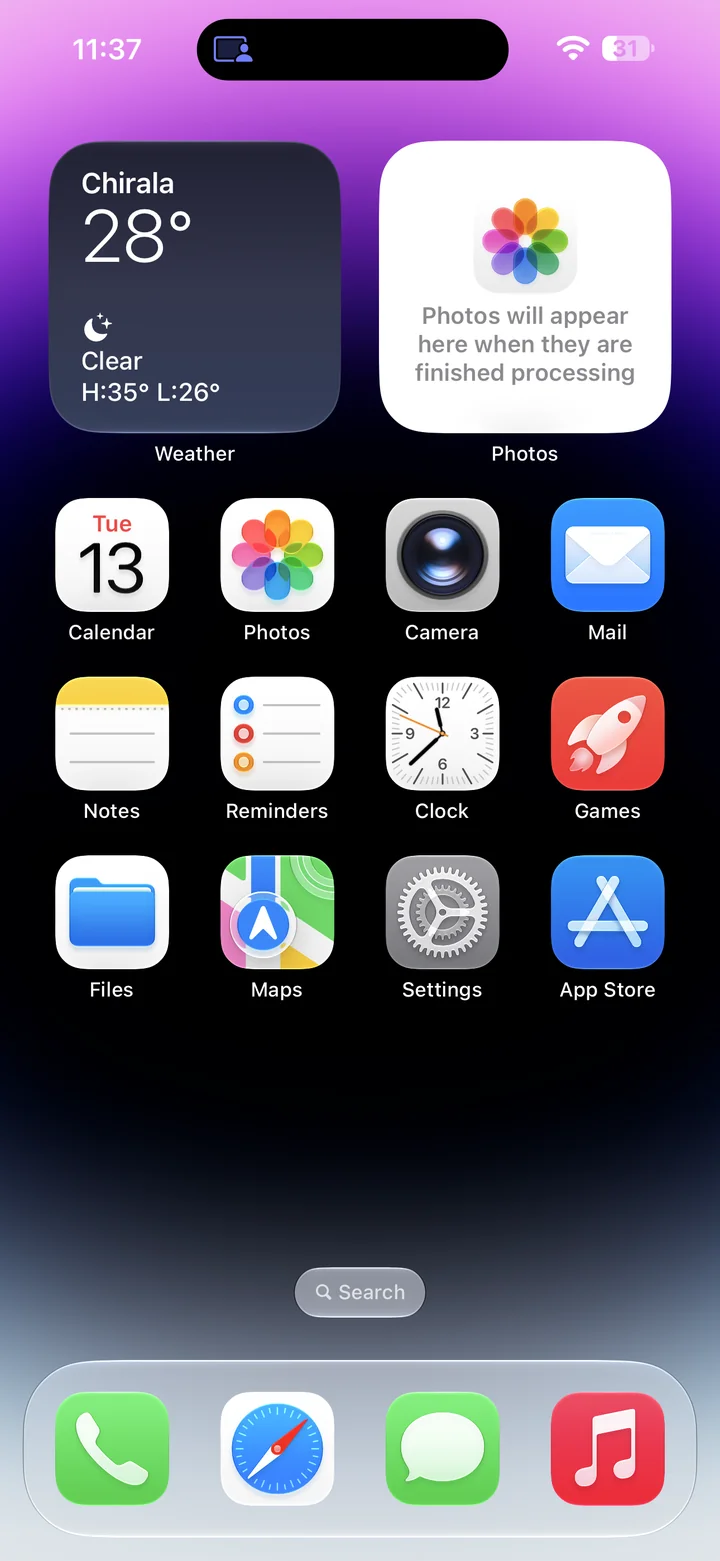
Before you begin: An unlocked iPhone running iOS 27, paired with Xcode, with Developer Mode enabled and Developer visible in Settings.
Find and tap the Settings app on your Home Screen. Its icon looks like a gray gear.
Open Developer in Settings
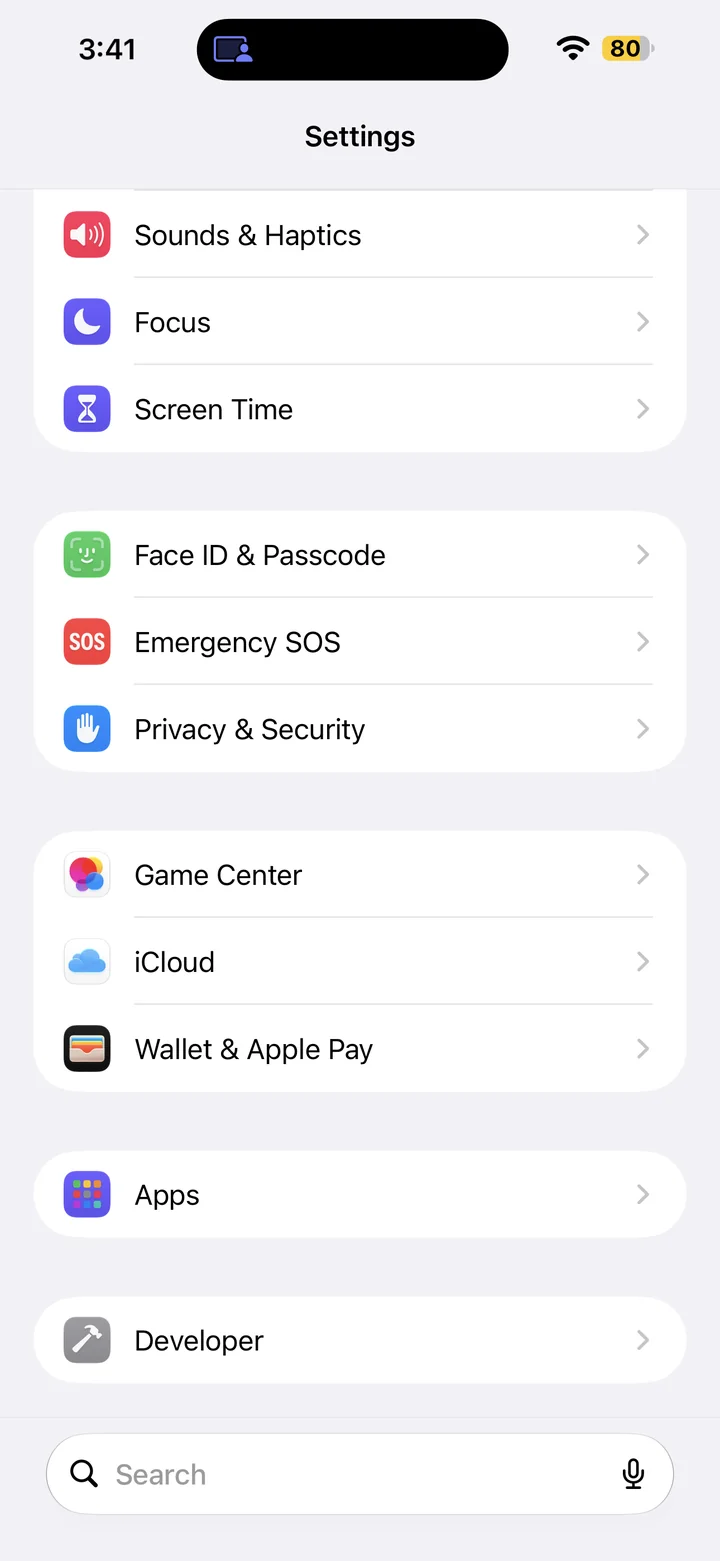
In Settings, scroll down and tap Developer.
Open Metal HUD
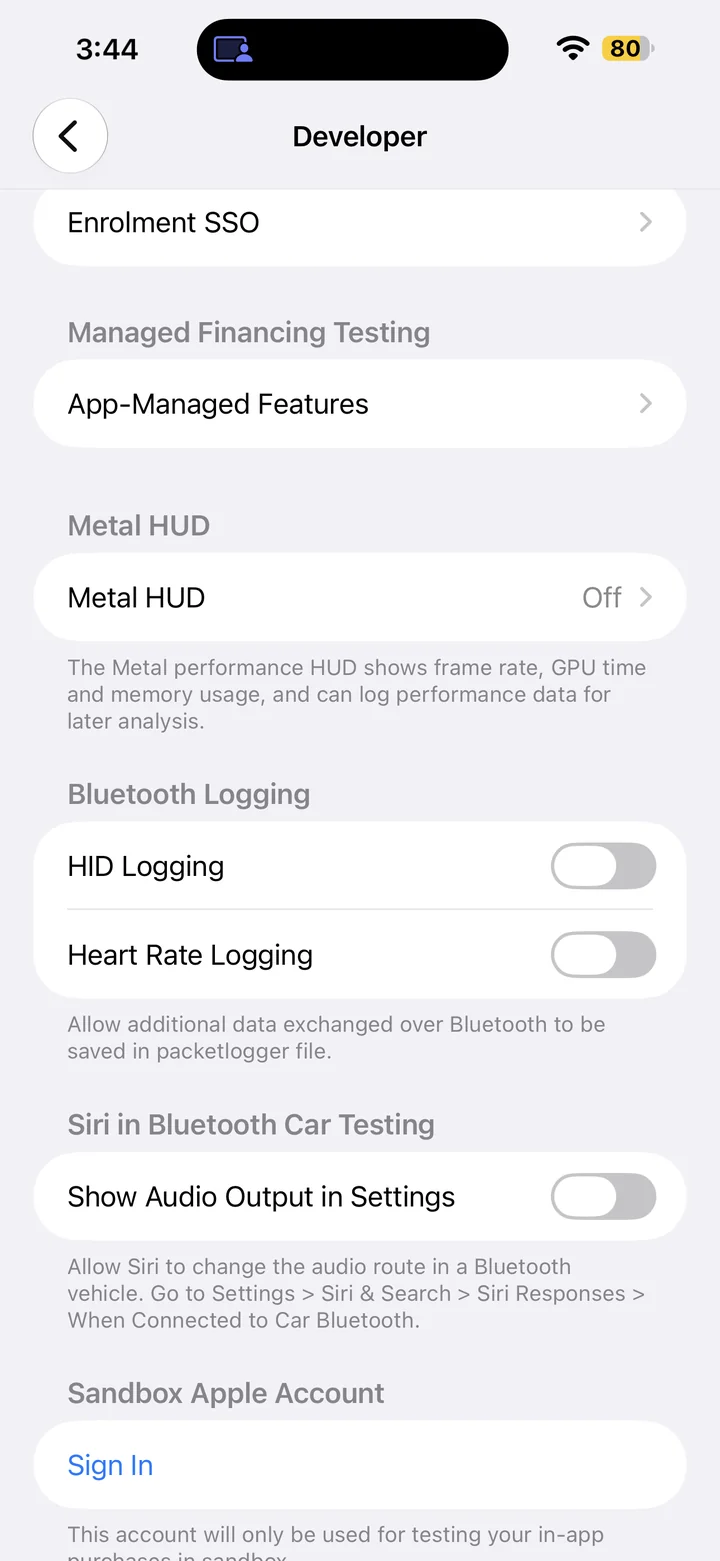
Scroll to Metal HUD.
Turn on Show Metal Performance HUD
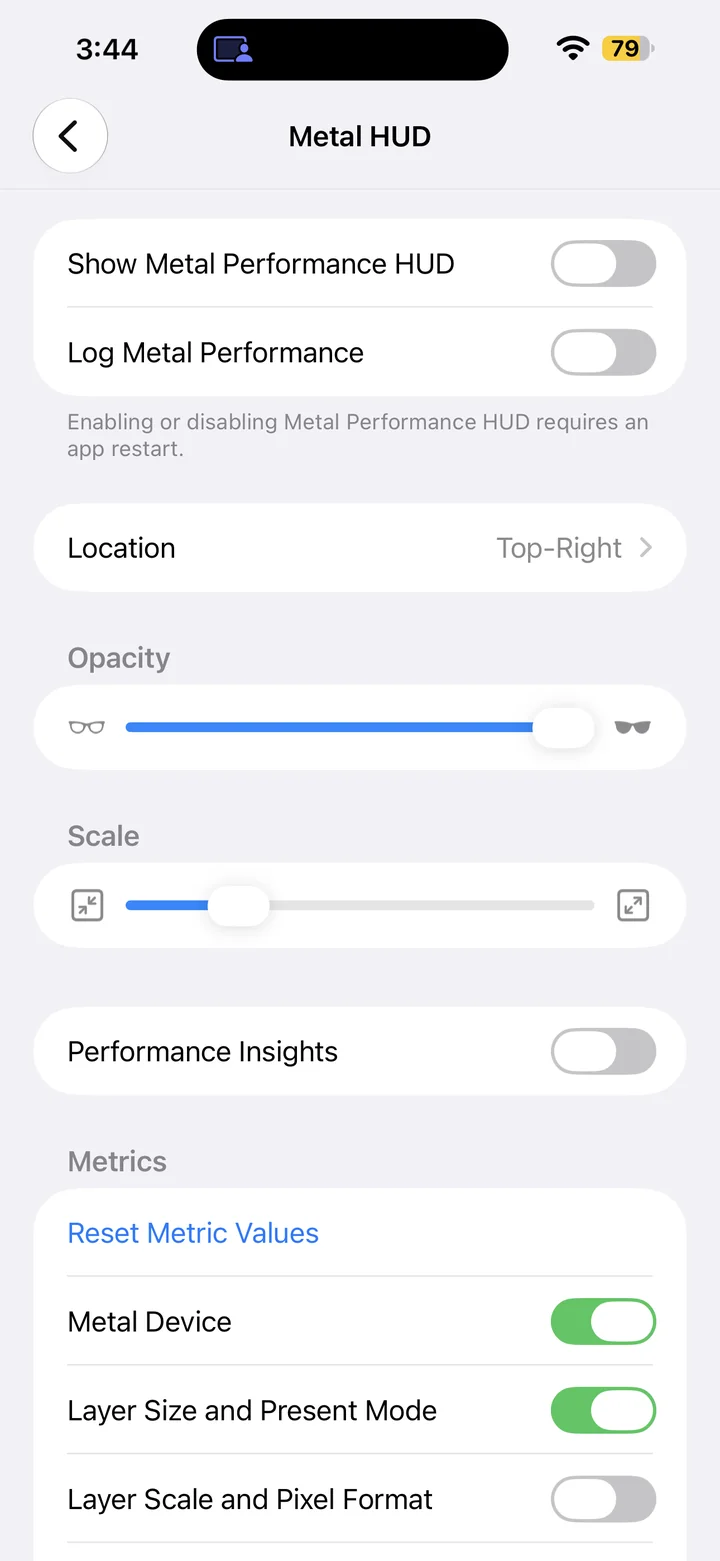
Turn Show Metal Performance HUD on. Restart the iPhone when required by the setting, then launch your development app to view its graphics performance overlay.
The HUD is intended for supported development and TestFlight apps; it may not appear in an ordinary App Store app. Turn it off here when you finish testing.
Reference
By ProgramGuru
Published: 2026-10-14
Updated: 2026-10-14
Instructions reviewed against Apple documentation on 2026-10-14.