
How to Enable Hang Detection on iOS 27
Enable Hang Detection in iPhone Developer settings to investigate unresponsive development-signed and TestFlight apps.
Open Settings from the Home Screen
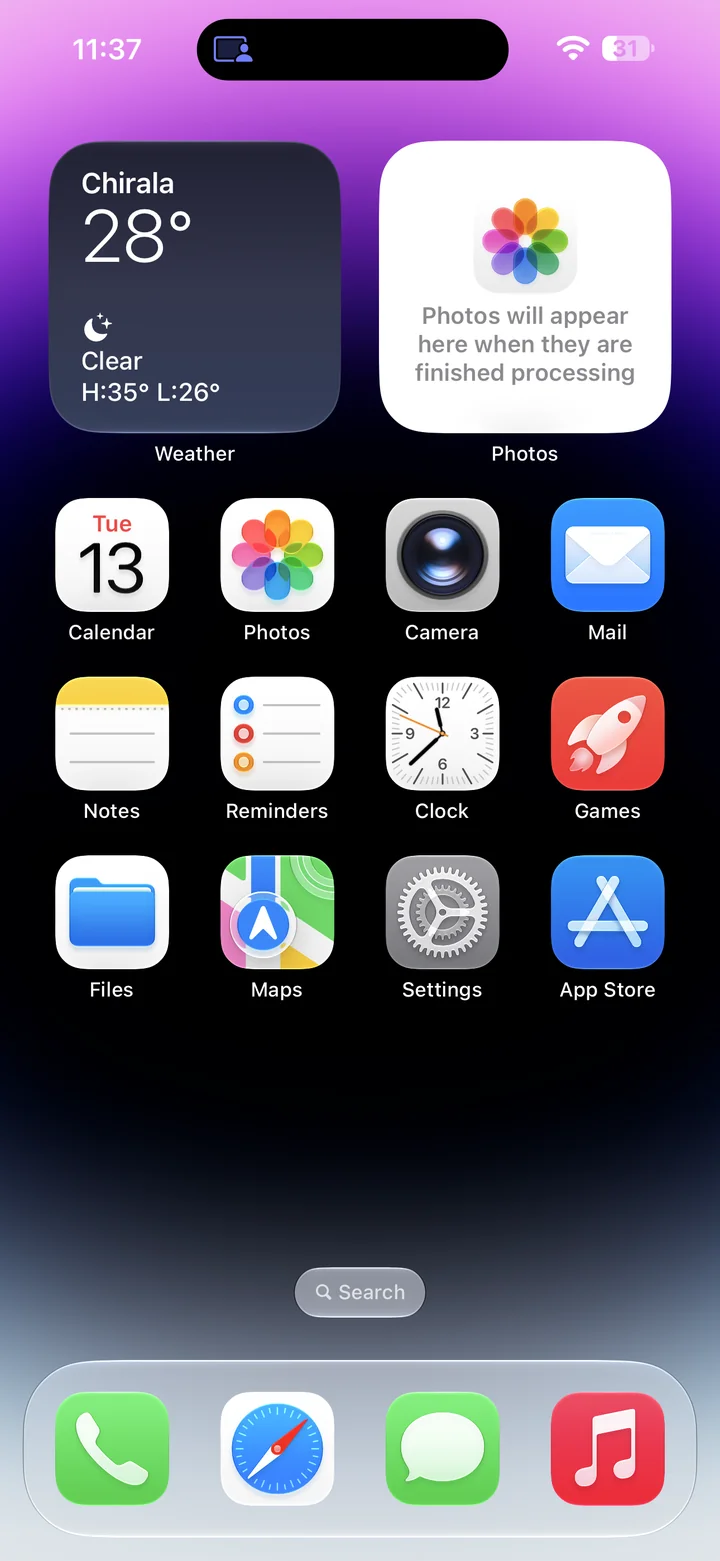
Before you begin: An unlocked iPhone running iOS 27, paired with Xcode, with Developer Mode enabled and Developer visible in Settings.
Find and tap the Settings app on your Home Screen. Its icon looks like a gray gear.
Open Developer in Settings
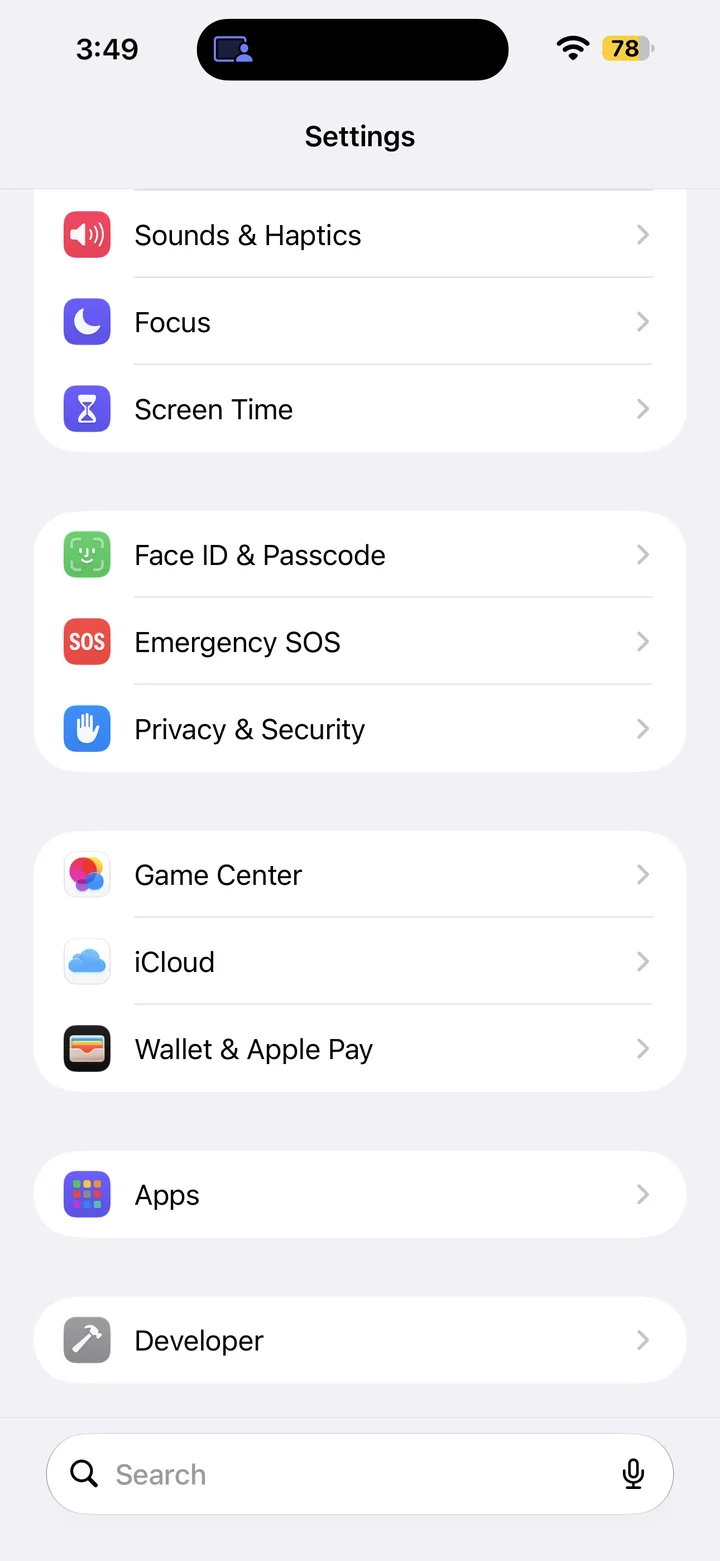
In Settings, scroll down and tap Developer.
Open Hang Detection
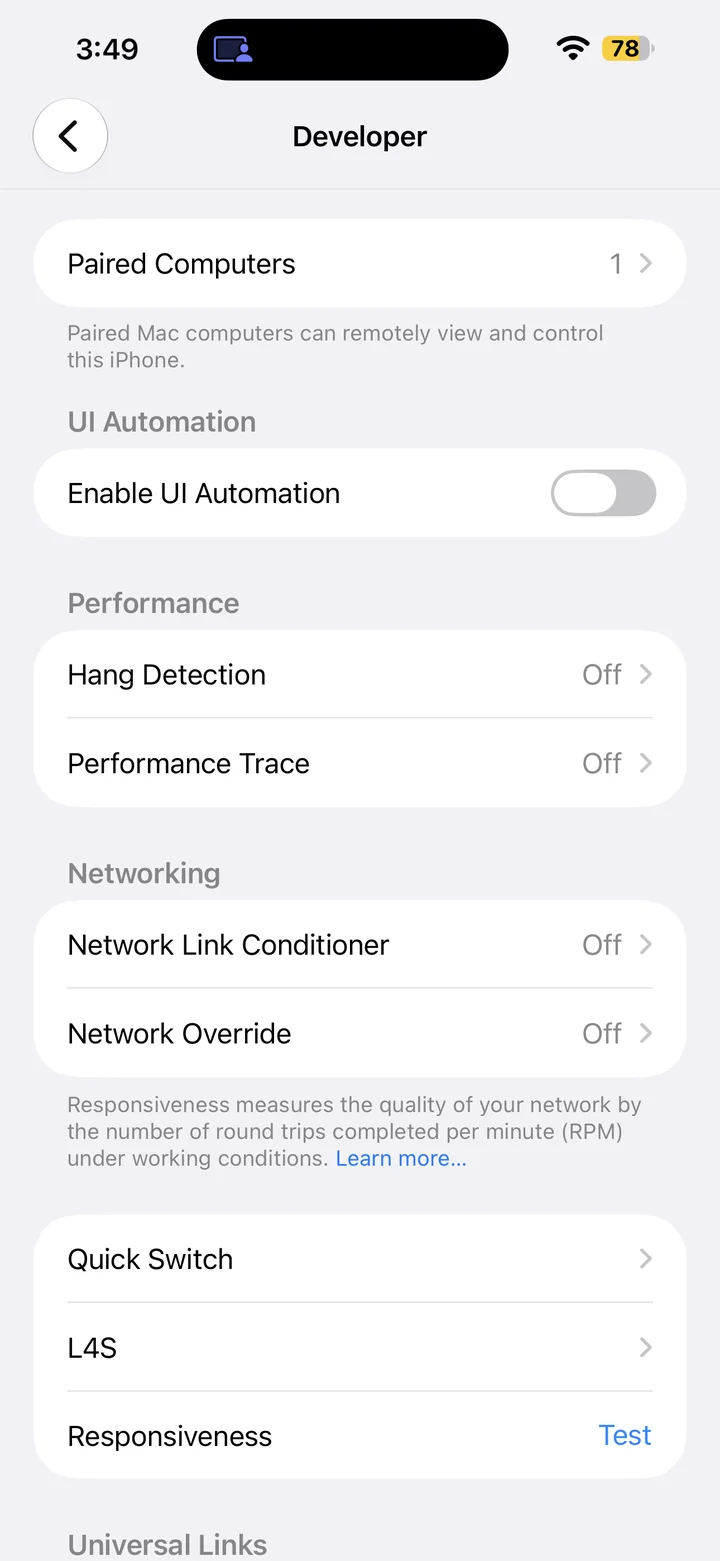
Scroll to Hang Detection.
Turn on Enable Hang Detection
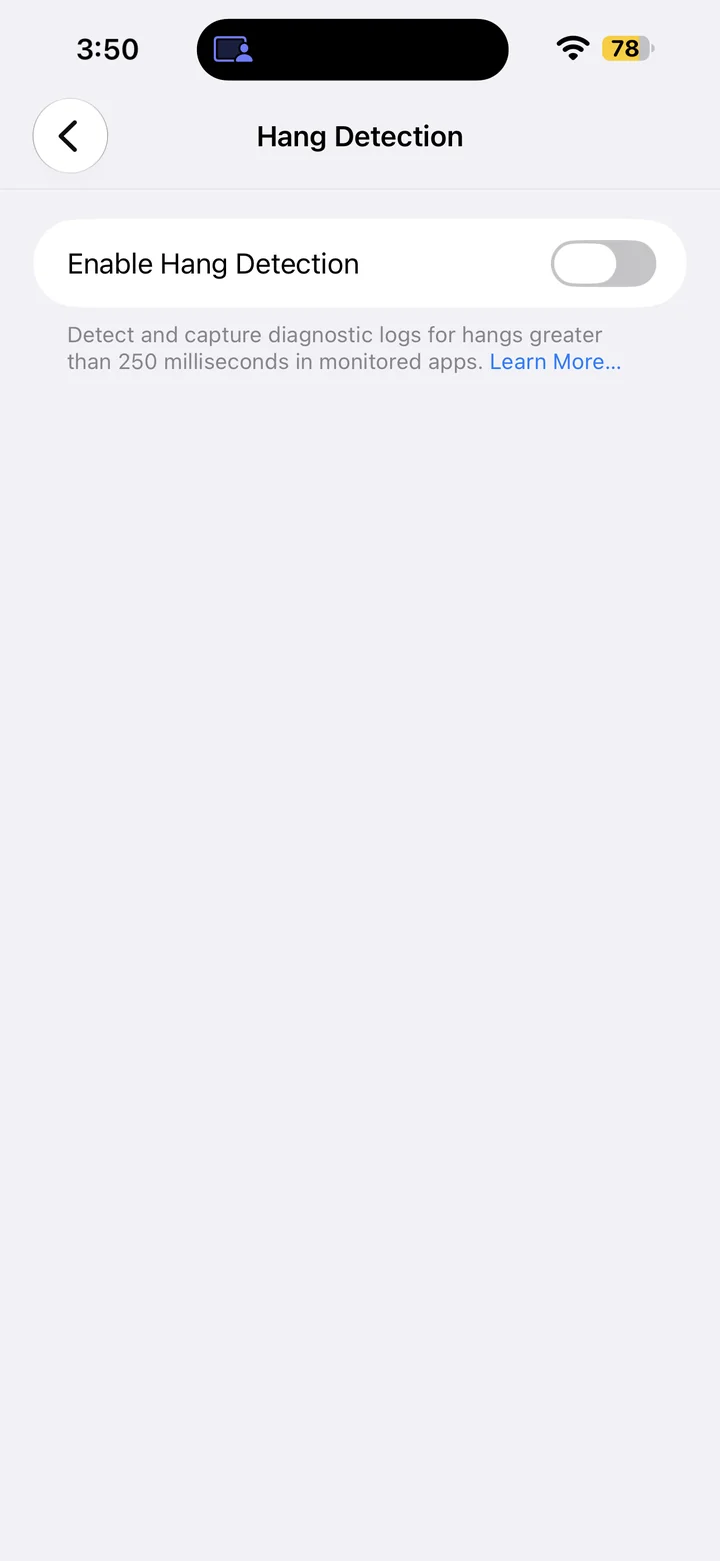
Turn Enable Hang Detection on, then use your development-signed or TestFlight app to reproduce an unresponsive interface.
On-device detection can notify you about hangs and capture reports for analysis on your Mac. Turn it off after your test if you no longer need the diagnostics.
Reference
By ProgramGuru
Published: 2026-10-14
Updated: 2026-10-14
Instructions reviewed against Apple documentation on 2026-10-14.