
How to Disable Night Shift on iOS 27
To turn off Night Shift, open Settings > Display & Brightness > Night Shift, then turn off Scheduled and Manually Enable Until Tomorrow.
Open Settings from the Home Screen
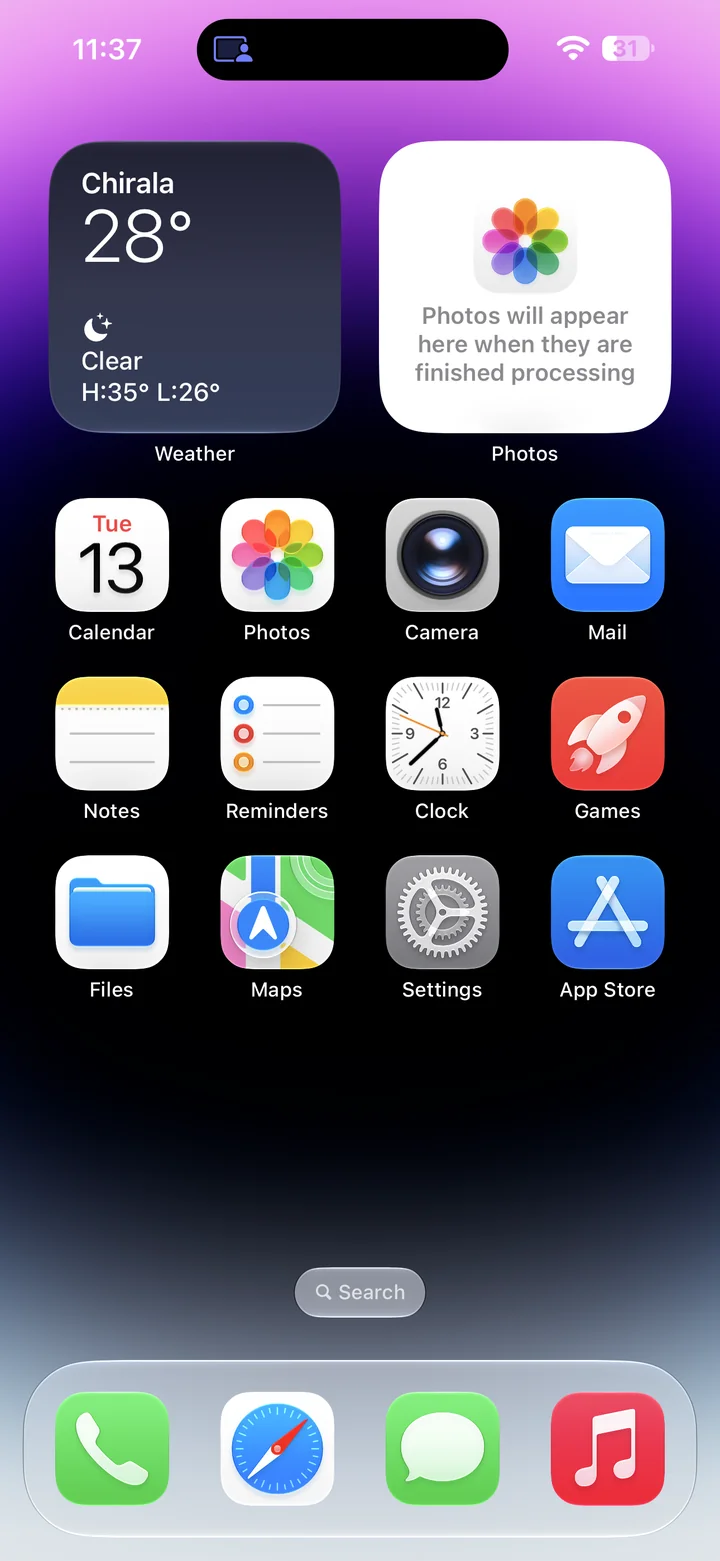
Before you begin: An unlocked iPhone running iOS 27.
Find and tap the Settings app on your Home Screen. Its icon looks like a gray gear.
Open Display & Brightness
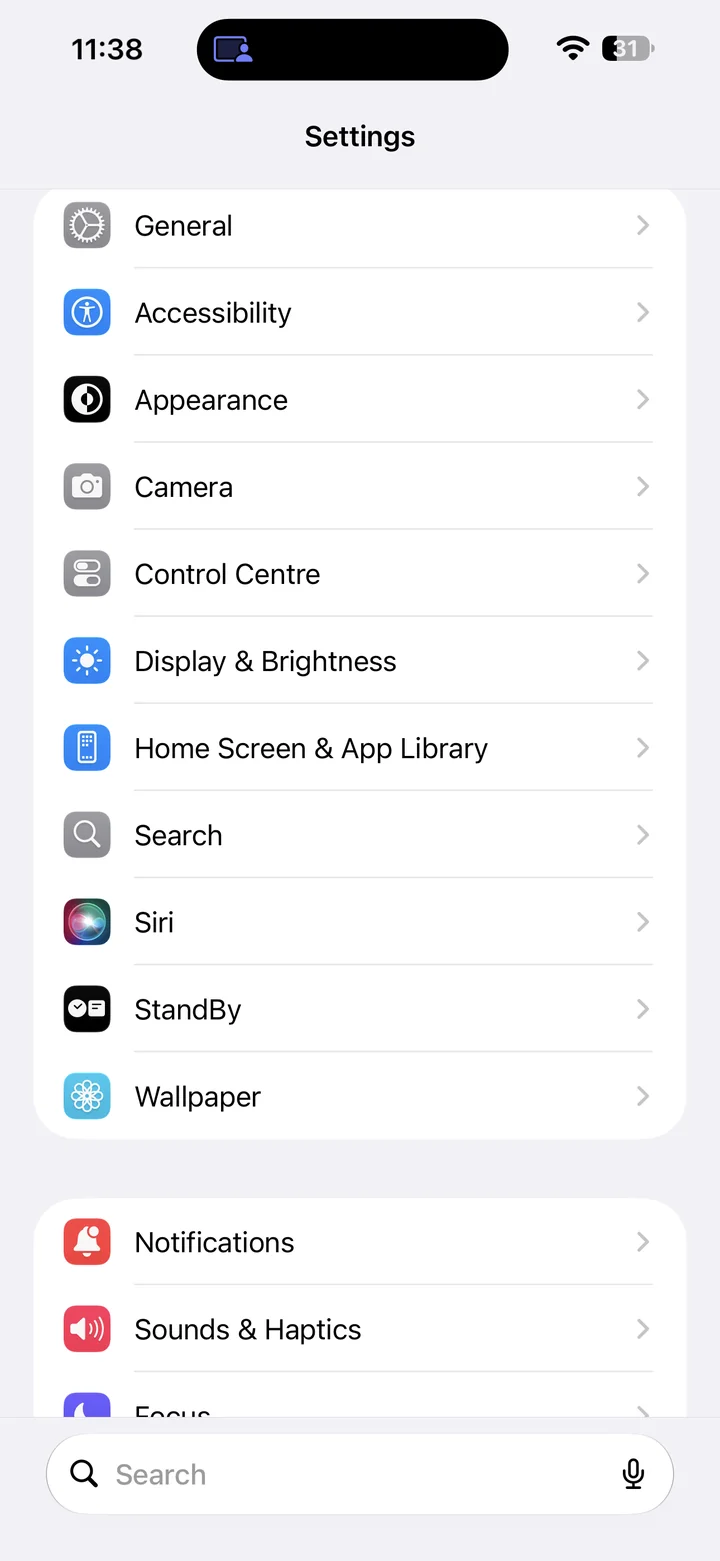
Open Settings on your iPhone, then tap Display & Brightness.
Open the Night Shift settings
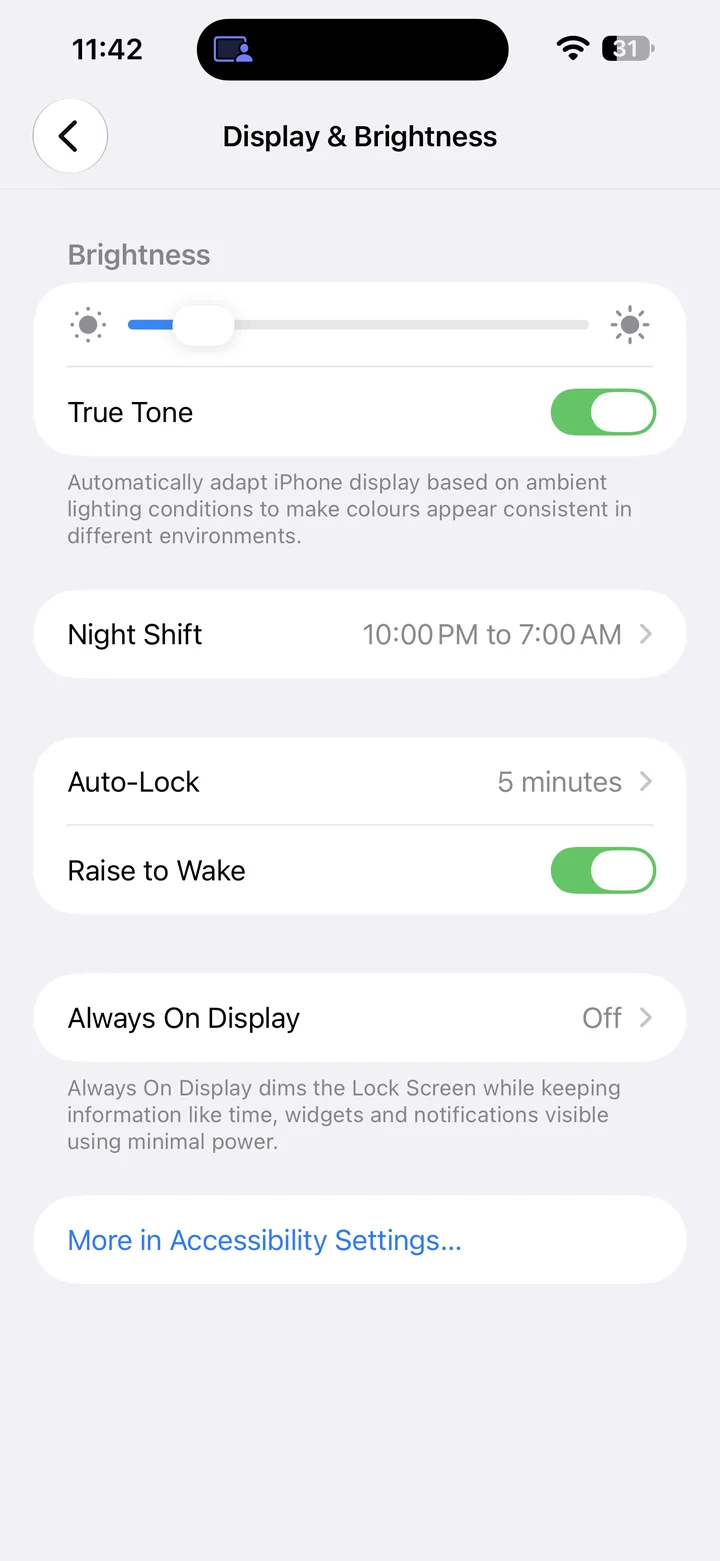
Tap Night Shift to see its schedule and manual control.
Night Shift changes the display toward warmer colors. Turning it off does not change your brightness setting.
Turn off the schedule and manual activation
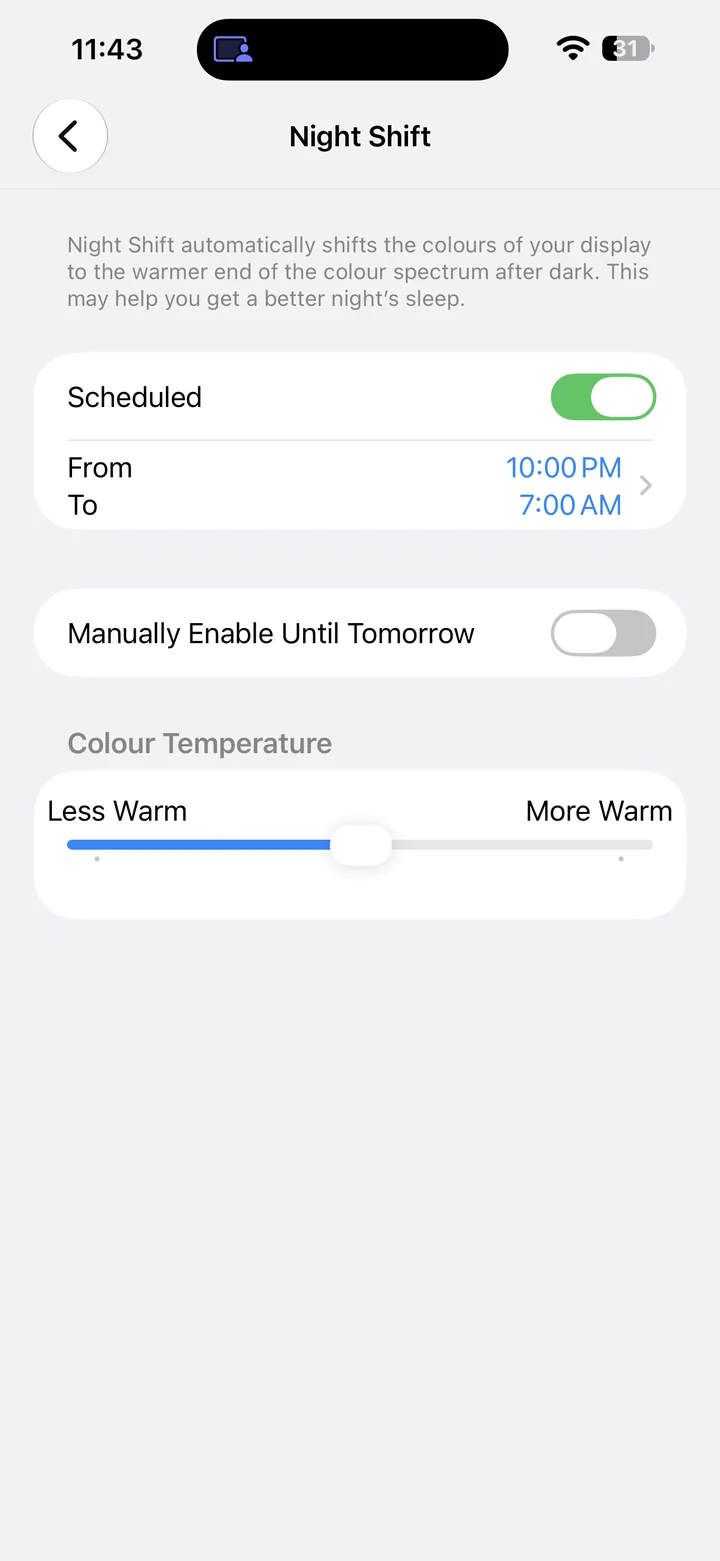
Switch Scheduled off so Night Shift will not activate on a timetable. If Manually Enable Until Tomorrow is on, switch that off too.
Confirm that both switches are off
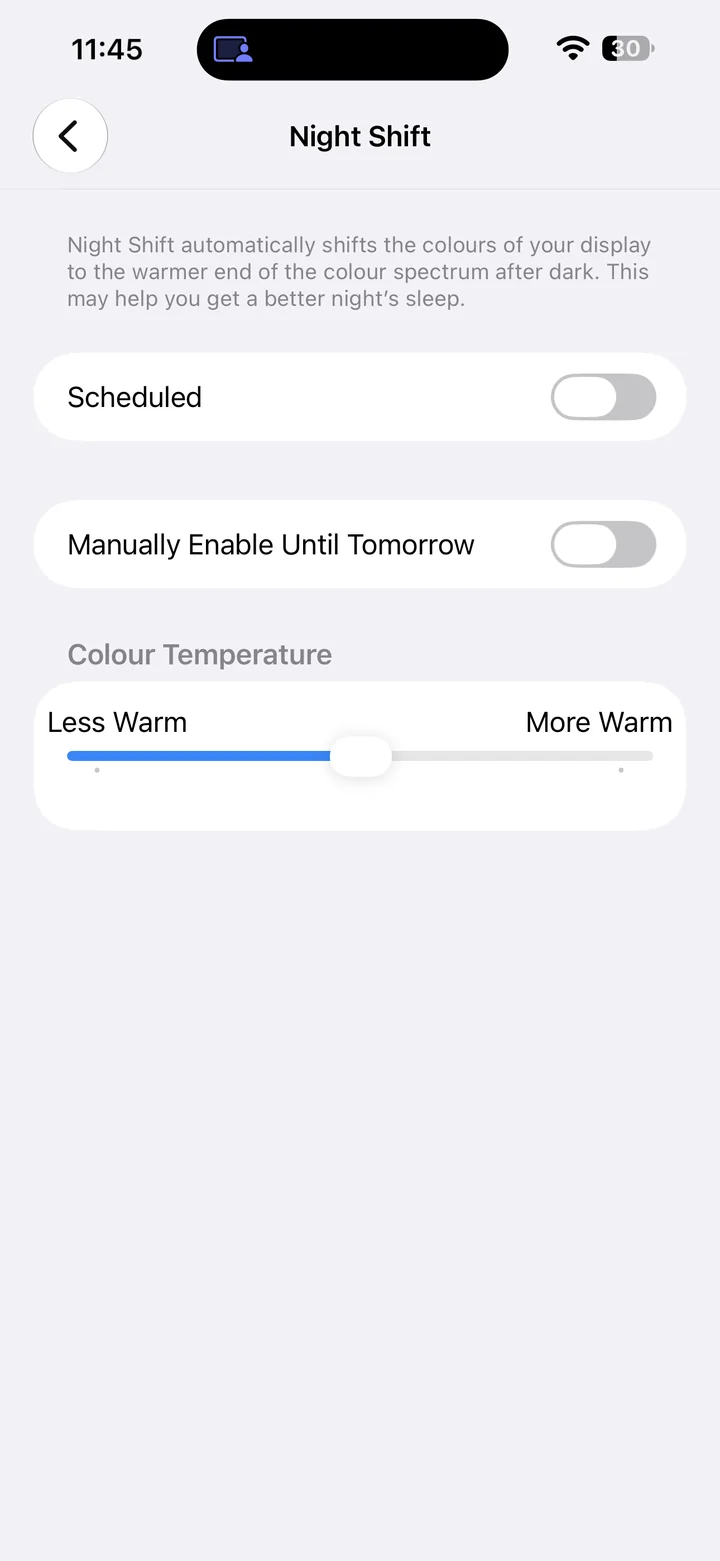
Check that Scheduled and Manually Enable Until Tomorrow are both off, as shown here. Night Shift will no longer turn on according to its schedule.
Reference
By ProgramGuru
Published: 2026-10-13
Updated: 2026-10-14
Instructions reviewed against Apple documentation on 2026-10-14.