
How to Reduce Motion on iOS 27
Turn on Reduce Motion to tone down interface movement and make your iPhone easier to use.
Step 1
Open Settings from the Home Screen
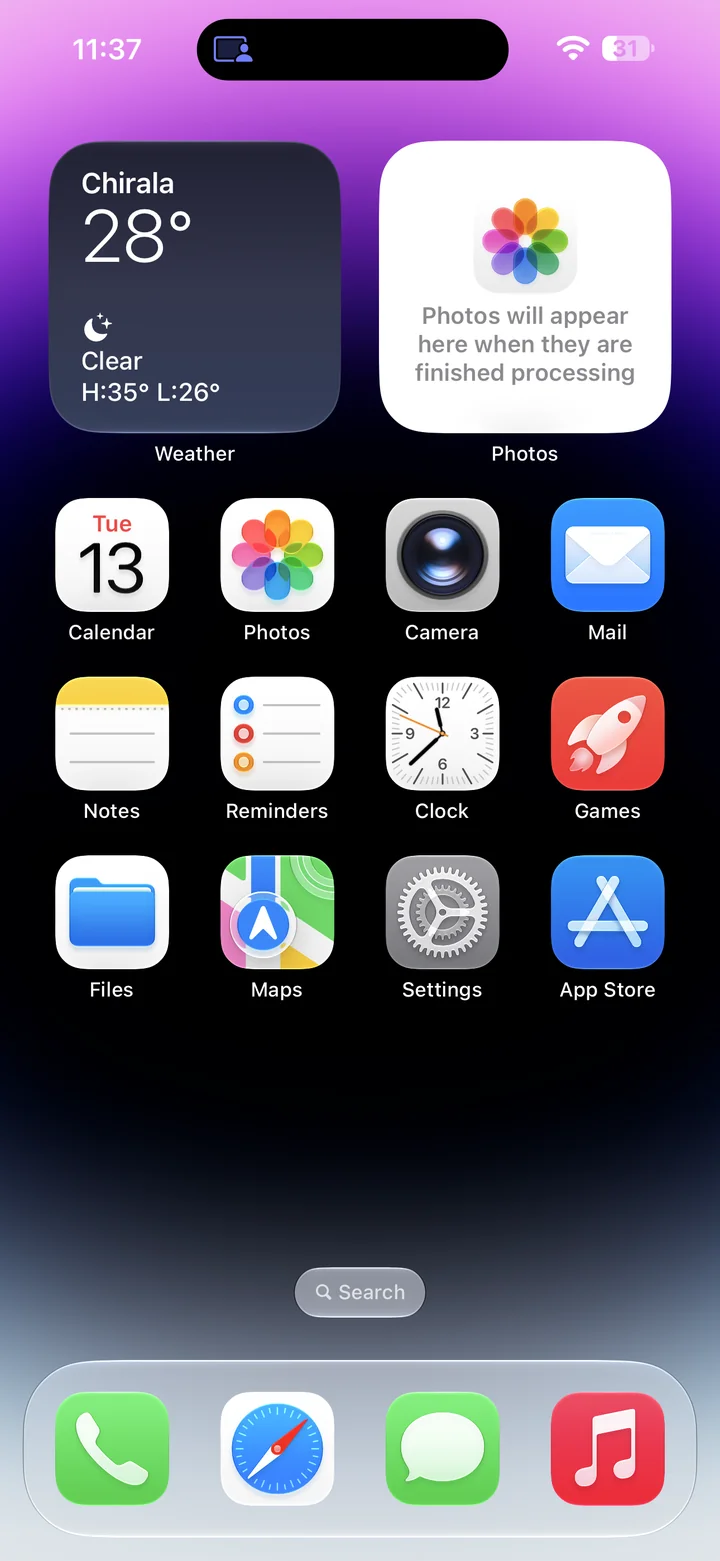
Before you begin: An unlocked iPhone running iOS 27.
Find and tap the Settings app on your Home Screen. Its icon looks like a gray gear.
Step 2
Open Appearance
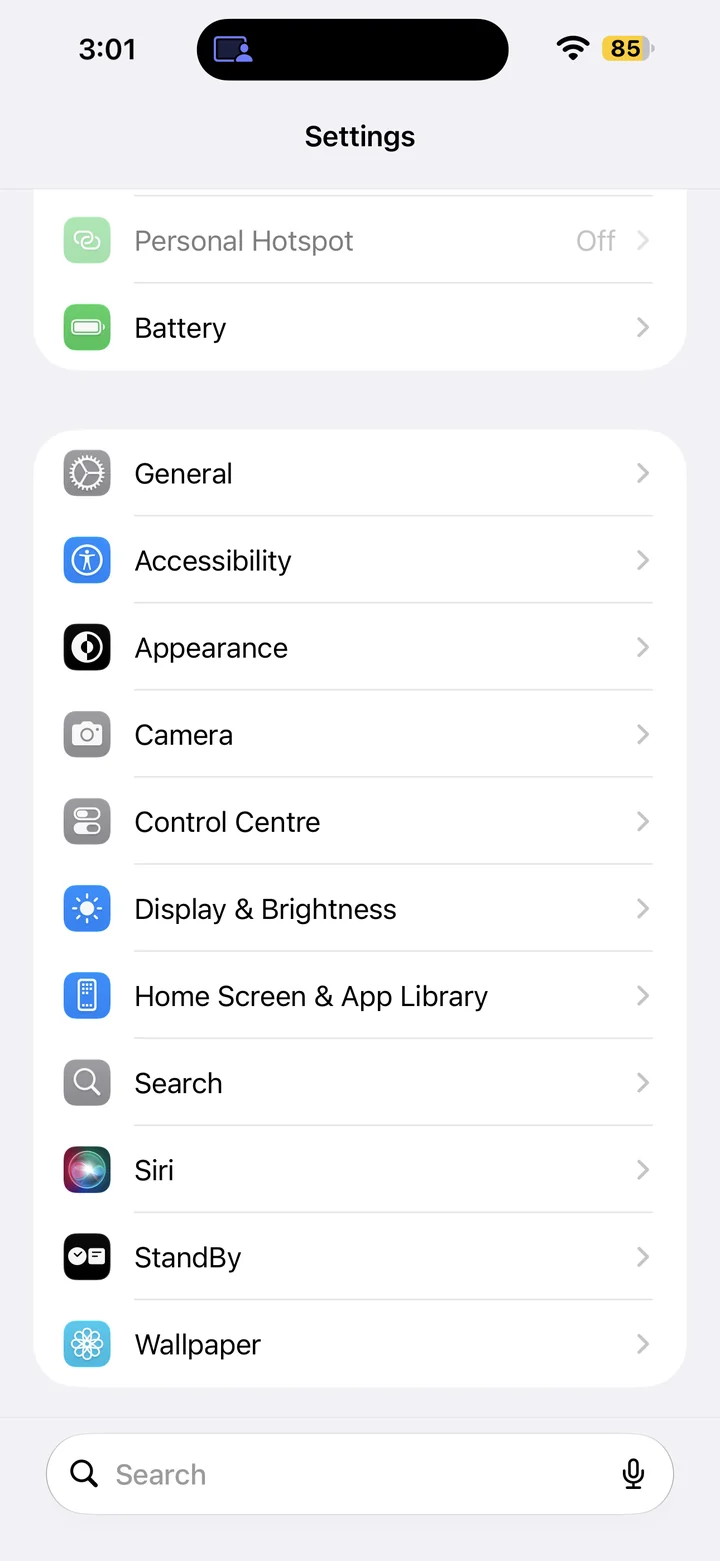
In Settings, scroll if needed and tap Appearance.
Step 3
Turn on Reduce Motion
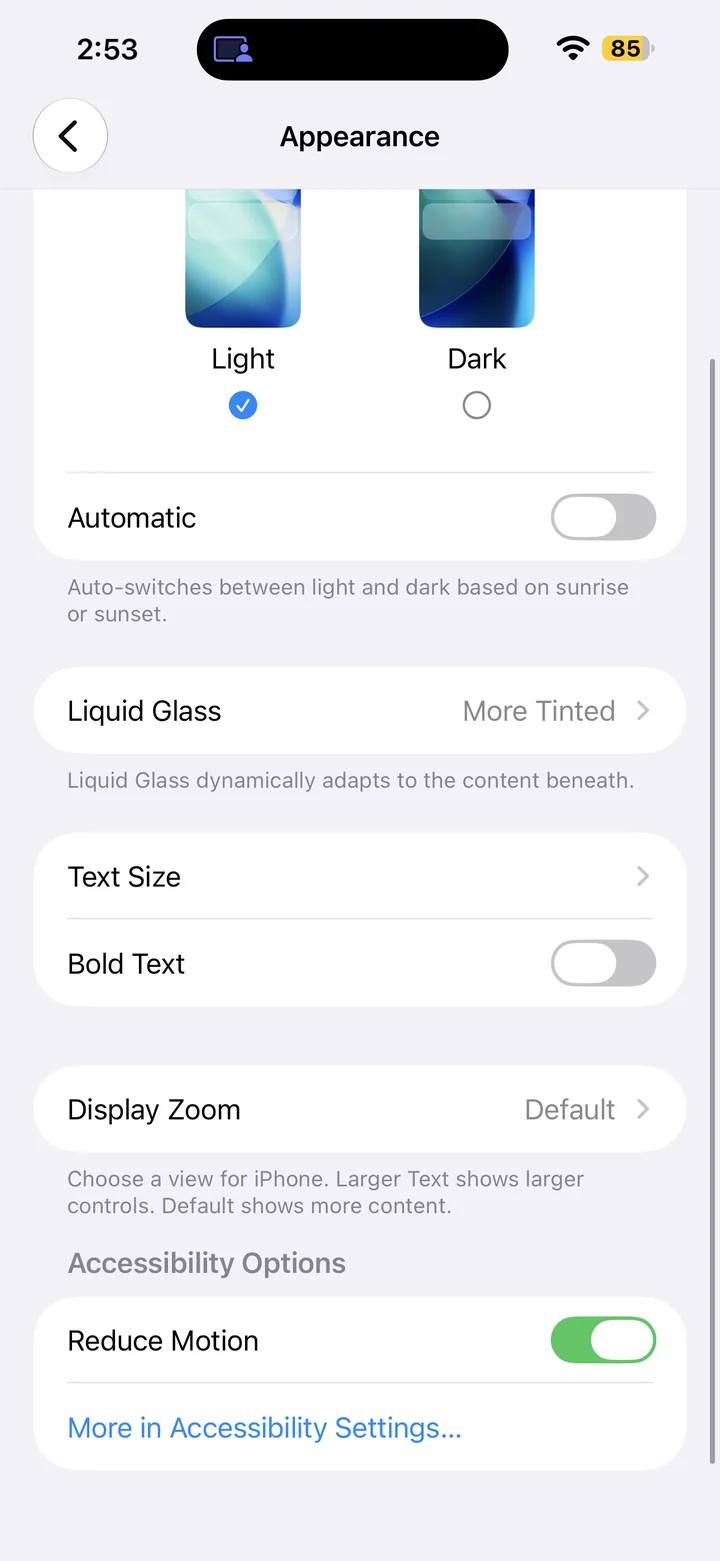
In Appearance, scroll to Reduce Motion. Turn it on to reduce interface animation. If it is already on, no change is needed.
Reference
By ProgramGuru
Published: 2026-10-14
Updated: 2026-10-14
Instructions reviewed against Apple documentation on 2026-10-14.