
How to Change Auto-Lock Time on iOS 27
Open Settings > Display & Brightness > Auto-Lock and choose a duration. If only 30 seconds is available, turn off Low Power Mode first.
Open Settings from the Home Screen
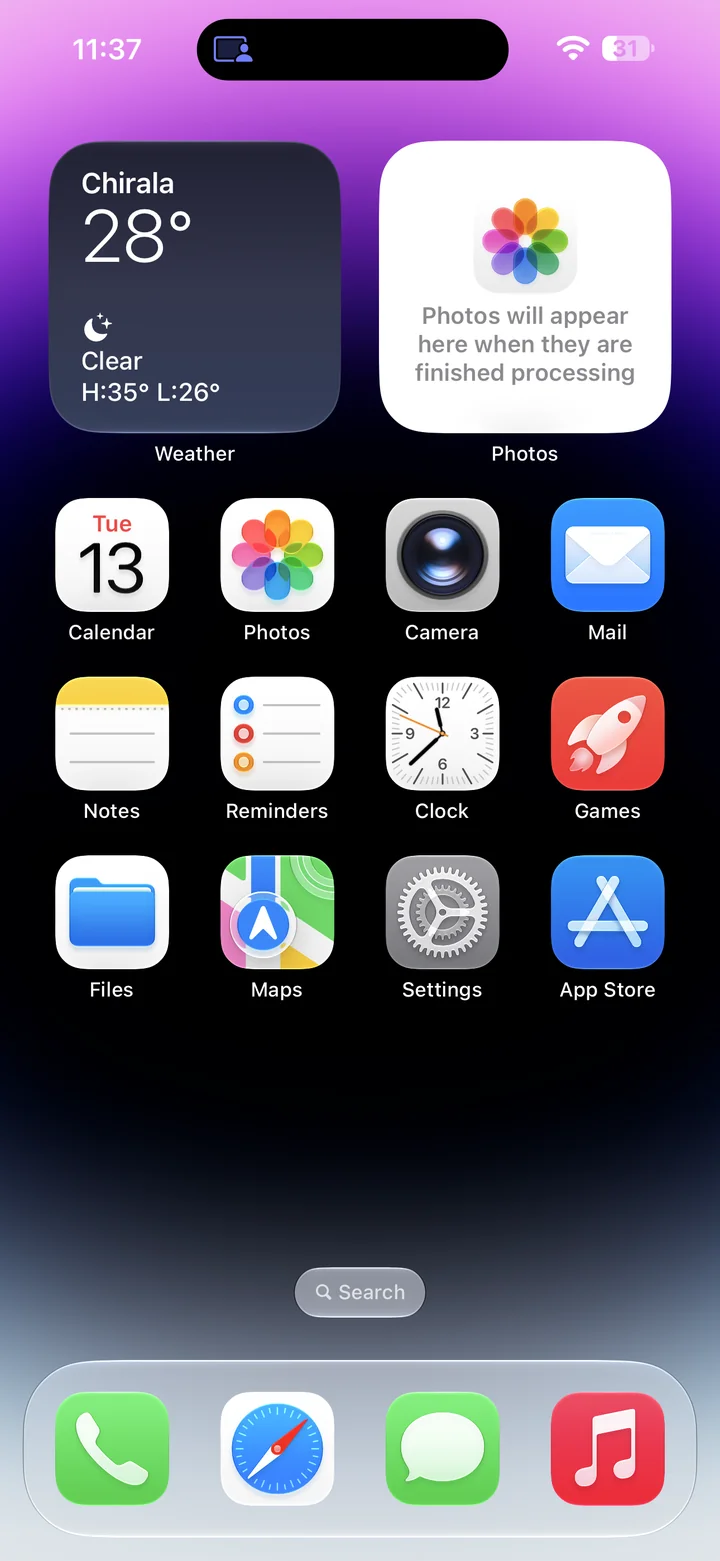
Before you begin: An unlocked iPhone running iOS 27.
Find and tap the Settings app on your Home Screen. Its icon looks like a gray gear.
Open Display & Brightness
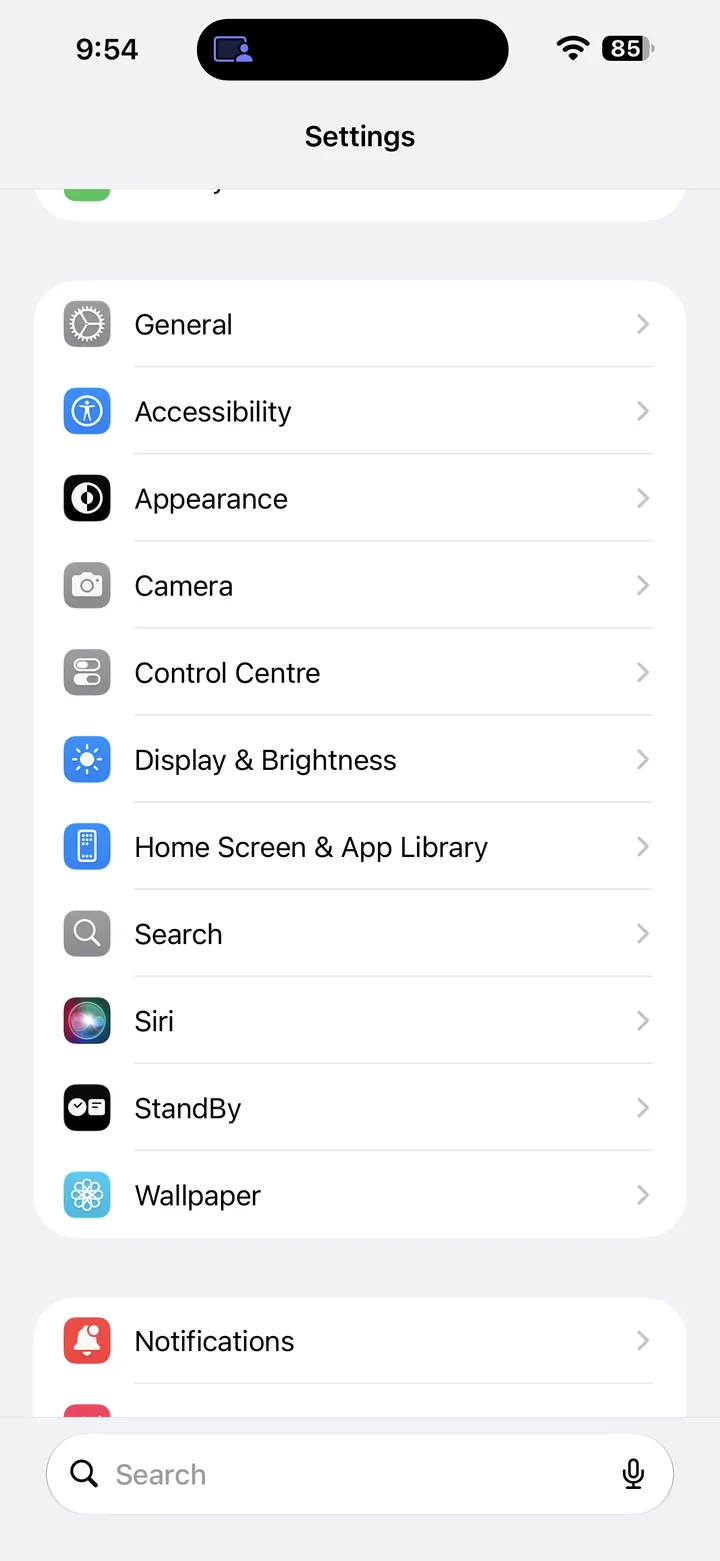
Open Settings on your iPhone, then tap Display & Brightness.
Open Auto-Lock
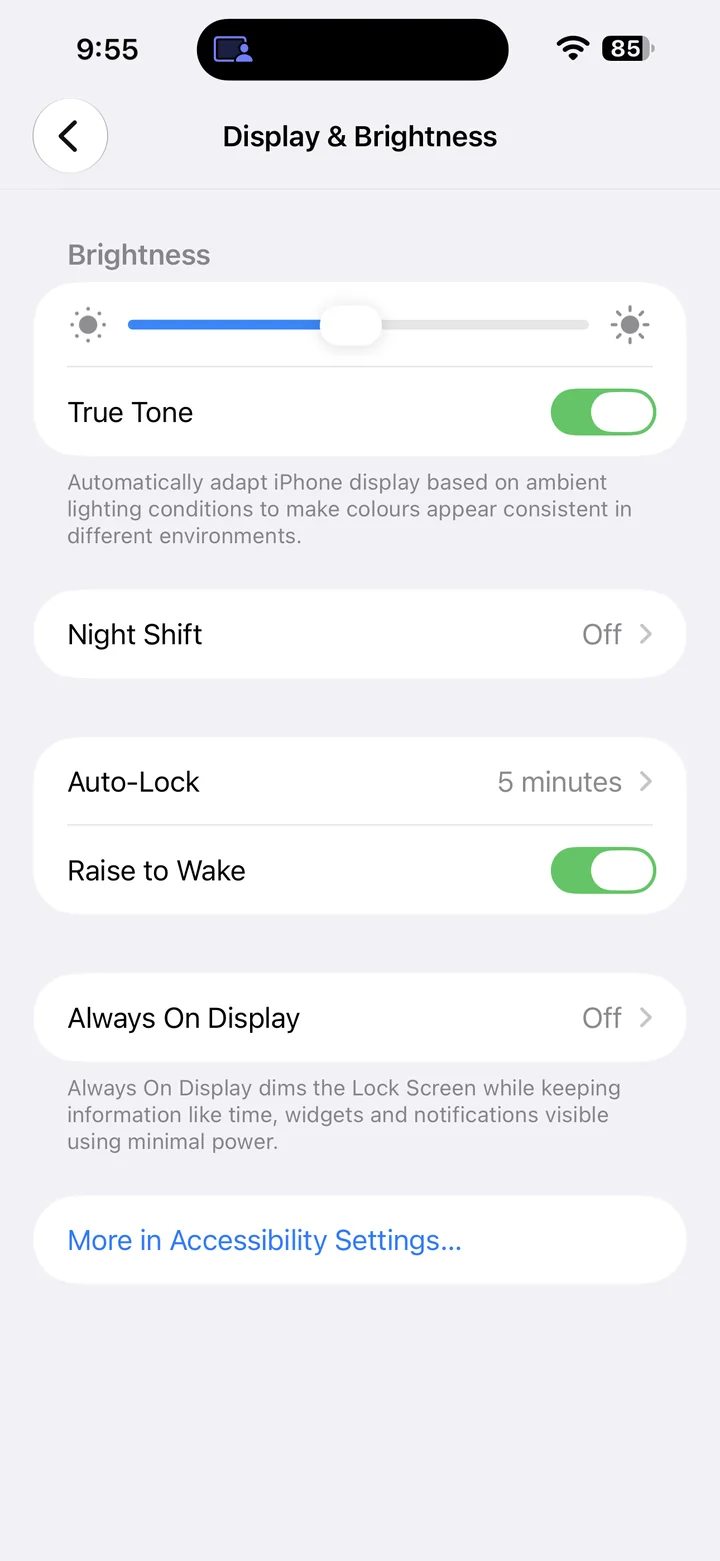
Tap Auto-Lock. The current delay appears next to the setting.
Choose your preferred delay
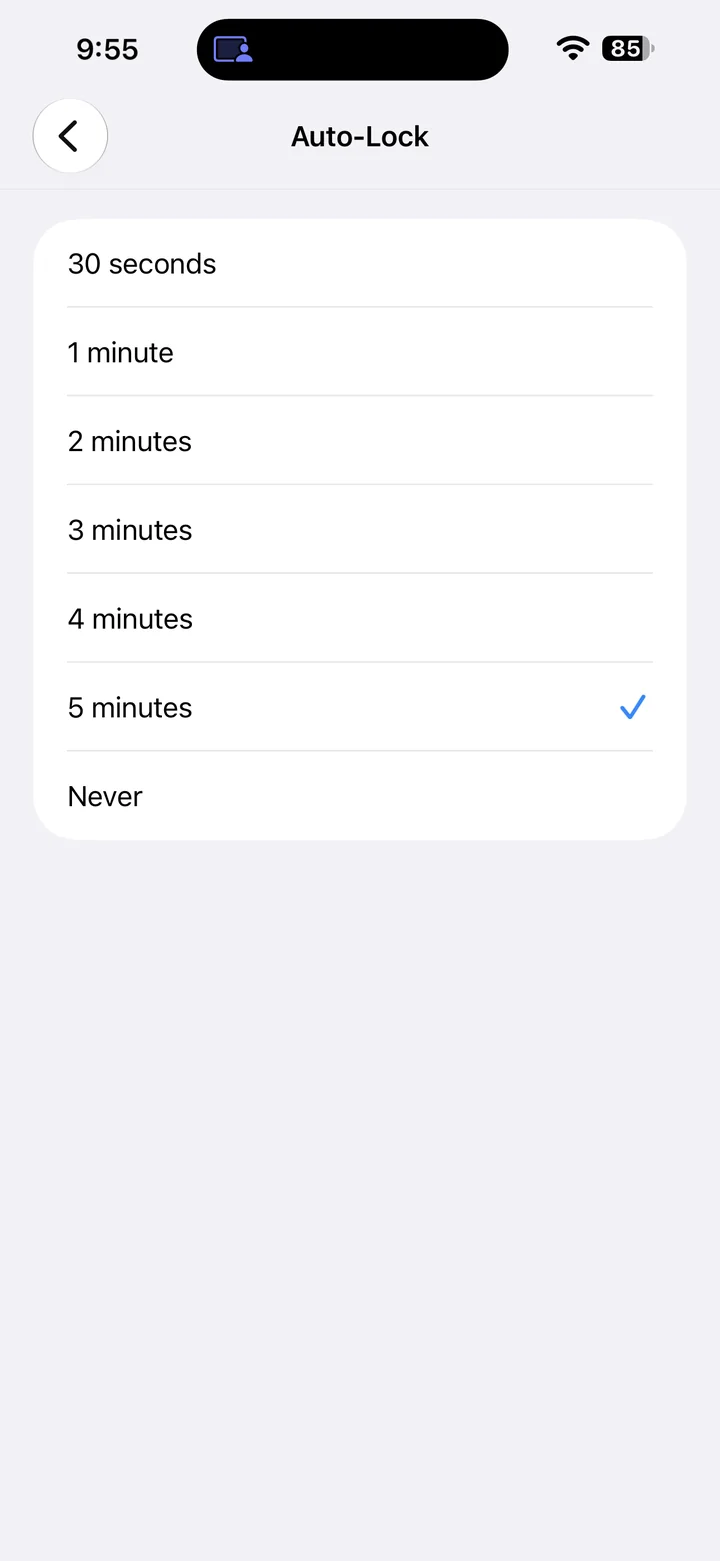
Tap a duration, such as 2 minutes. A checkmark identifies your selection. Return to Display & Brightness to confirm the new value.
If Auto-Lock is limited to 30 seconds
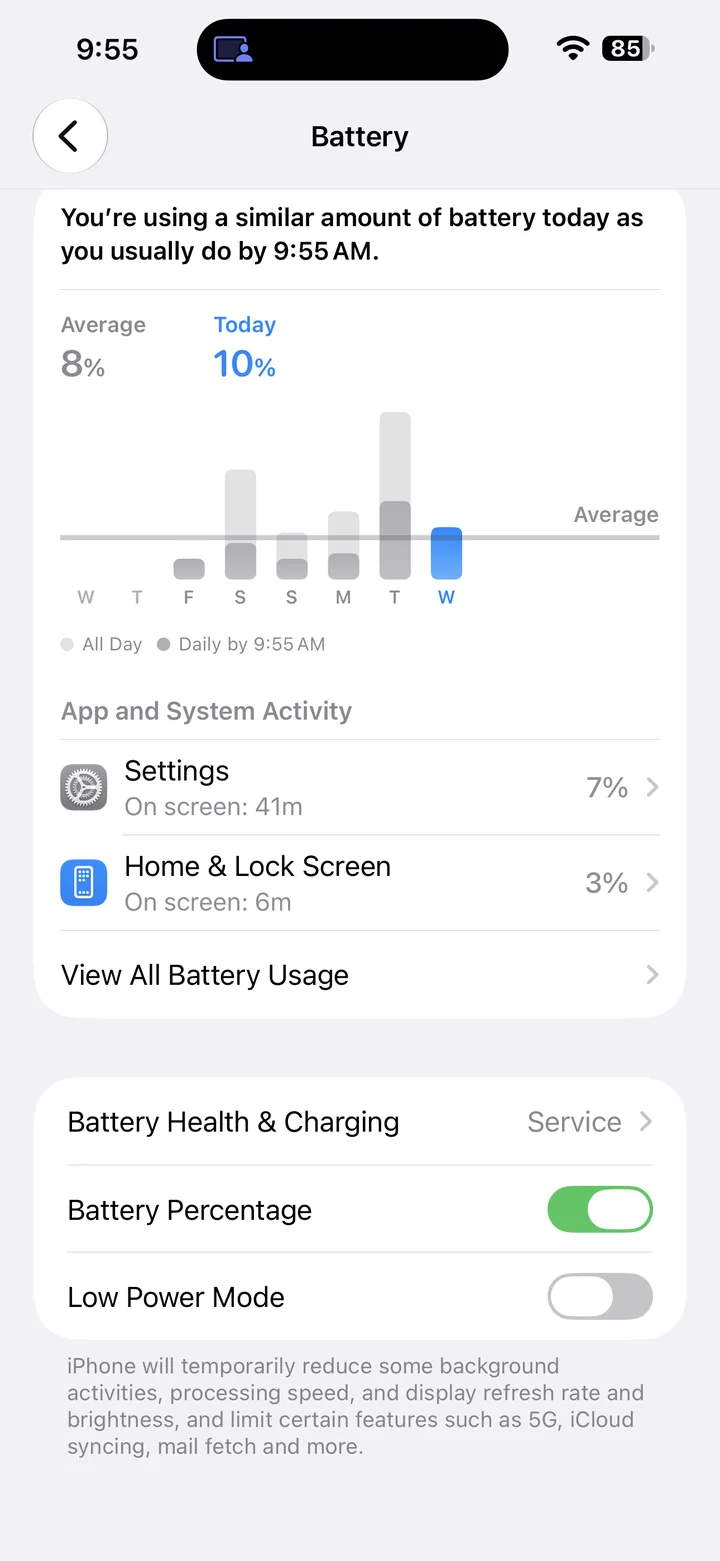
Low Power Mode sets Auto-Lock to 30 seconds. To choose another delay, turn Low Power Mode off, then return to Auto-Lock.
On iPhone 15 and later, open Settings > Battery > Power Mode. On iPhone 14 and earlier, open Settings > Battery. Turn off Low Power Mode.
Reference
By ProgramGuru
Published: 2026-10-13
Updated: 2026-10-14
Instructions reviewed against Apple documentation on 2026-10-14.