iOS 27
iOS 27 How-Tos
Simple, illustrated guides to make everyday iPhone settings easier to find and change.
No guides match your search.
Developer
Prepare your iPhone for app testing, diagnostics and performance investigation.
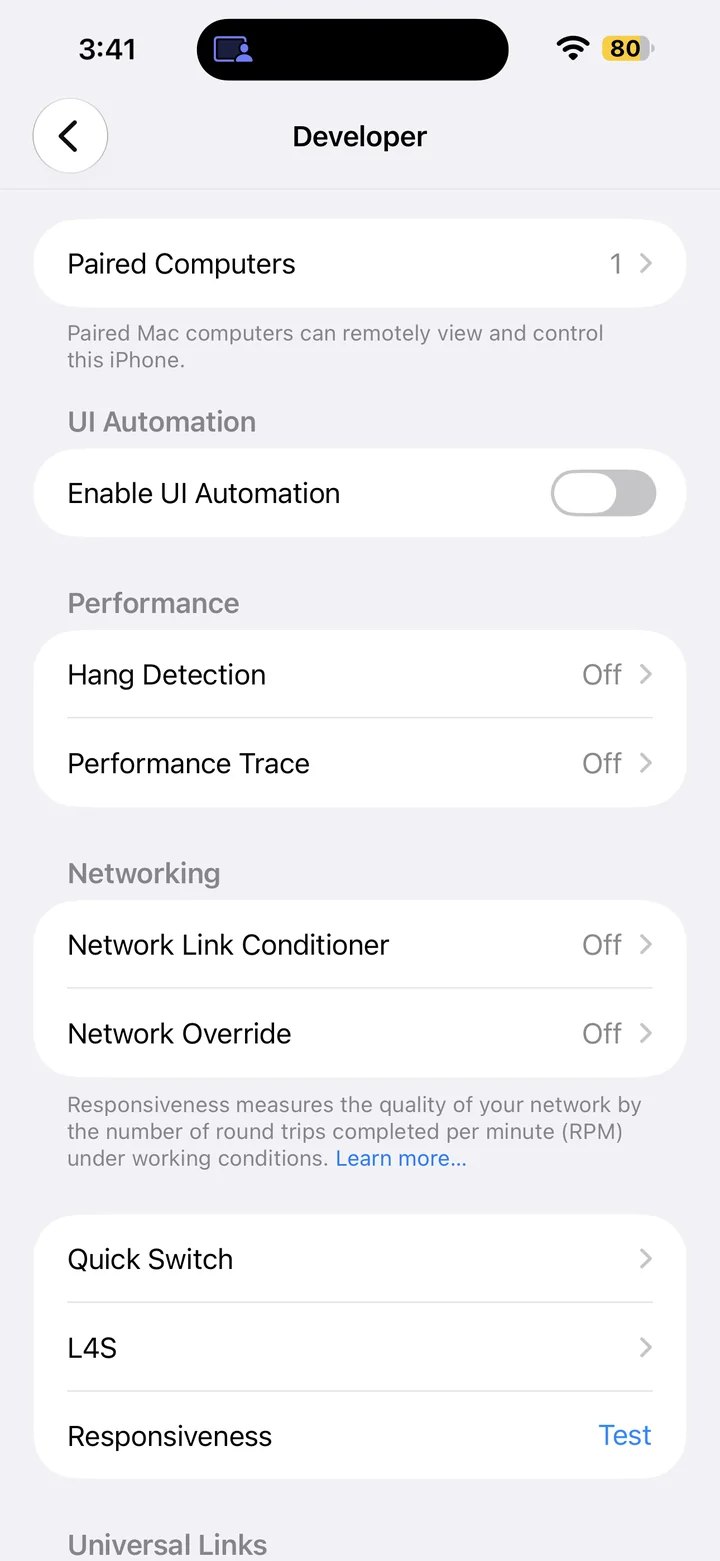
Enable UI Automation
Enable UI Automation in iPhone Developer settings so your paired Mac can run automated interface tests on iOS 27.
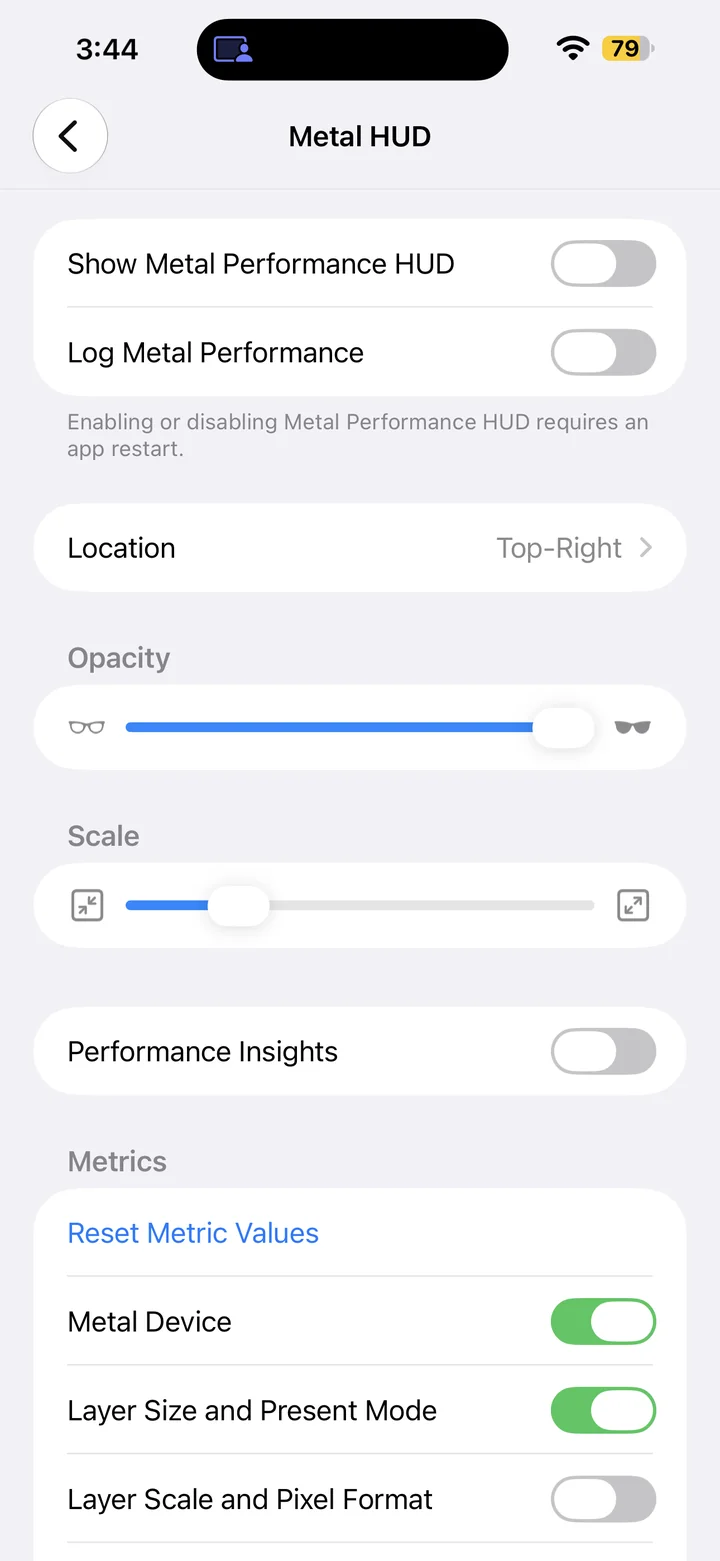
Show the Metal Performance HUD
Show the Metal Performance HUD on iOS 27 to inspect graphics performance in supported development and TestFlight apps.
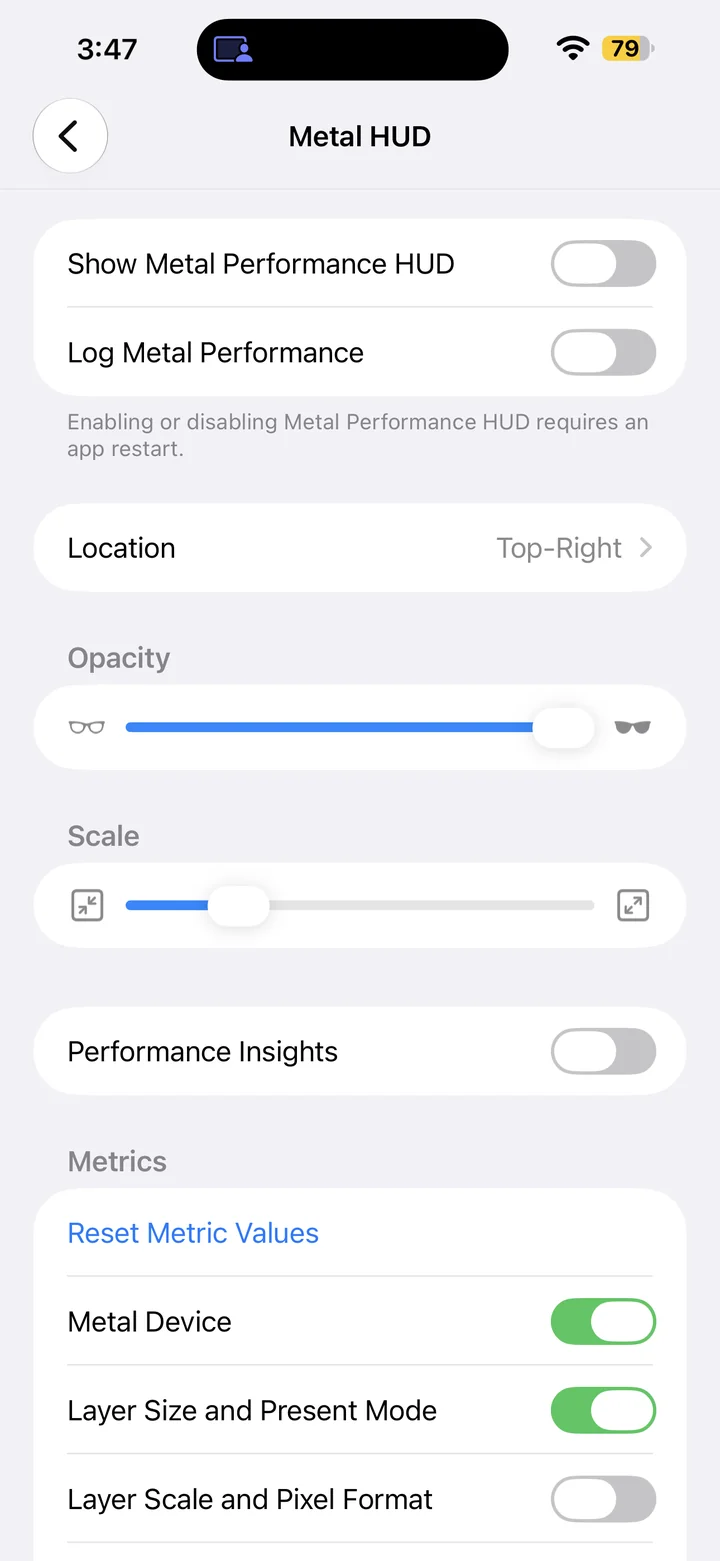
Log Metal Performance
Enable the Metal HUD and graphics performance logging on iOS 27 for development app performance investigations.
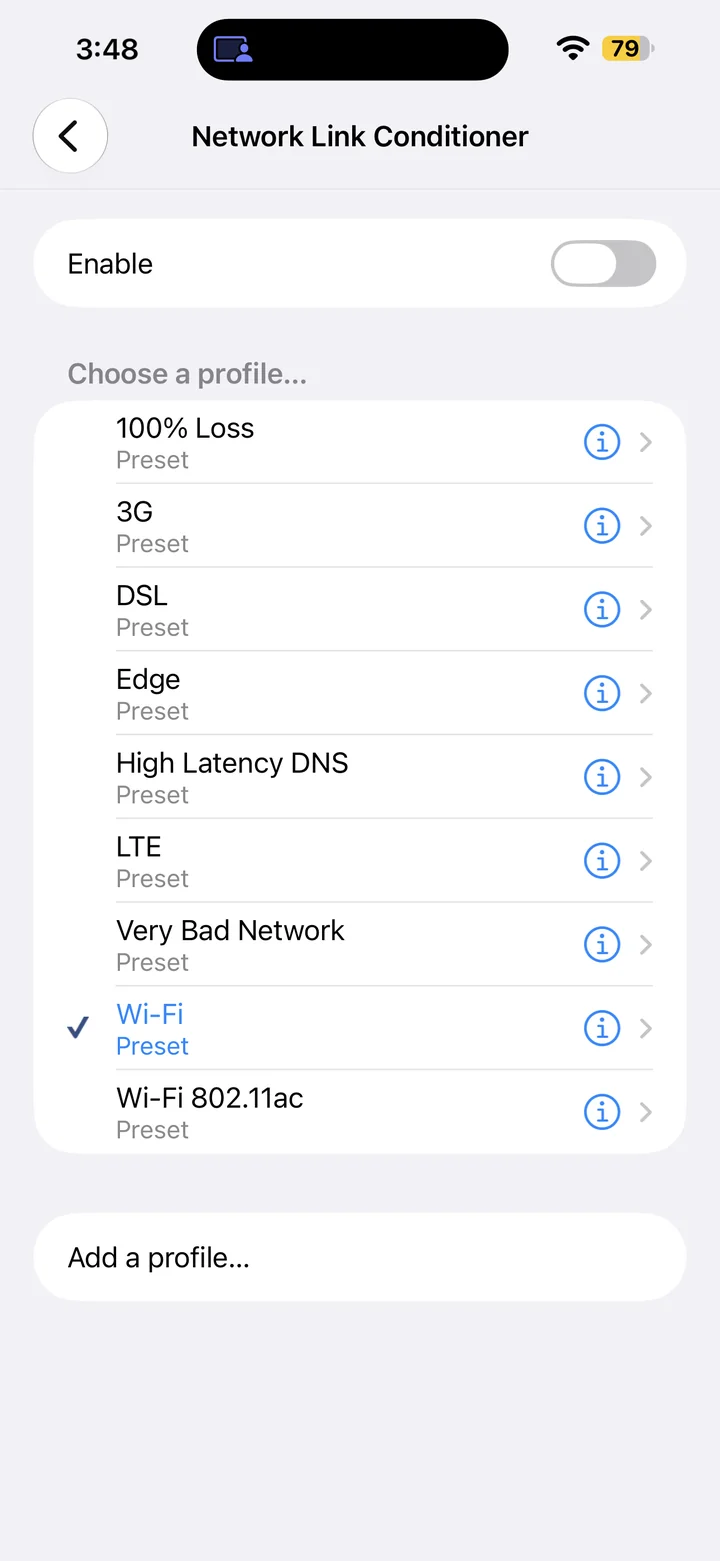
Enable Network Link Conditioner
Enable Network Link Conditioner in iPhone Developer settings to test your app under slow or unreliable network conditions.
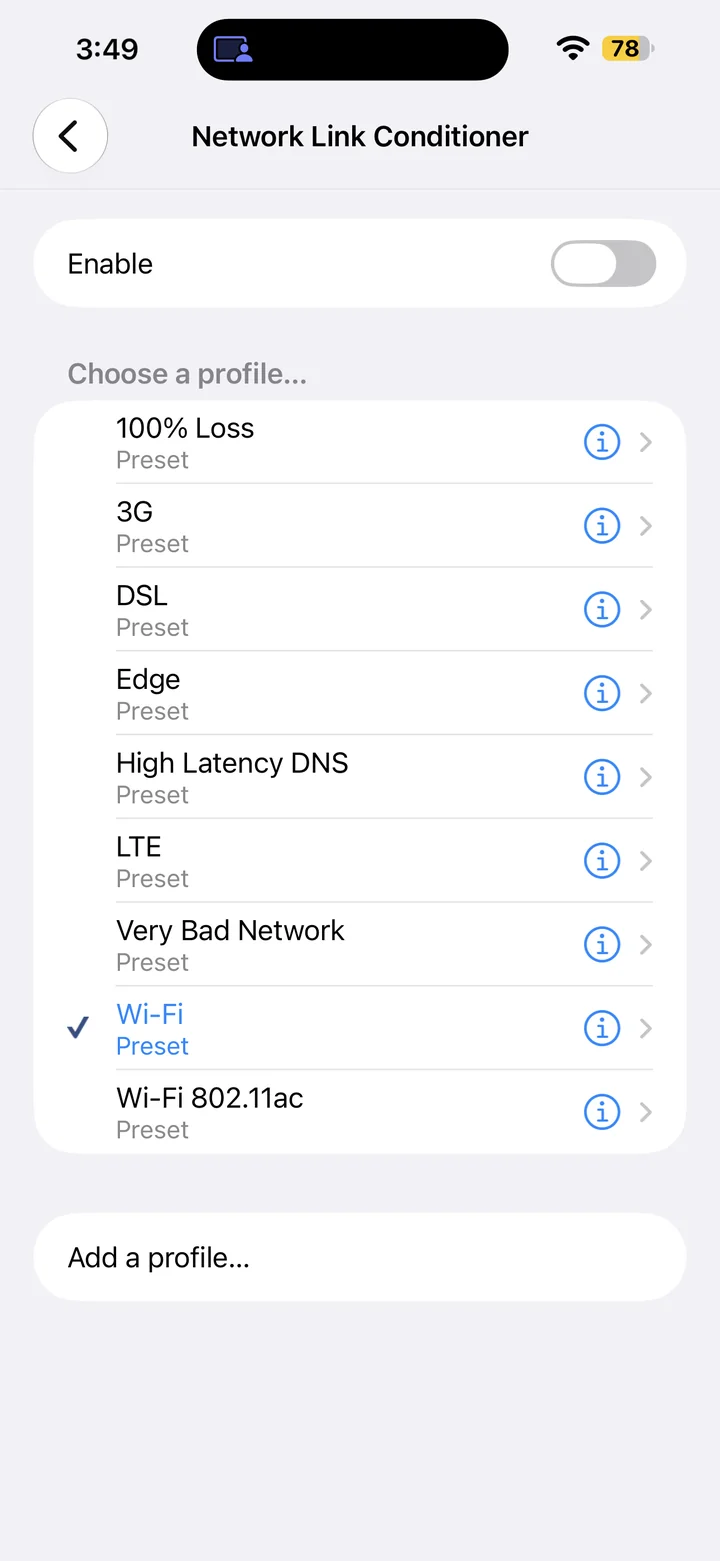
Choose a Network Link Conditioner Profile
Choose a Network Link Conditioner preset such as 3G on iOS 27 to prepare a repeatable network simulation test.
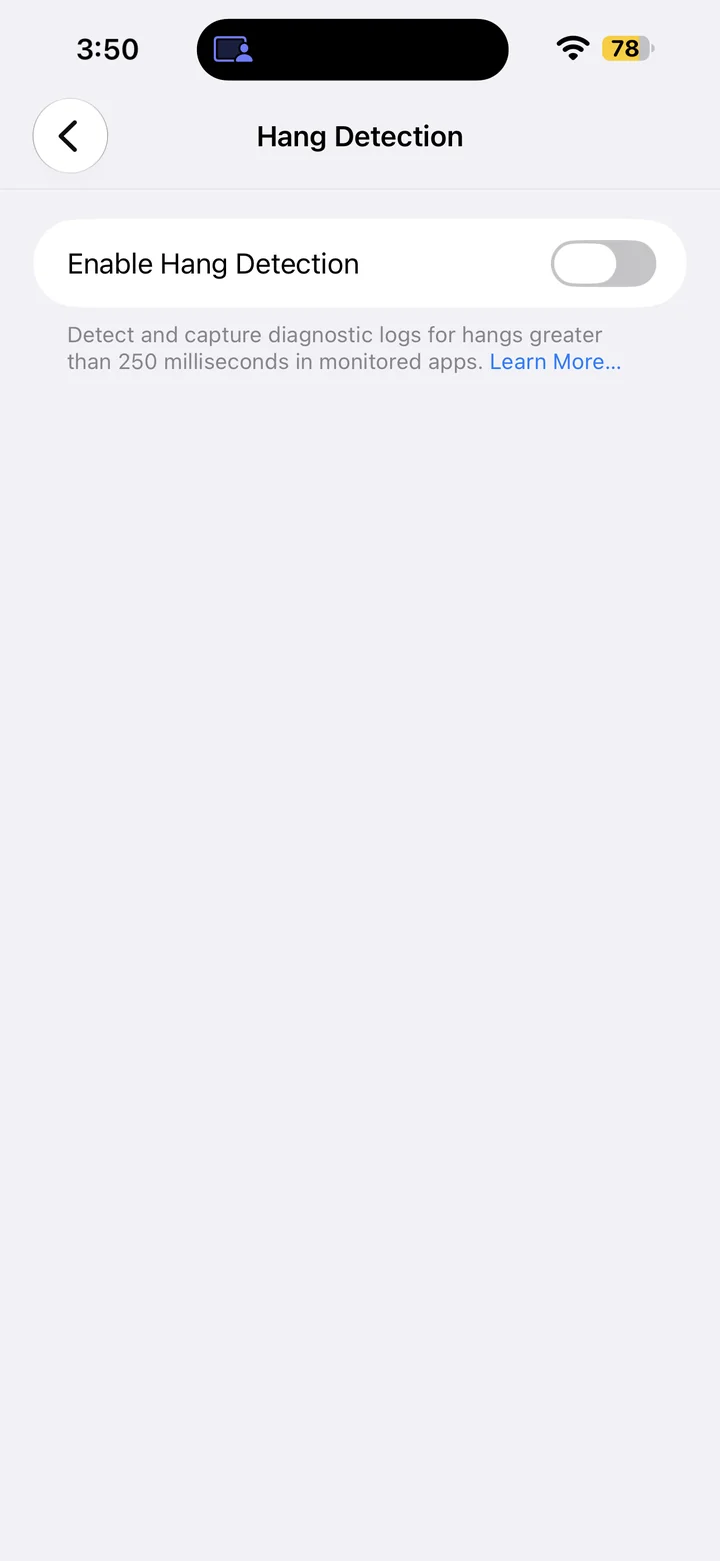
Enable Hang Detection
Enable Hang Detection in iPhone Developer settings to investigate unresponsive development-signed and TestFlight apps.
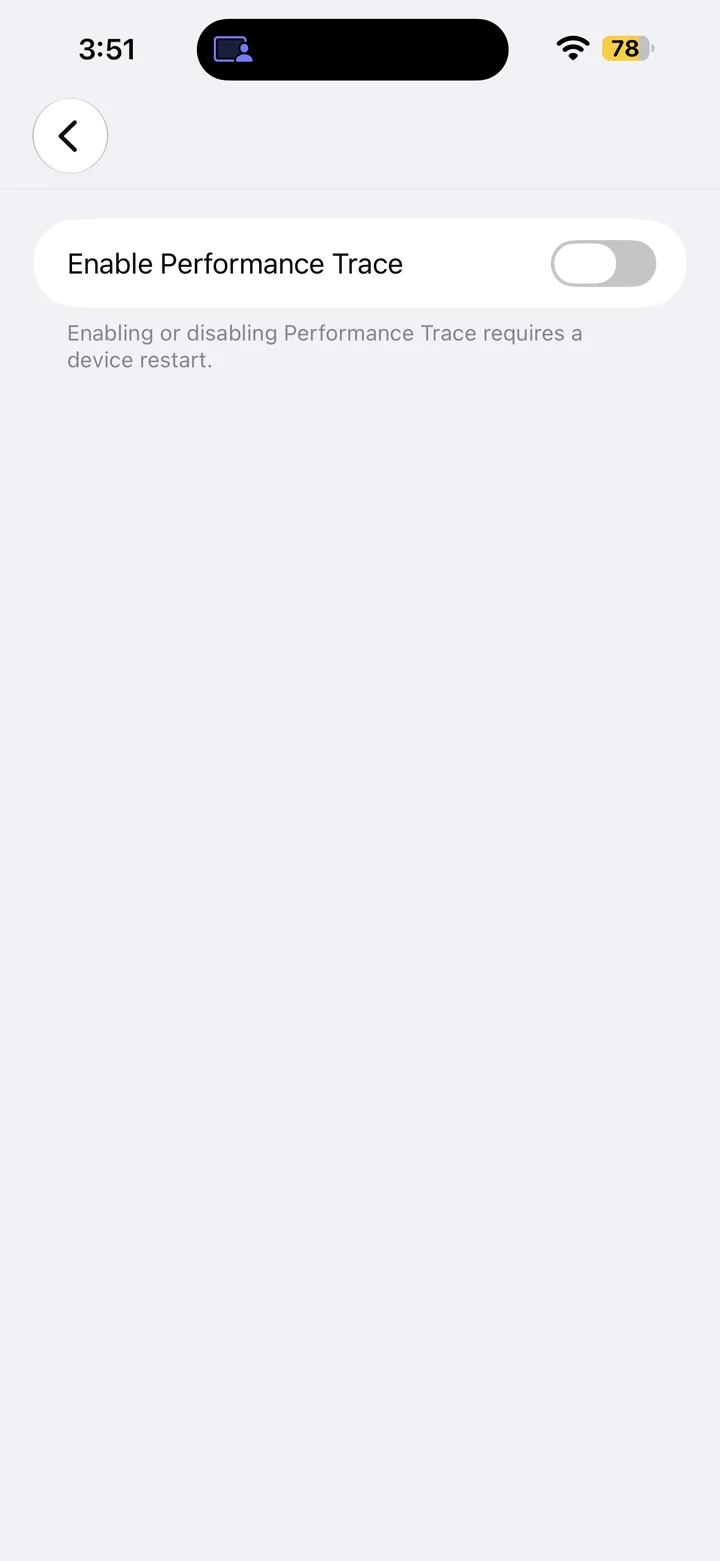
Enable Performance Trace
Enable Performance Trace in iPhone Developer settings to prepare your iOS 27 device for performance tracing.
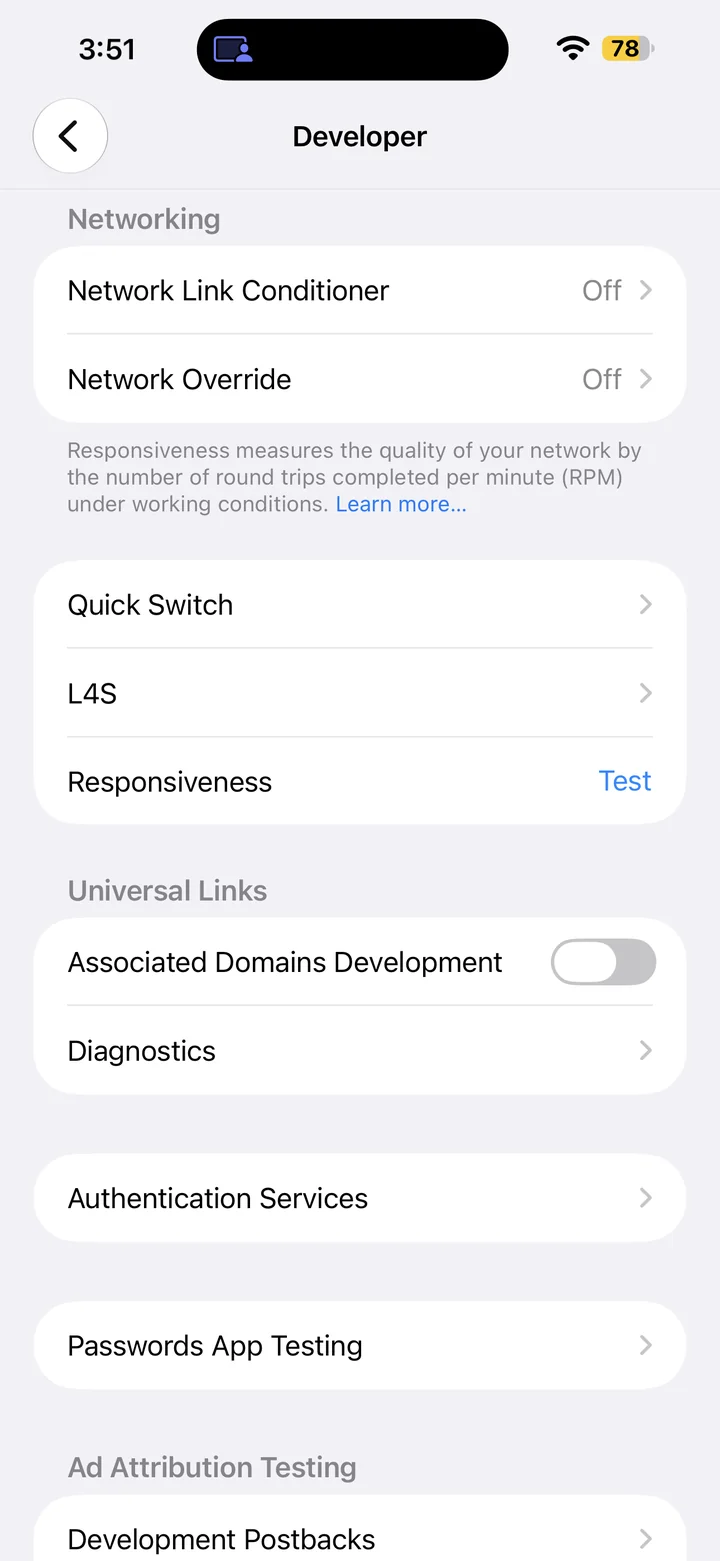
Enable Associated Domains Development
Enable Associated Domains Development on iOS 27 to prepare a development-signed app for Universal Link testing.
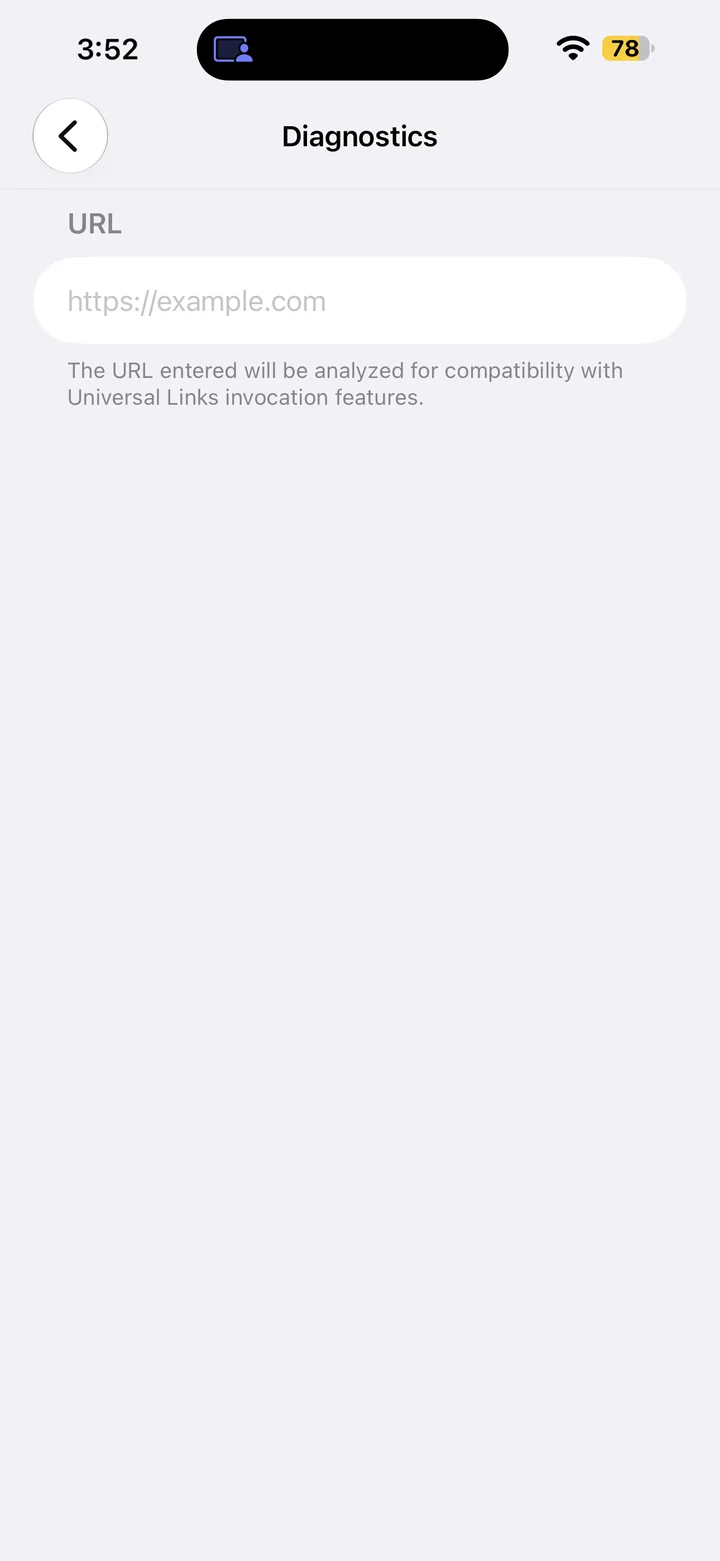
Open Universal Link Diagnostics
Open Universal Link Diagnostics in iPhone Developer settings and find the URL field for investigating associated domain issues.
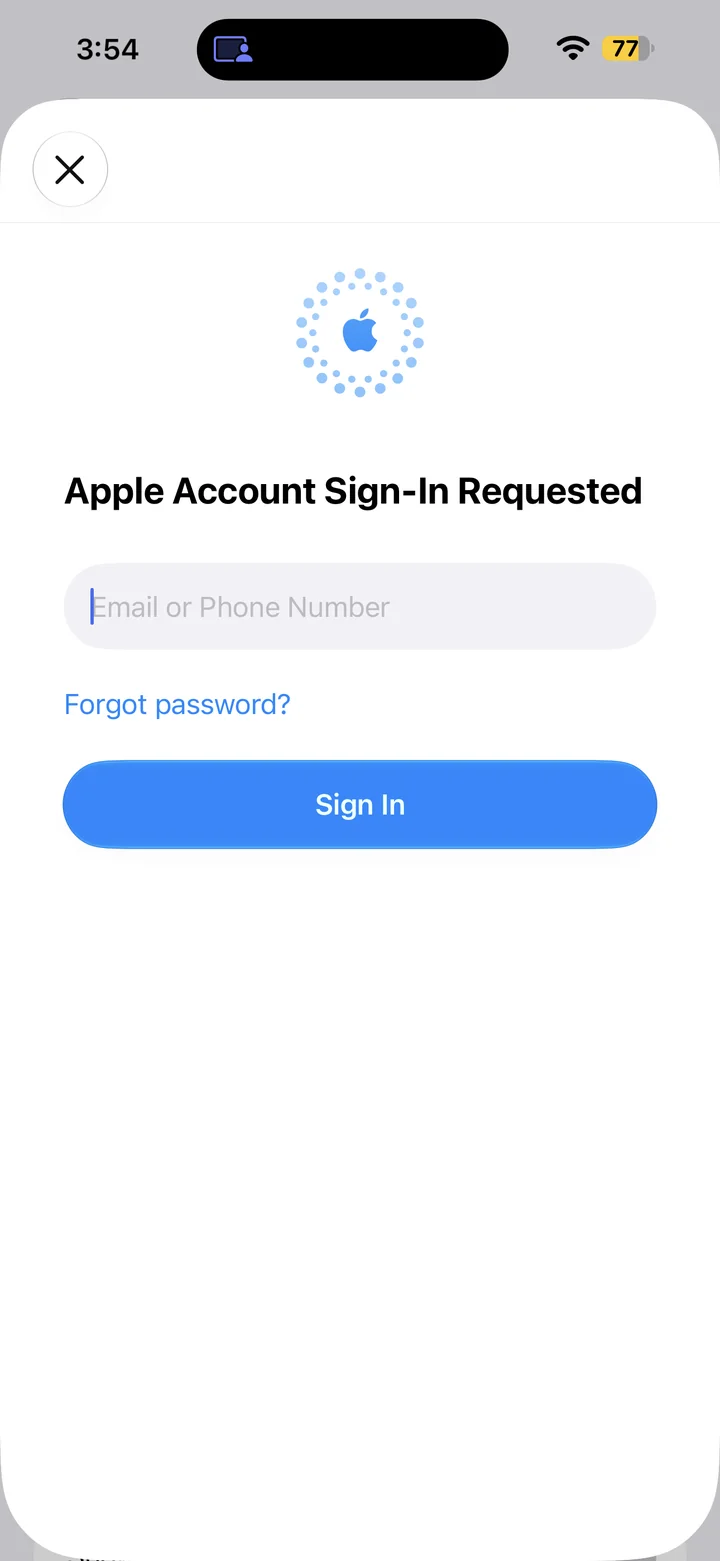
Open Sandbox Apple Account Sign-In
Open the Sandbox Apple Account sign-in form in iOS 27 Developer settings to prepare for In-App Purchase testing.
Display Settings
Make your screen work the way you want.
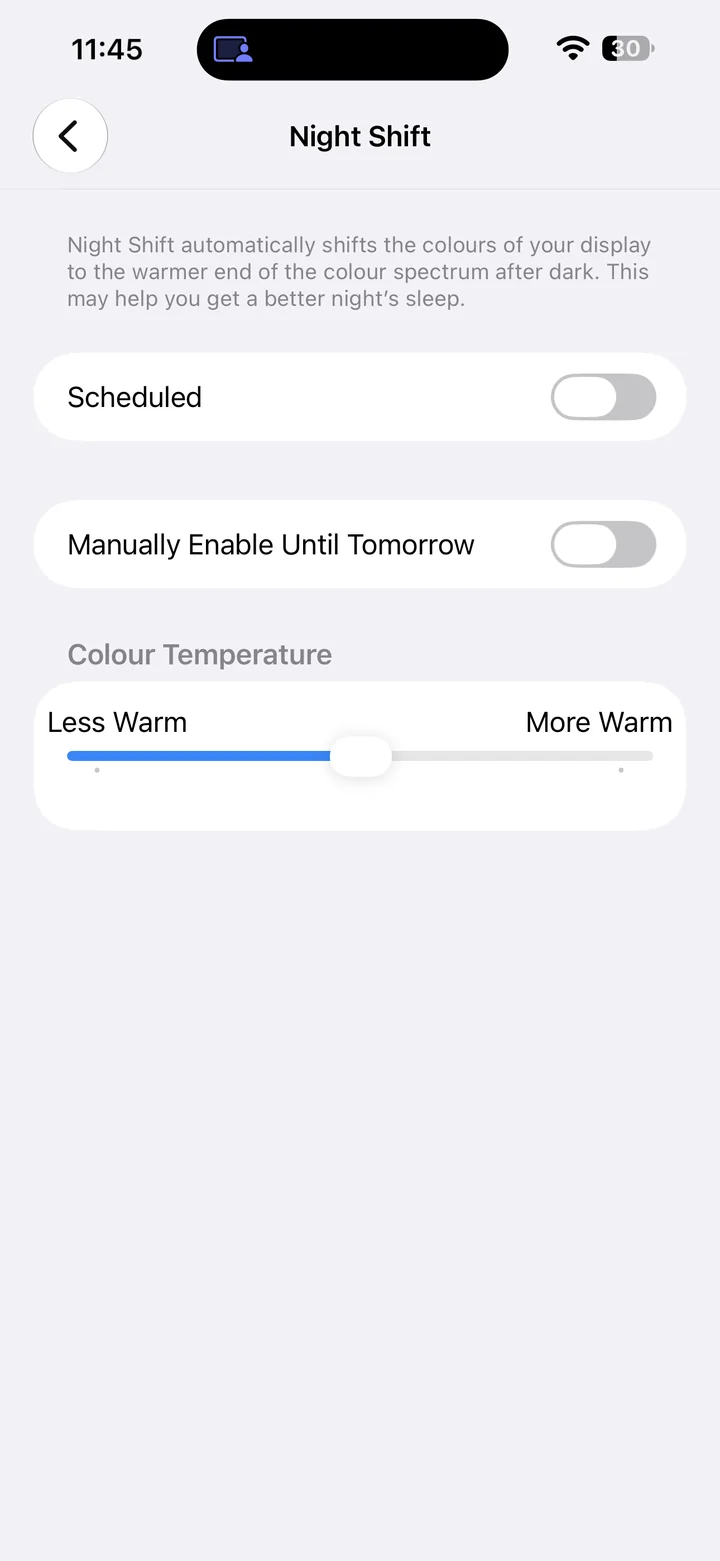
Disable Night Shift
To turn off Night Shift, open Settings > Display & Brightness > Night Shift, then turn off Scheduled and Manually Enable Until Tomorrow.
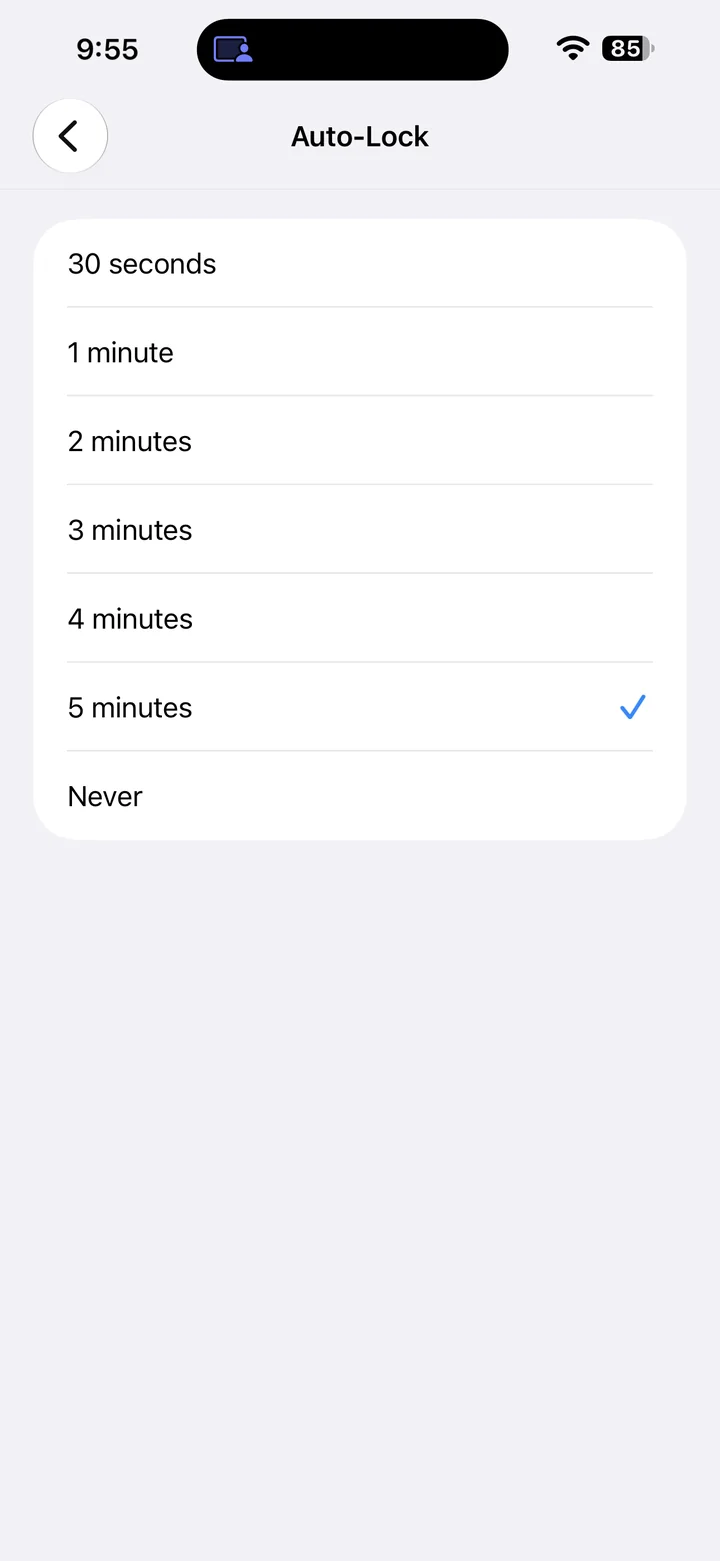
Change Auto-Lock Time
Open Settings > Display & Brightness > Auto-Lock and choose a duration. If only 30 seconds is available, turn off Low Power Mode first.
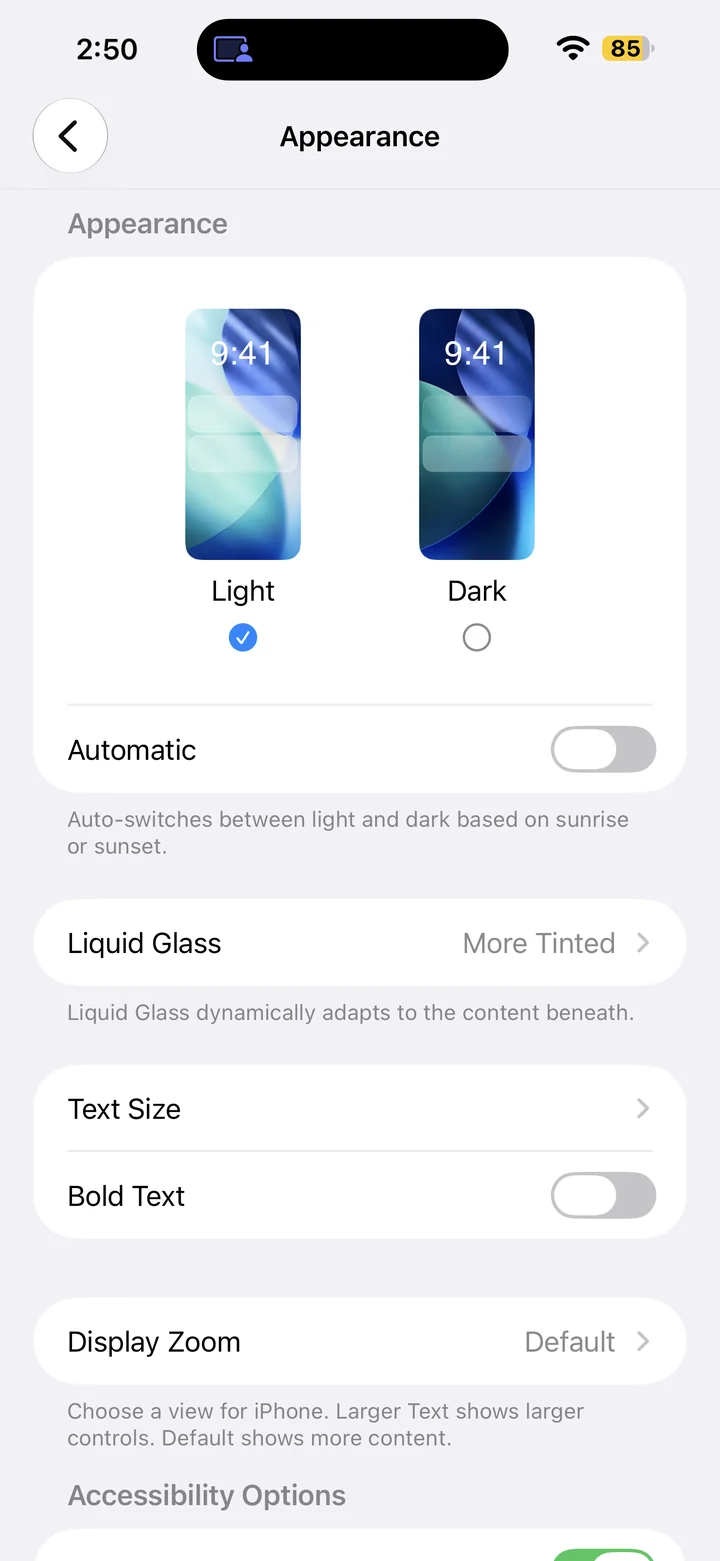
Enable Dark Mode
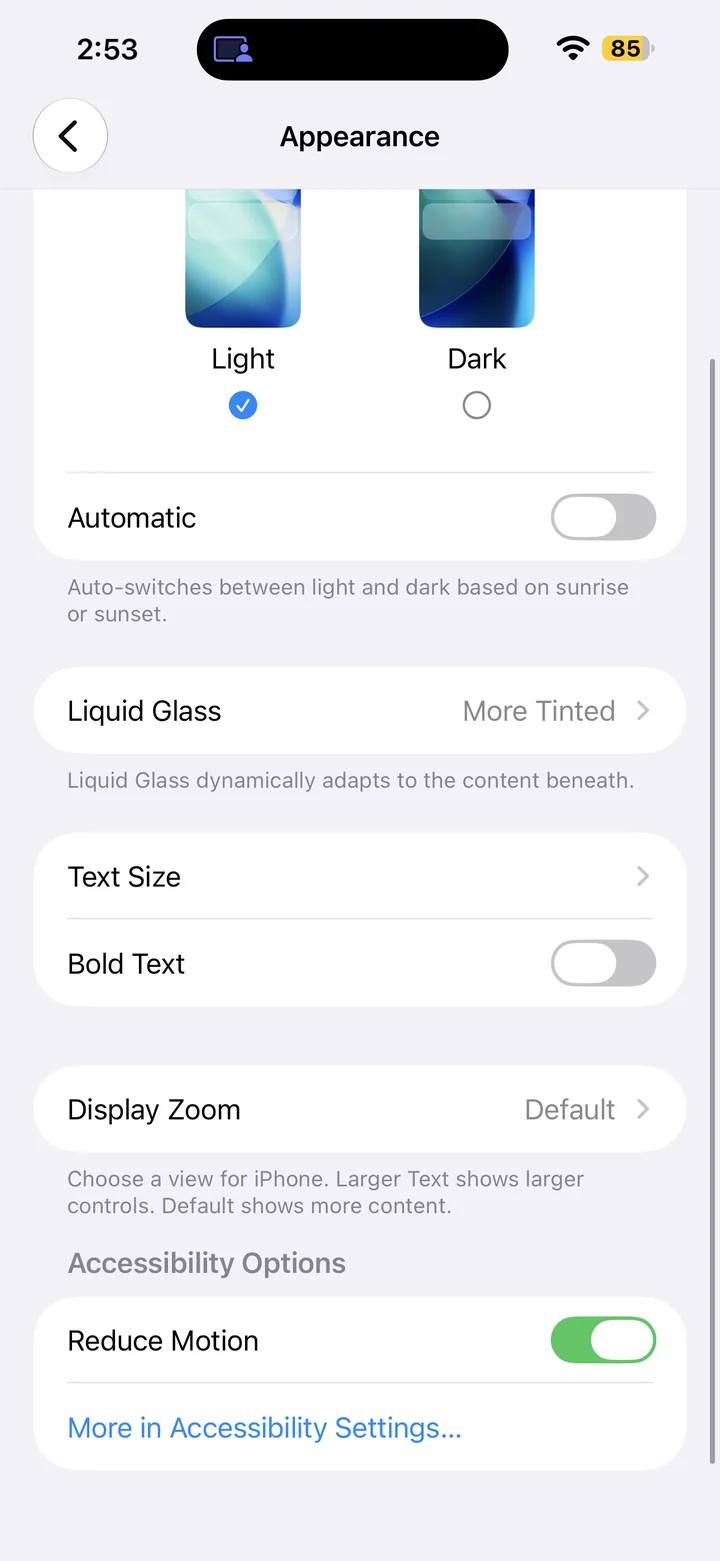
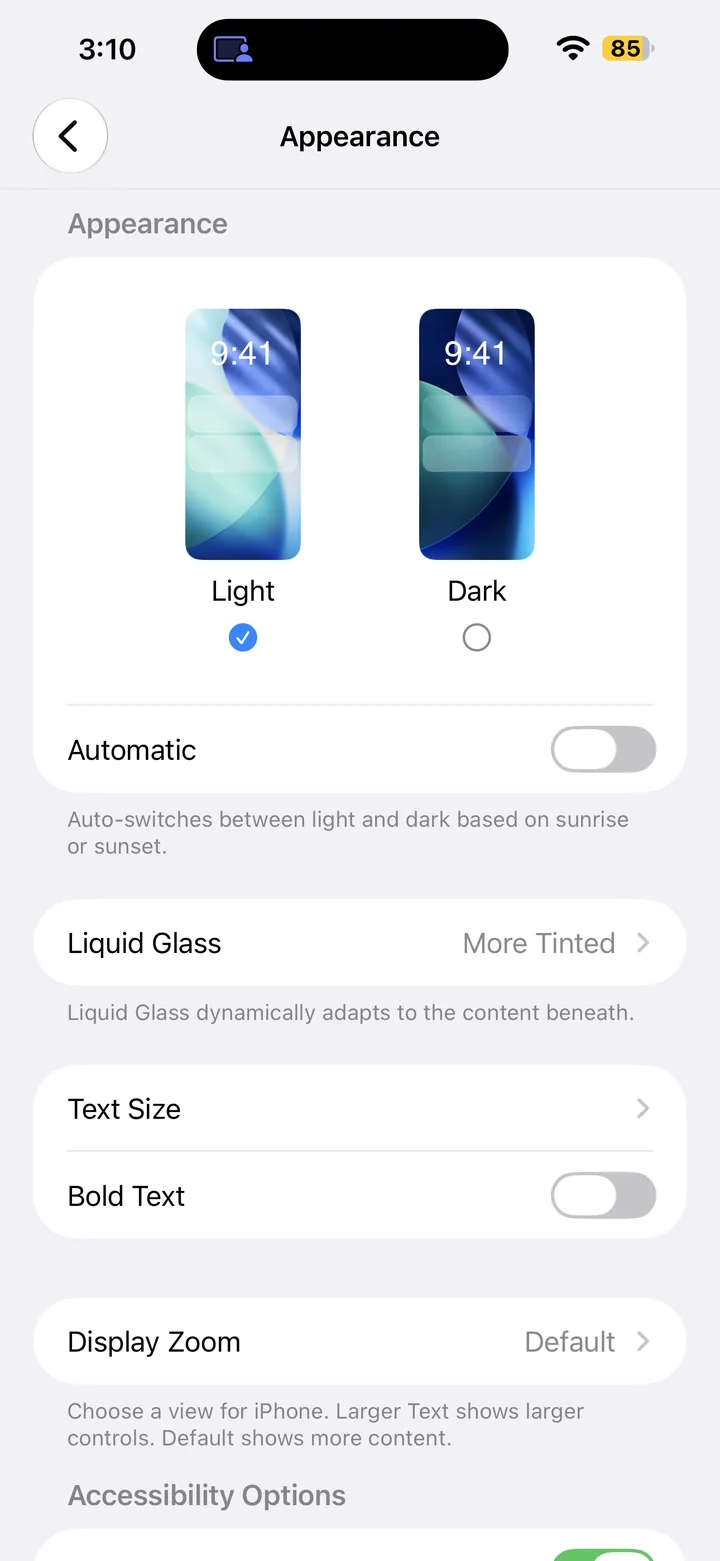
Open Appearance in Settings and select Dark to use a darker interface on your iPhone.
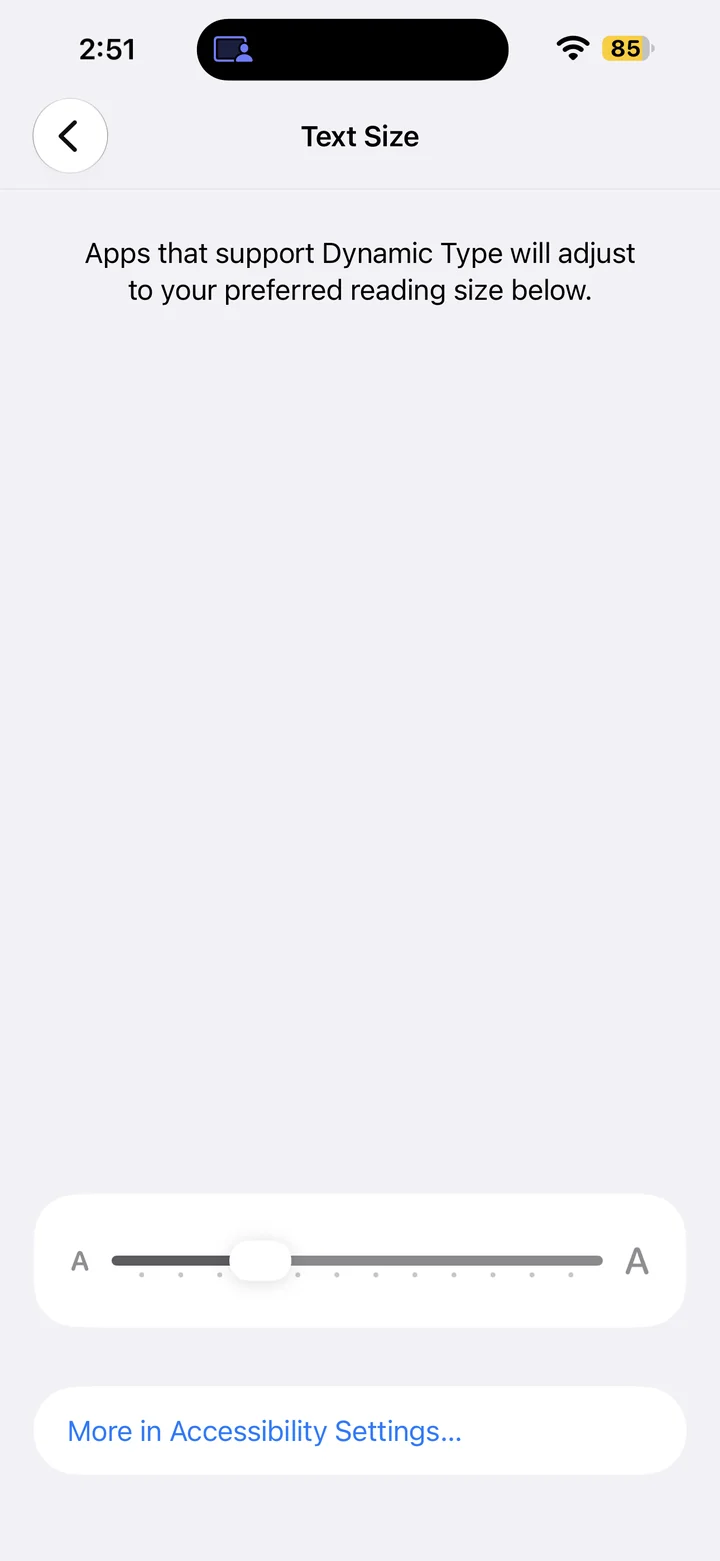
Change Text Size
Open Settings > Appearance > Text Size and adjust the slider to make supported app text easier to read.
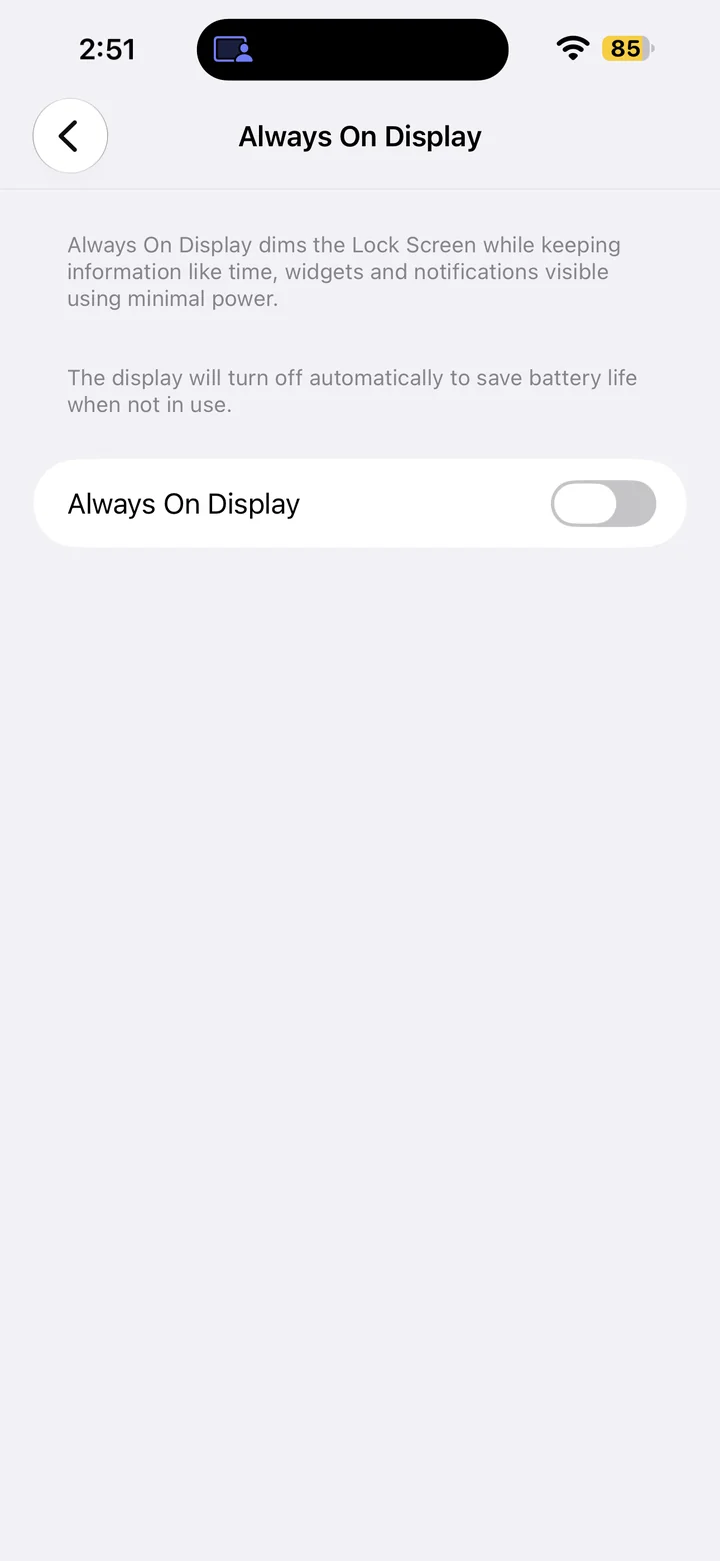
Turn Off Always On Display
Open Display & Brightness > Always On Display and switch it off to make the locked screen go dark.
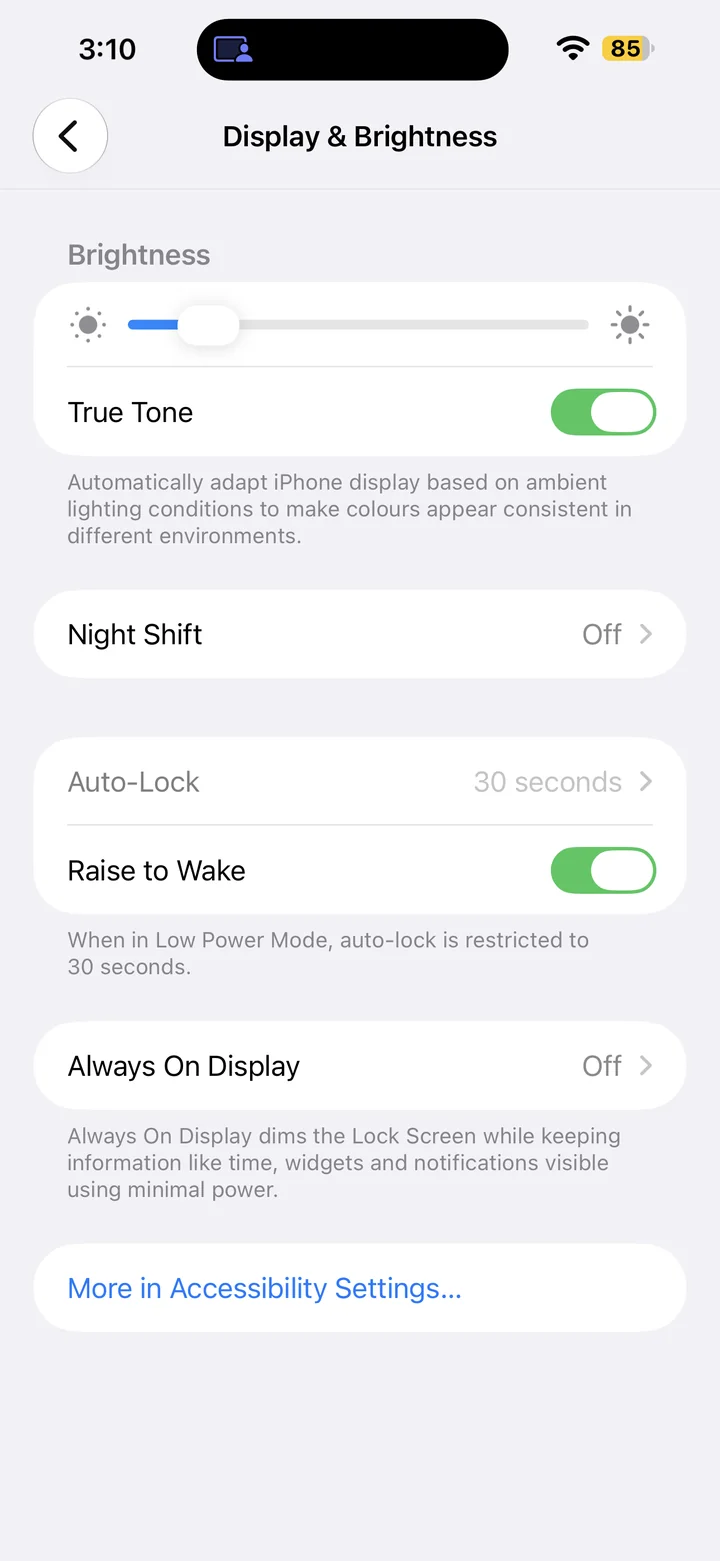
Change Screen Brightness
Adjust the brightness slider in Settings > Display & Brightness to make your iPhone screen brighter or dimmer.
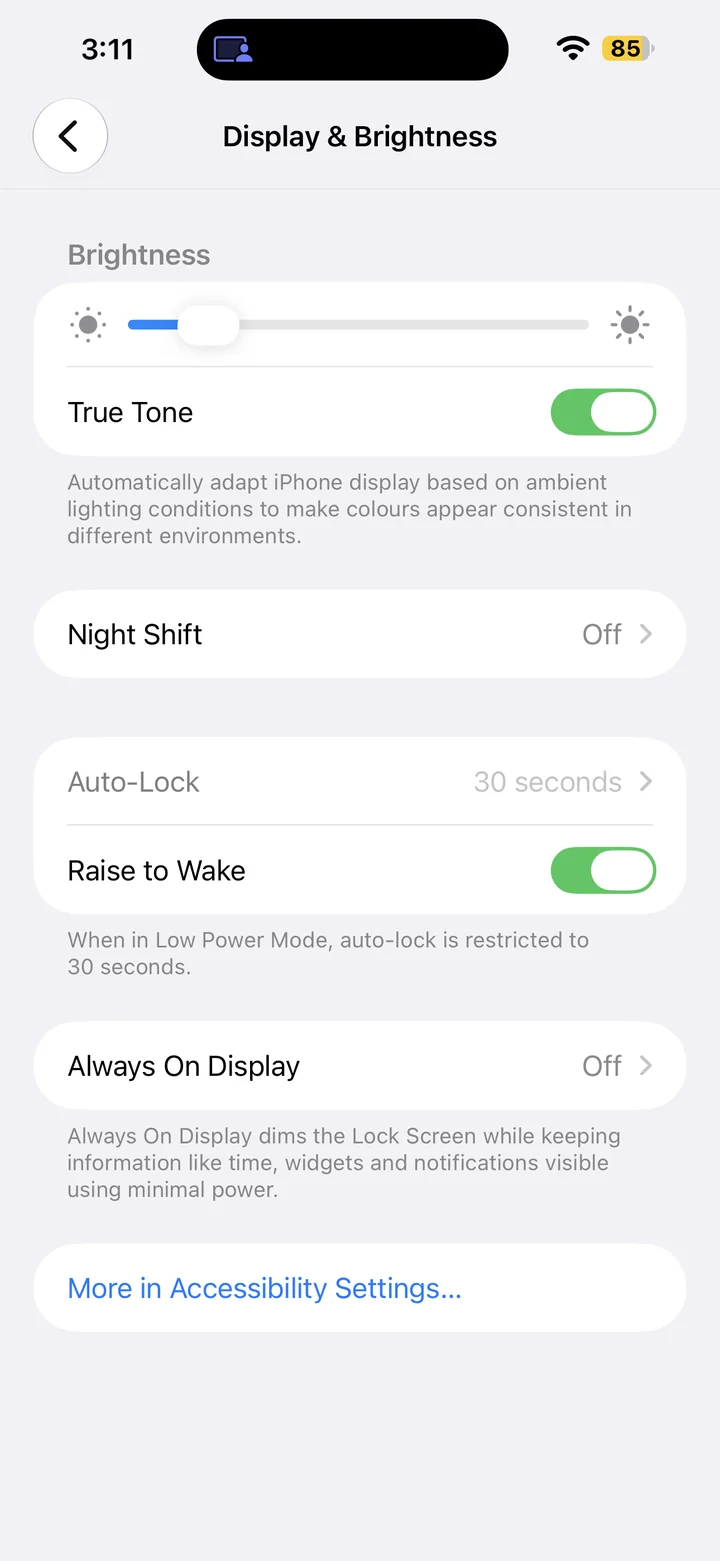
Turn Off True Tone
Turn off True Tone in Display & Brightness to stop your iPhone adapting display color to surrounding light.
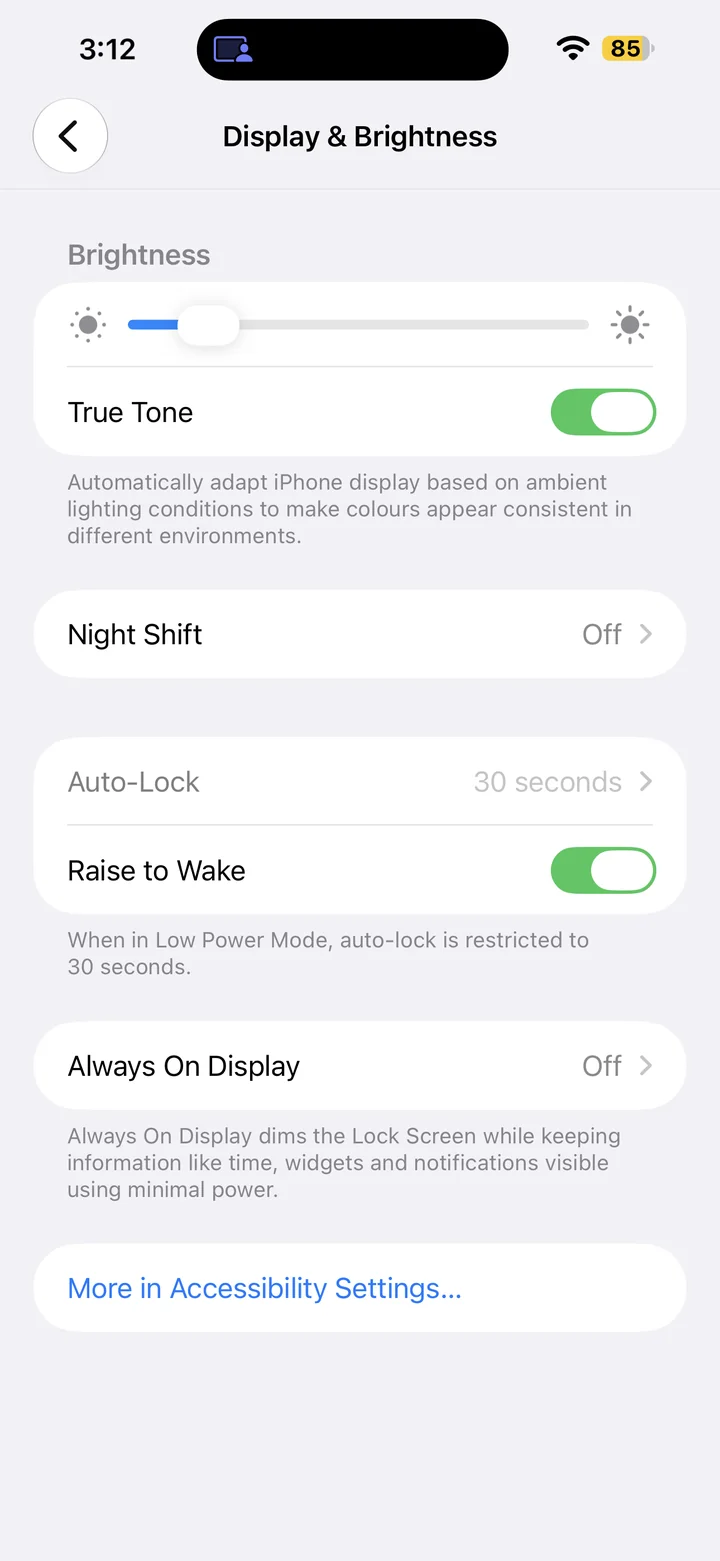
Turn Off Raise to Wake
Disable Raise to Wake in Display & Brightness so lifting your iPhone does not wake its screen.
Accessibility
Make your iPhone more comfortable to use.
Battery
Manage battery-saving settings.