
How to Enable Performance Trace on iOS 27
Enable Performance Trace in iPhone Developer settings to prepare your iOS 27 device for performance tracing.
Step 1
Open Settings from the Home Screen
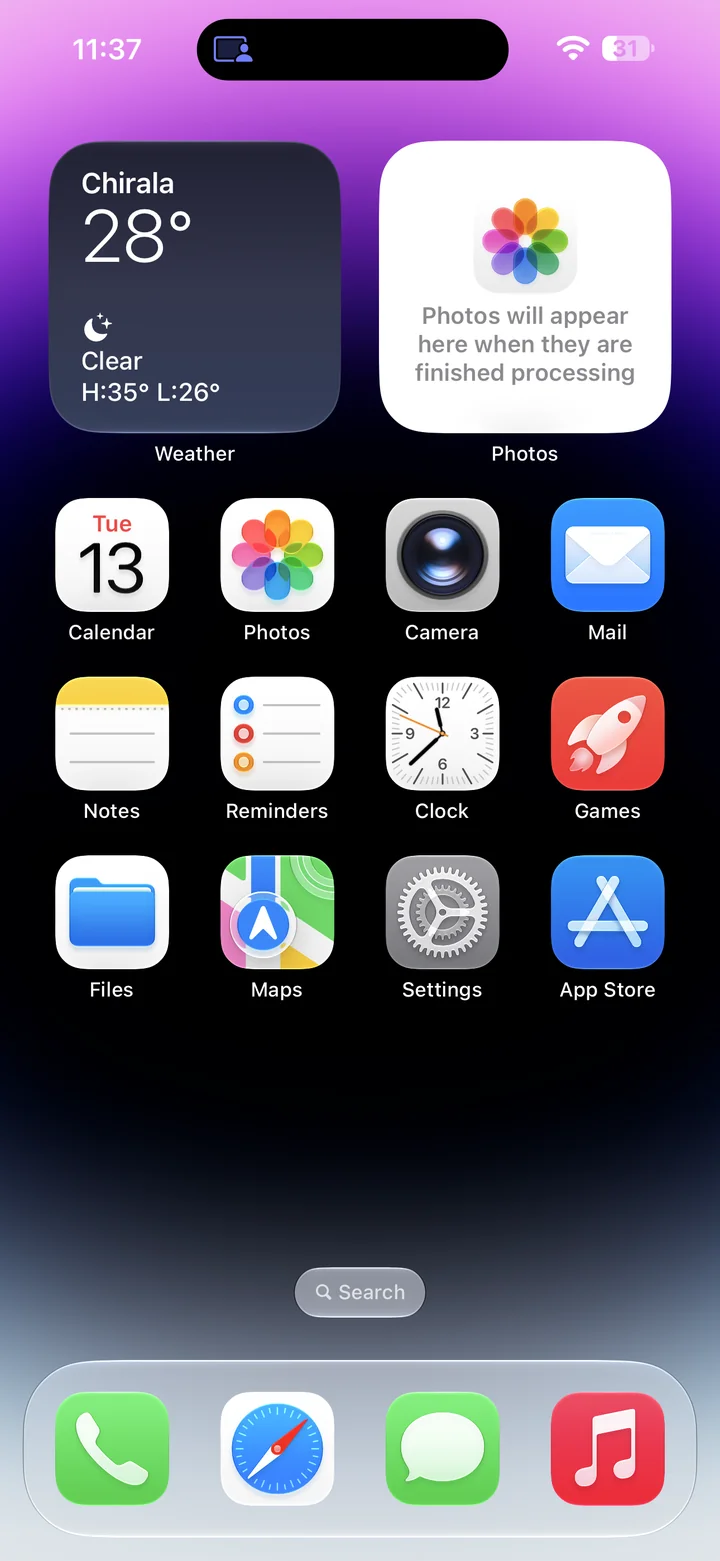
Before you begin: An unlocked iPhone running iOS 27, paired with Xcode, with Developer Mode enabled and Developer visible in Settings.
Find and tap the Settings app on your Home Screen. Its icon looks like a gray gear.
Step 2
Open Developer in Settings
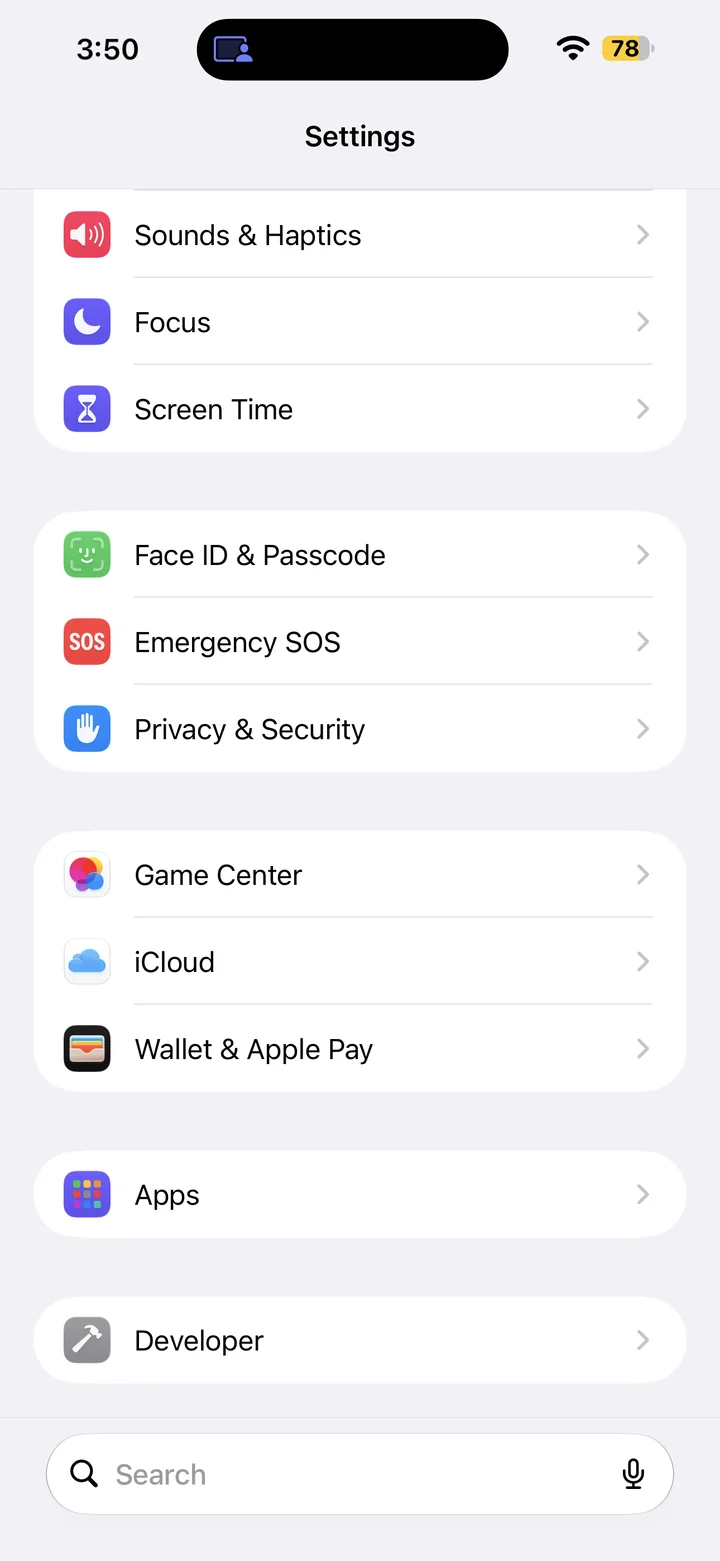
In Settings, scroll down and tap Developer.
Step 3
Open Performance Trace
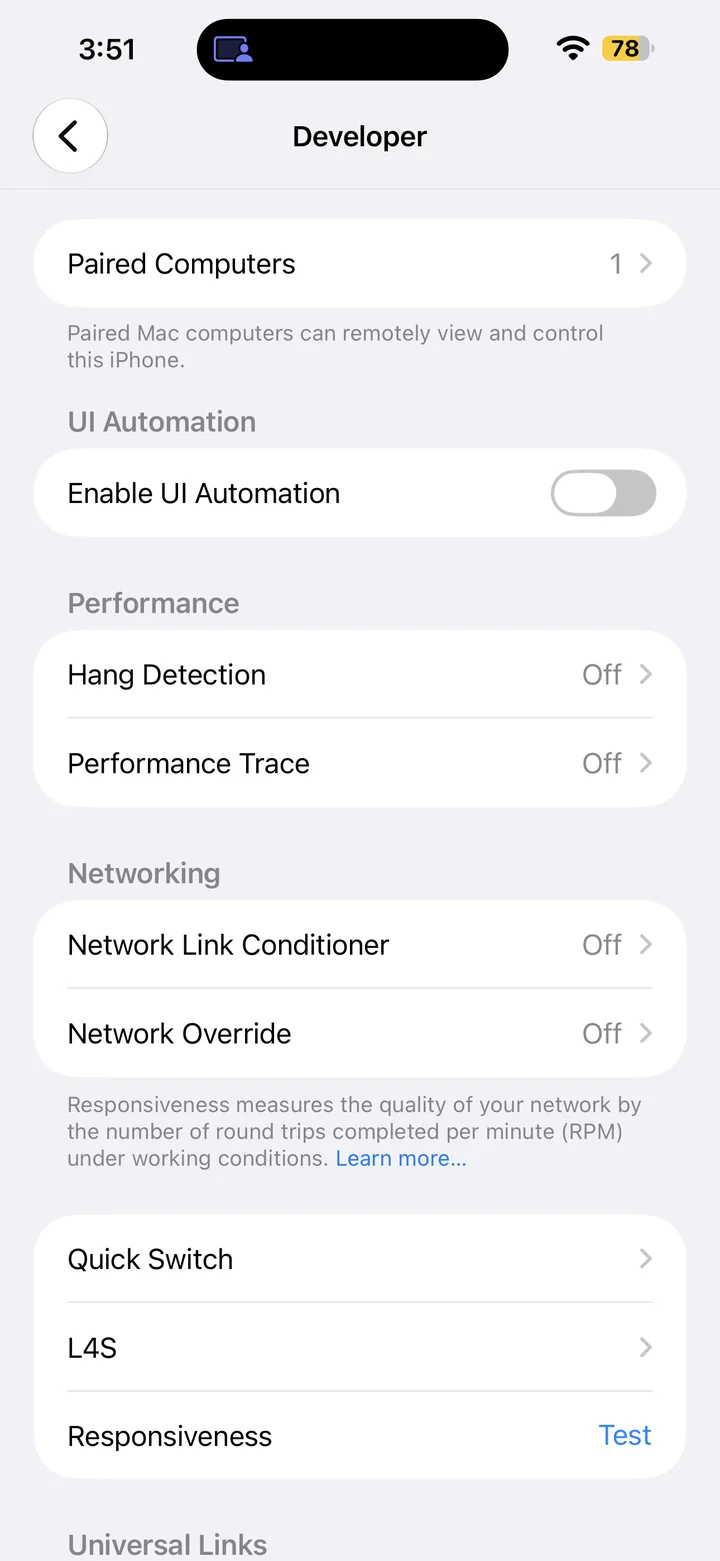
Scroll to Performance Trace.
Step 4
Turn on Enable Performance Trace
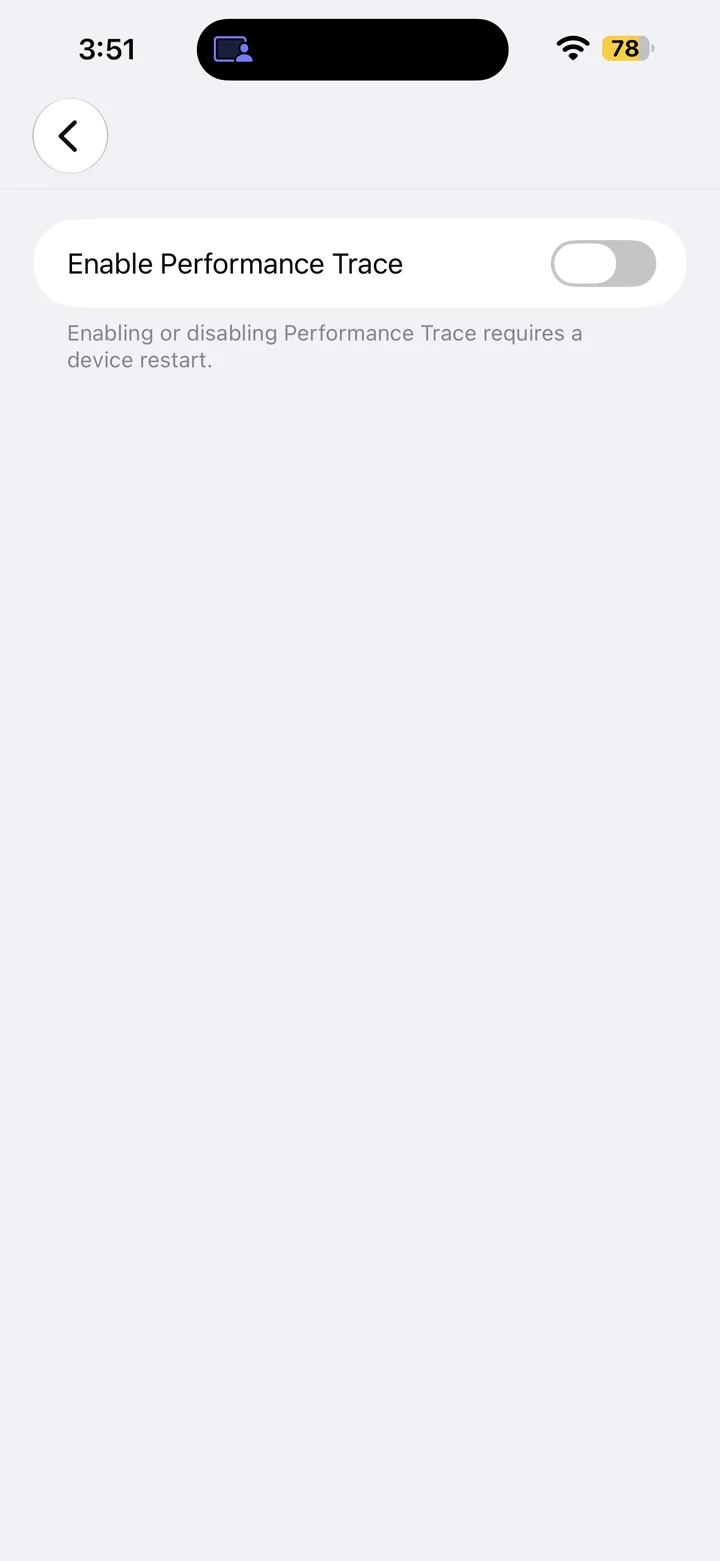
Turn Enable Performance Trace on to make performance tracing available on the device. Restart the iPhone when required by the setting.
Reference
By ProgramGuru
Published: 2026-10-14
Updated: 2026-10-14
Instructions reviewed against Apple documentation on 2026-10-14.