
How to Set Up Vertical Video in Blackmagic Camera on iPhone
Enable vertical video and configure HD HEVC recording in Blackmagic Camera for a portrait social-video workflow.
Open Blackmagic Camera
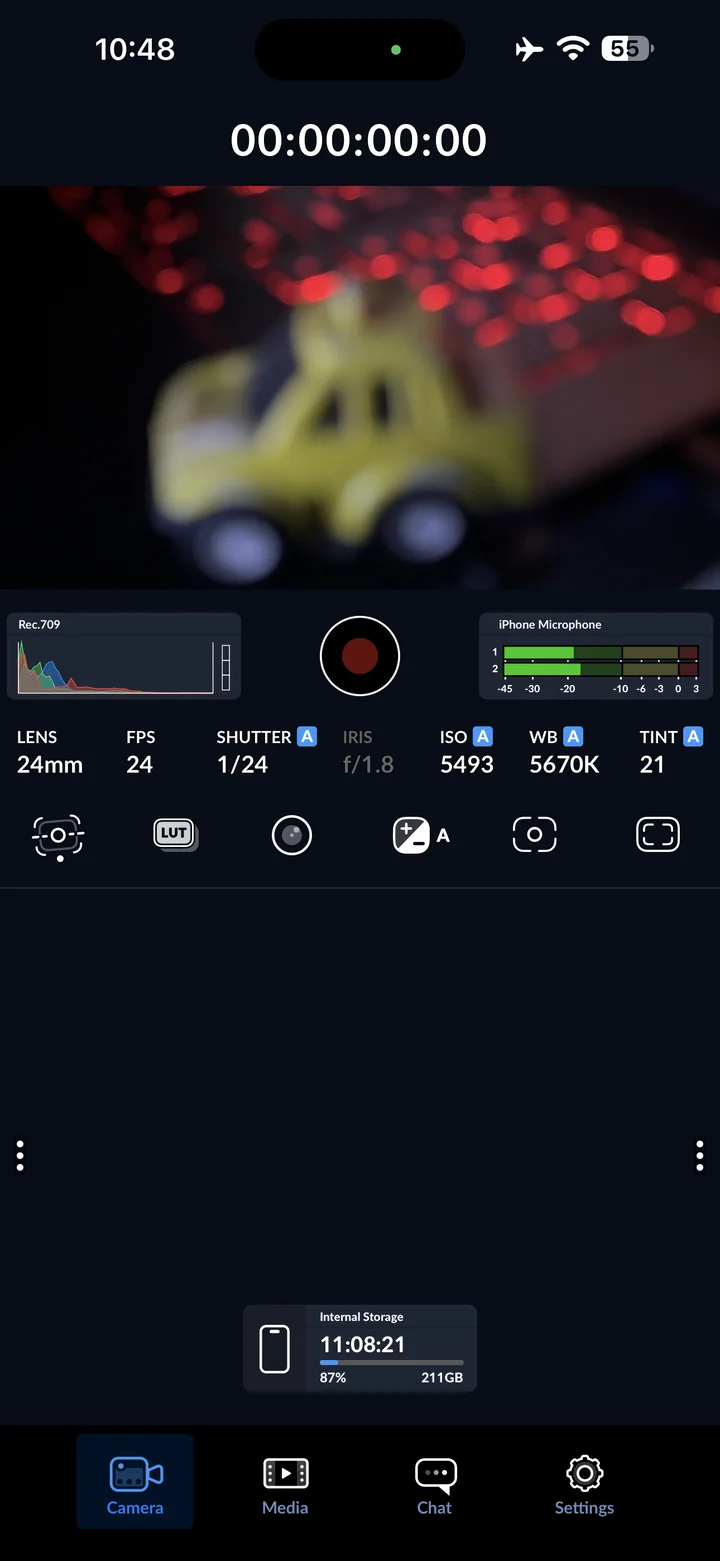
Before you begin: Blackmagic Camera for iOS. Screenshots: version 3.5.20 on iPhone 14 Pro Max. Start from your preferred baseline; changing these settings affects subsequent recordings.
Open Blackmagic Camera on your iPhone. Start in the Camera view. This walkthrough uses version 3.5.20 on an iPhone 14 Pro Max; available formats may differ on other devices.
Open camera settings
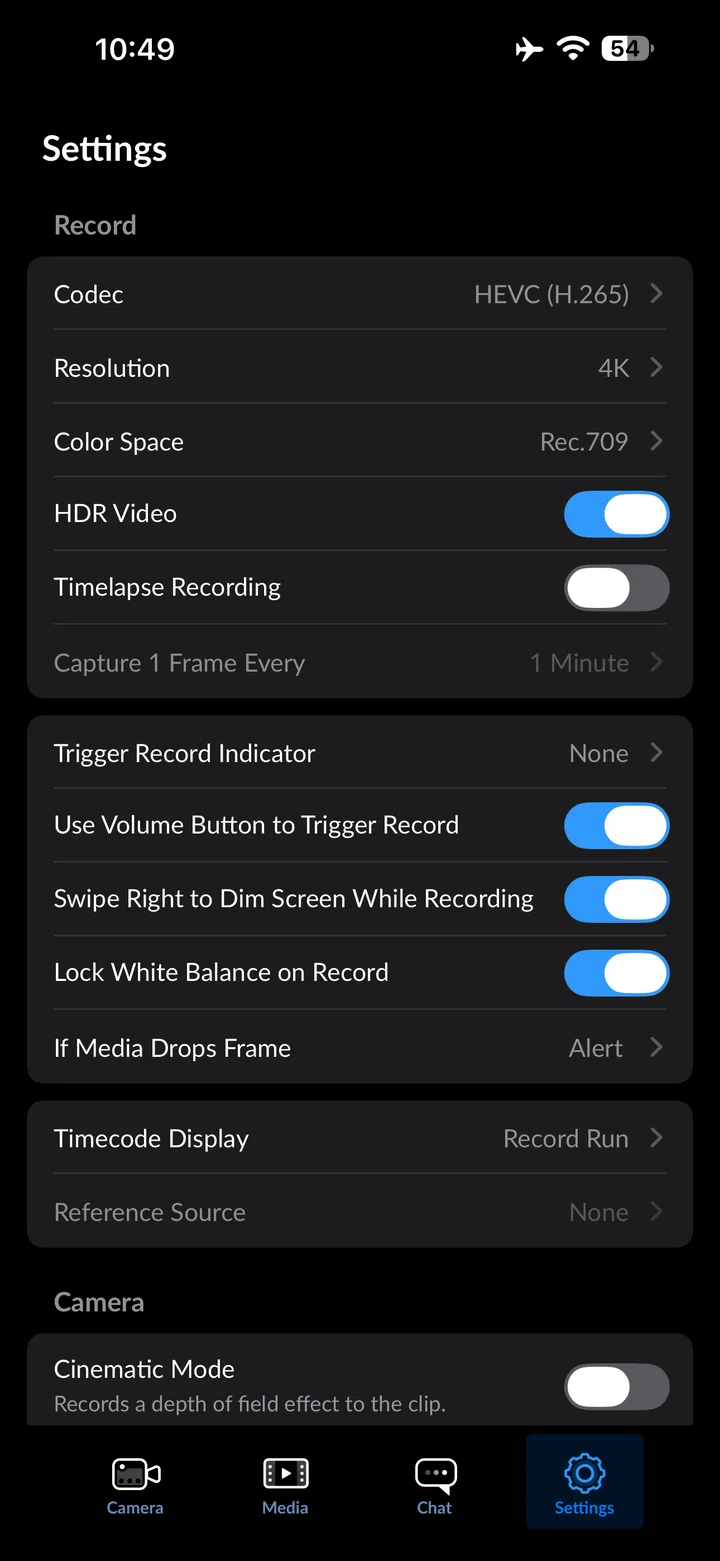
Tap Settings at the bottom. The recording, camera, audio and monitoring settings appear in this scrollable list.
Open Codec
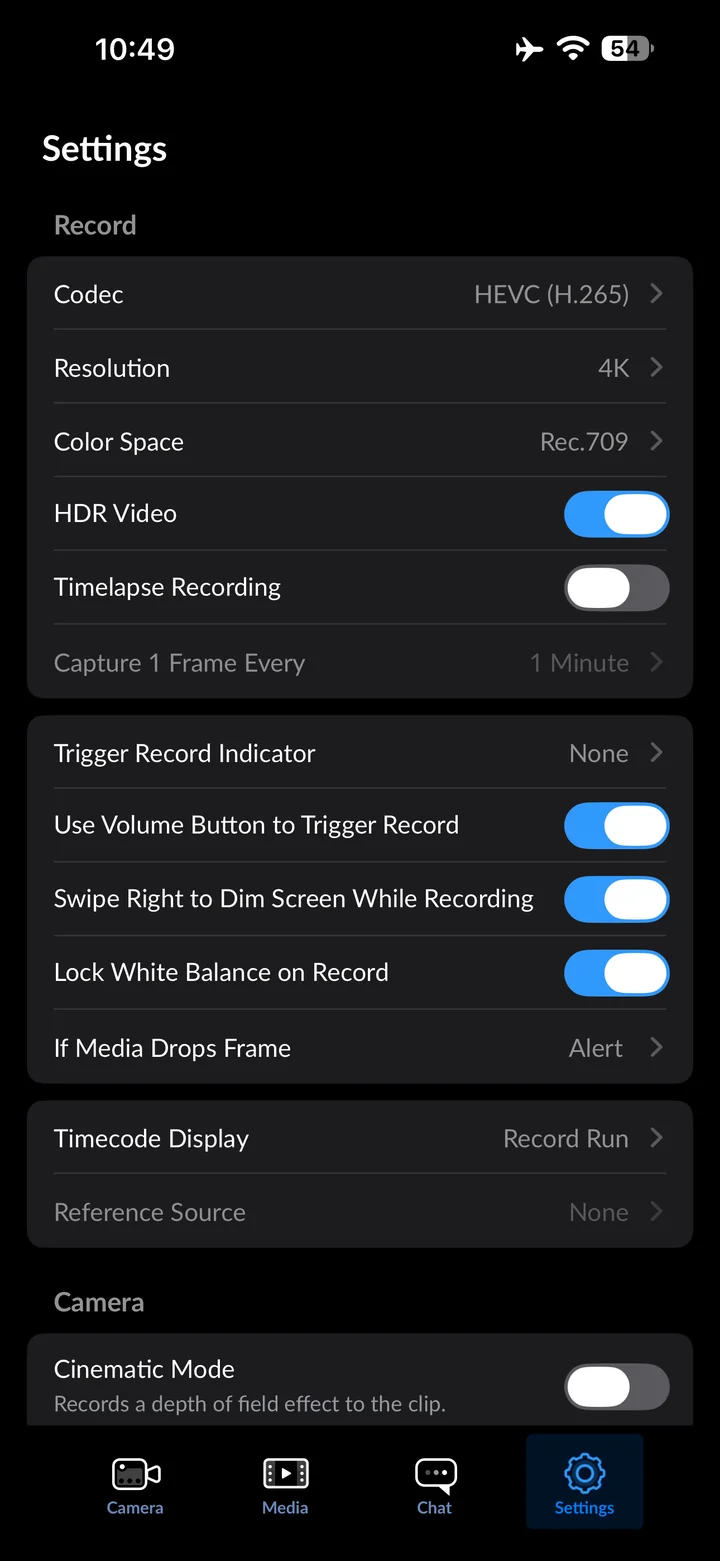
In Settings, tap Codec.
Set Codec to HEVC (H.265)
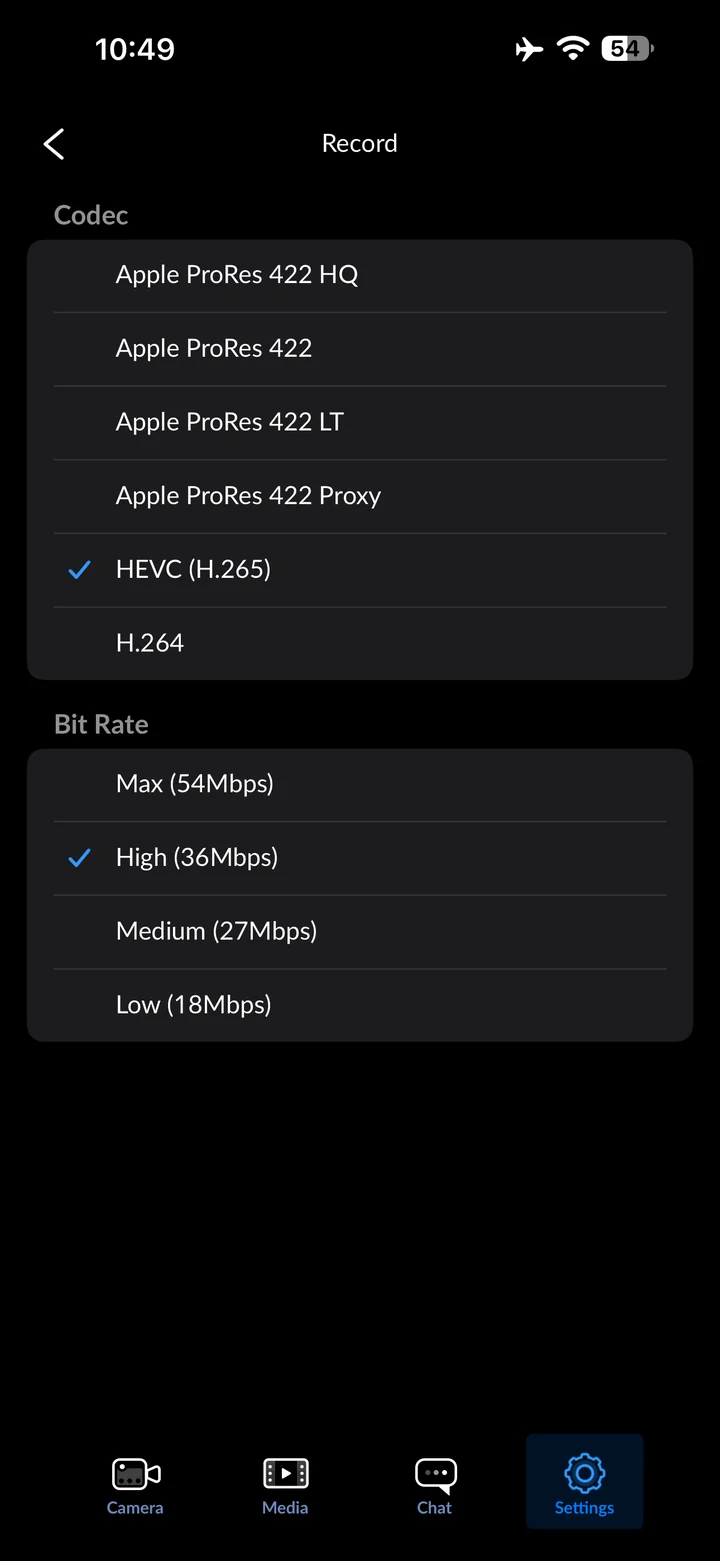
Choose HEVC for this example. Confirm that your editor and destination support the format.
Open Resolution
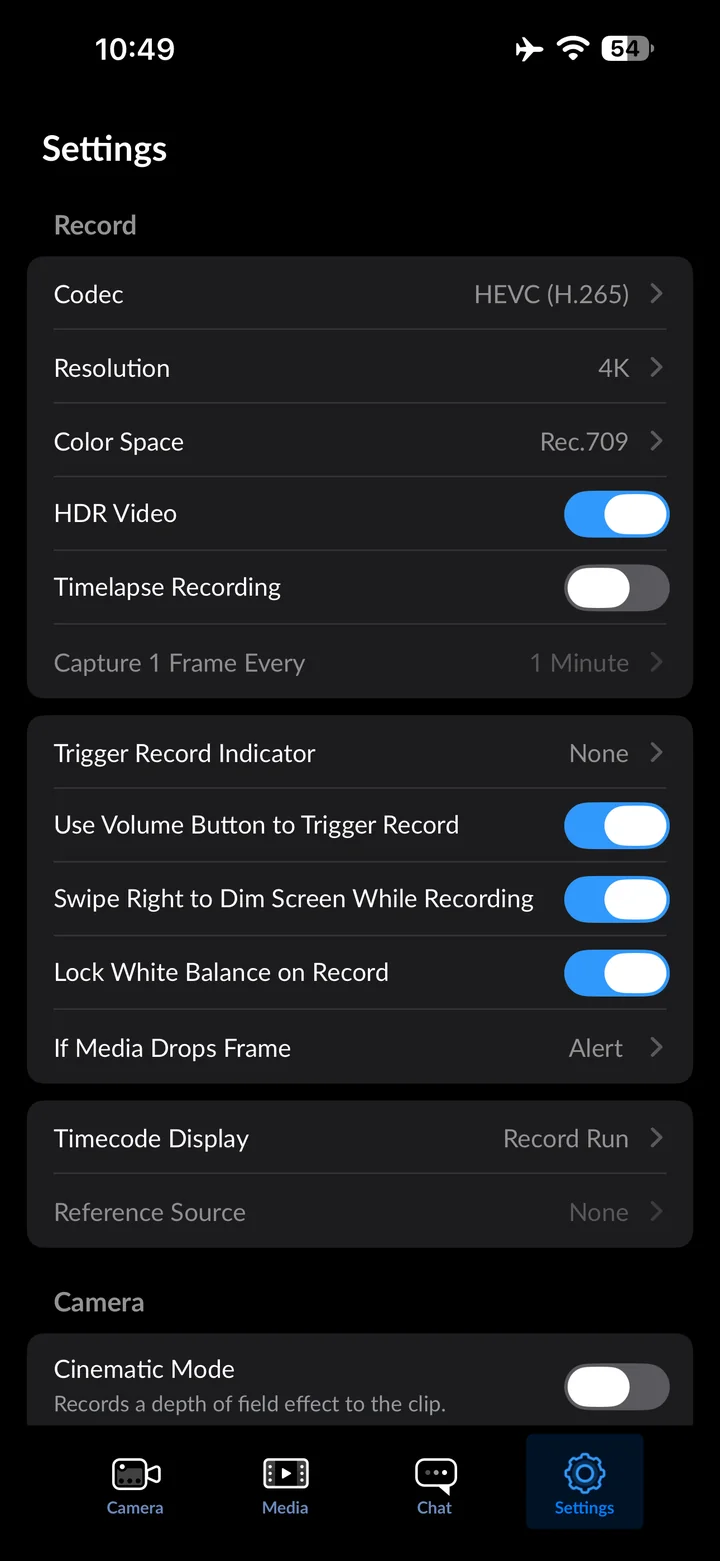
In Settings, tap Resolution.
Set Resolution to HD
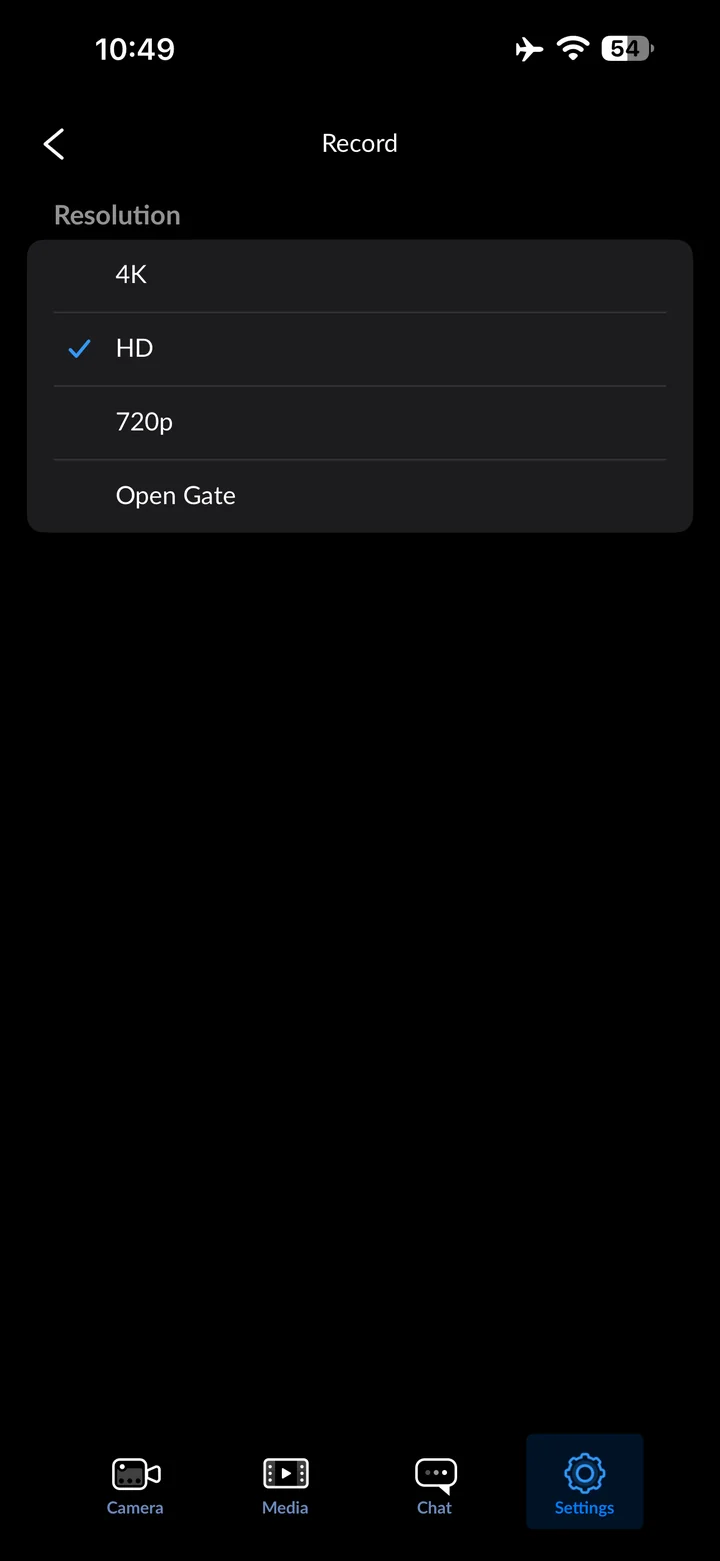
Choose 1080p for this workflow. Verify the exported video’s dimensions and orientation before uploading.
Enable Enable Vertical Video
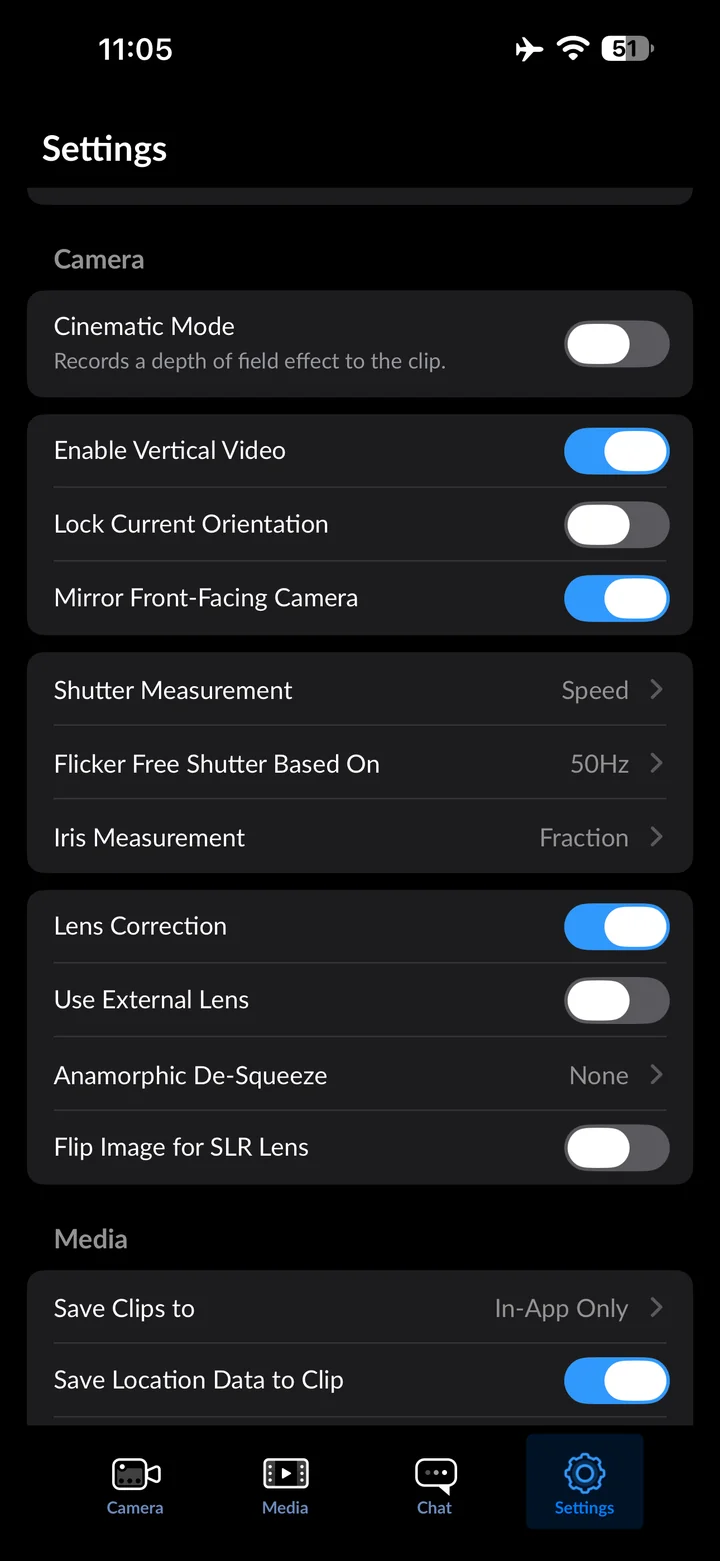
Enable Vertical Video and hold the phone upright. Check the preview framing before recording; avoid rotating the phone during a take.
Check the camera before recording
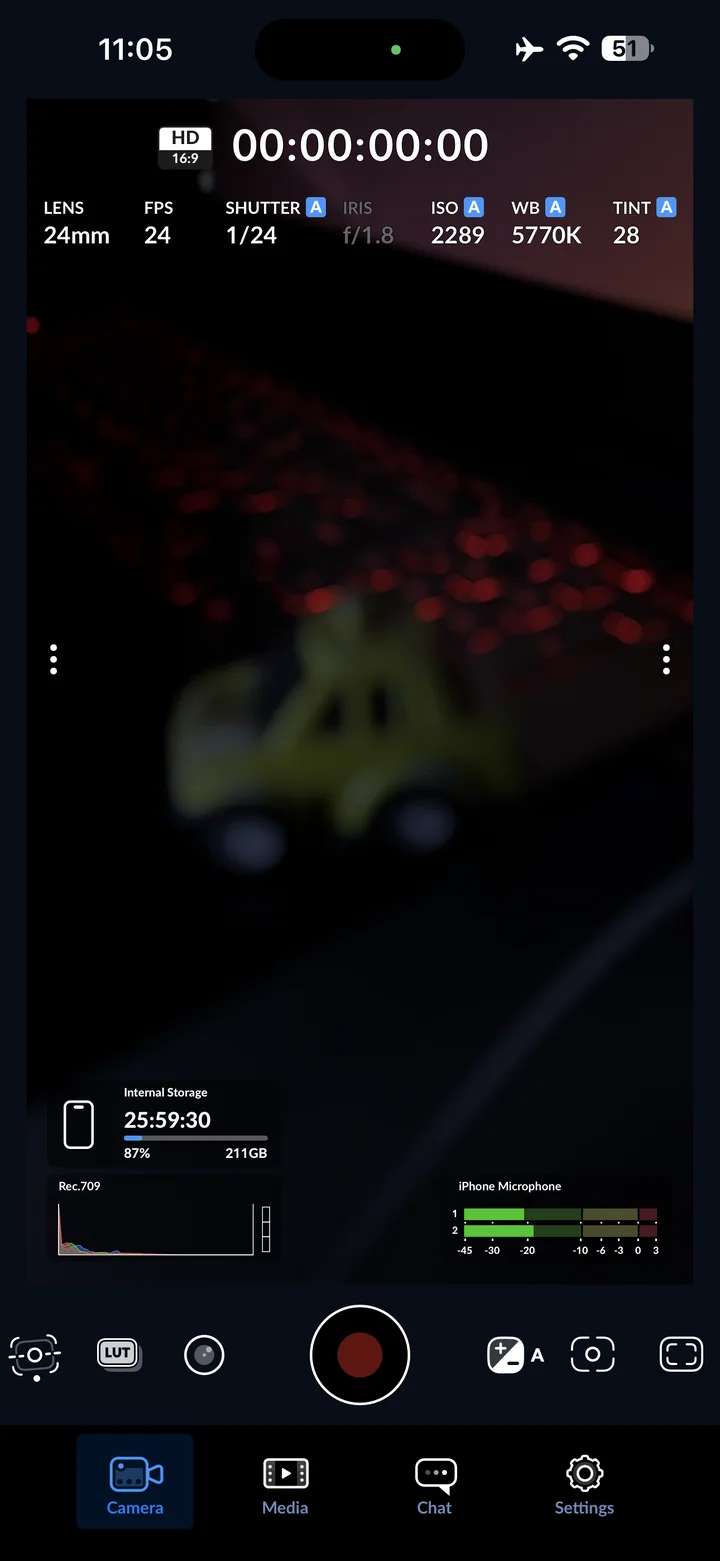
Return to Camera and check your framing, lighting and sound before recording. The screenshots demonstrate settings; they do not include a recorded clip.
Reference
By ProgramGuru
Published: 2026-10-14
Updated: 2026-10-14
Instructions reviewed against Apple documentation on 2026-10-14.