
How to Configure Blackmagic Camera for 50 Hz Indoor Lighting
Set the flicker-free shutter reference to 50 Hz and choose a 1/50-second shutter in Blackmagic Camera for an indoor lighting test.
Open Blackmagic Camera
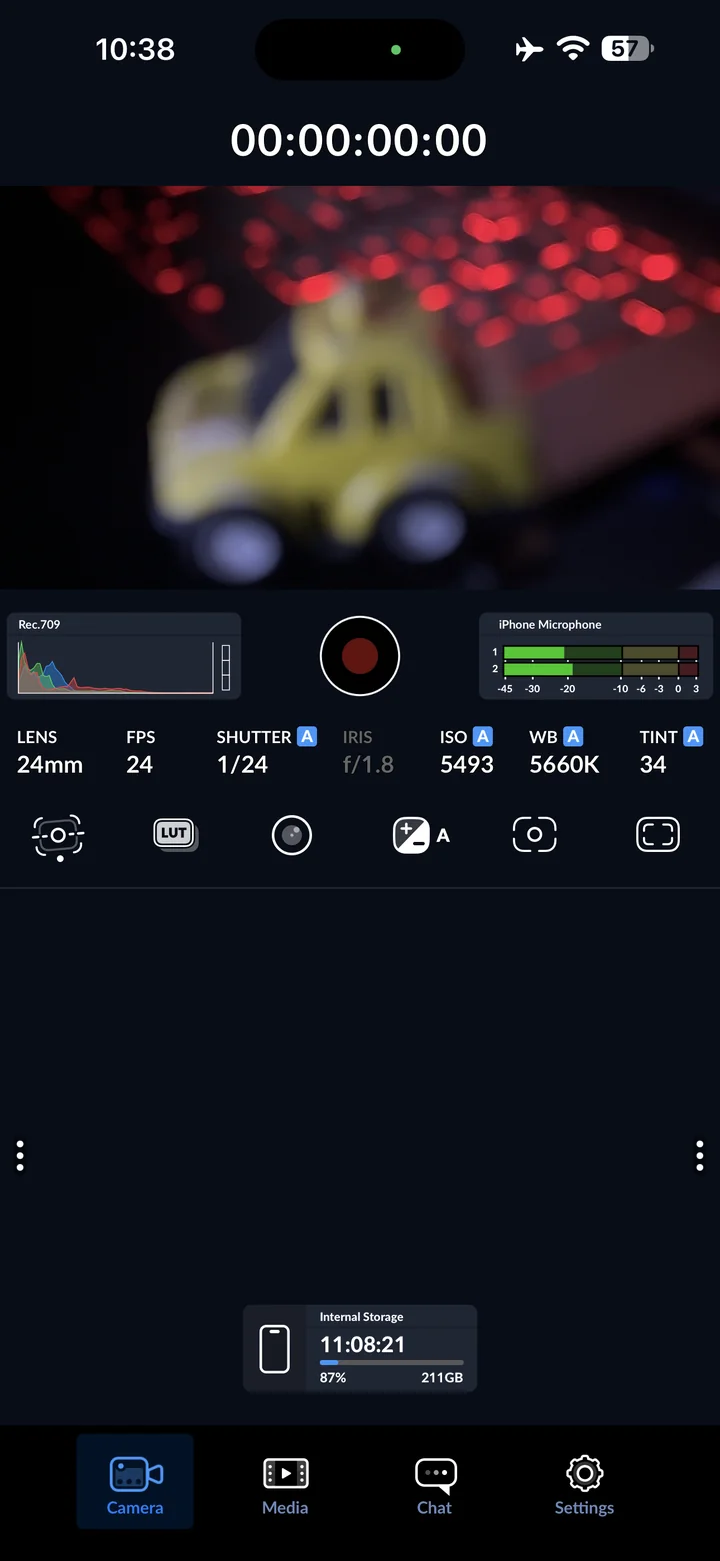
Before you begin: Blackmagic Camera for iOS. Screenshots: version 3.5.20 on iPhone 14 Pro Max. Start from your preferred baseline; changing these settings affects subsequent recordings.
Open Blackmagic Camera on your iPhone. Start in the Camera view. This walkthrough uses version 3.5.20 on an iPhone 14 Pro Max; available formats may differ on other devices.
Open camera settings
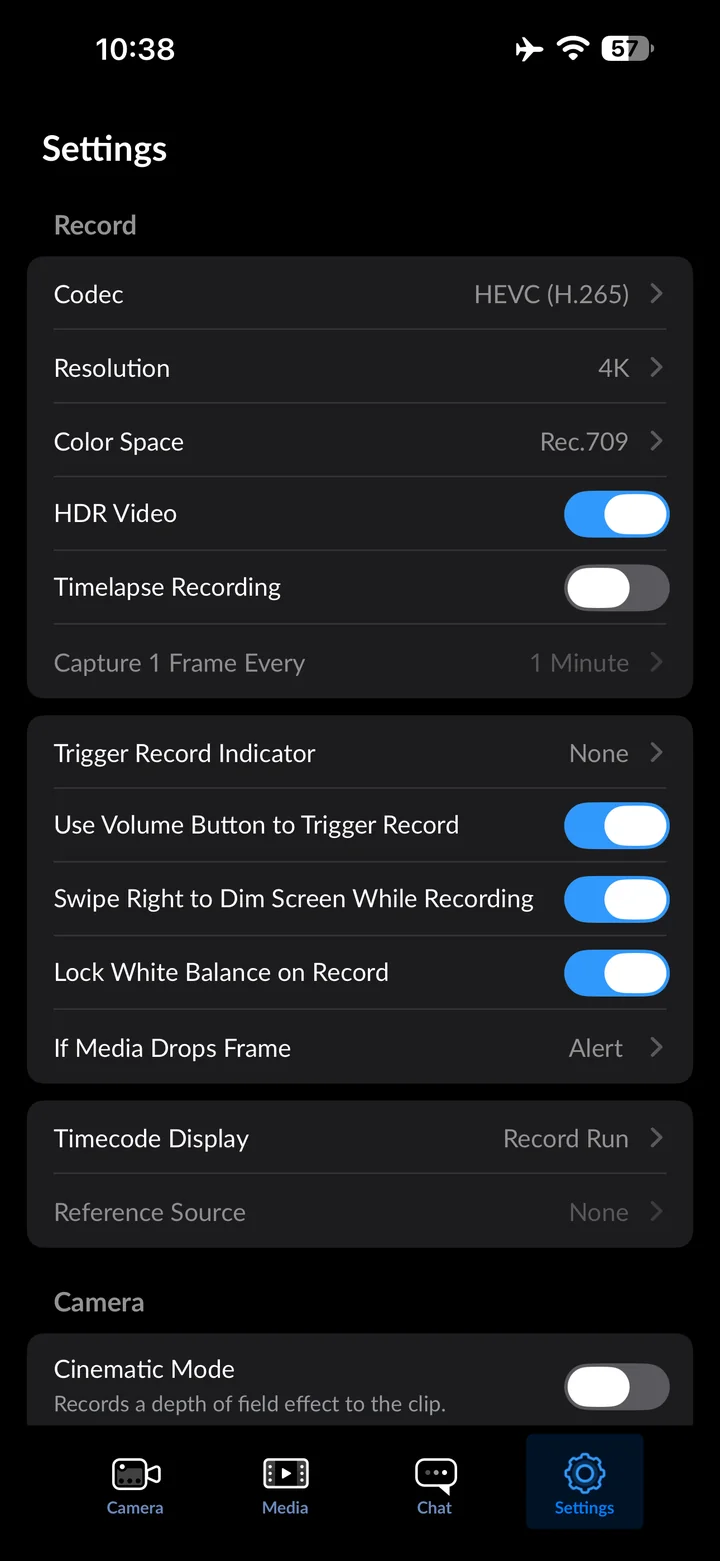
Tap Settings at the bottom. The recording, camera, audio and monitoring settings appear in this scrollable list.
Open Shutter Measurement
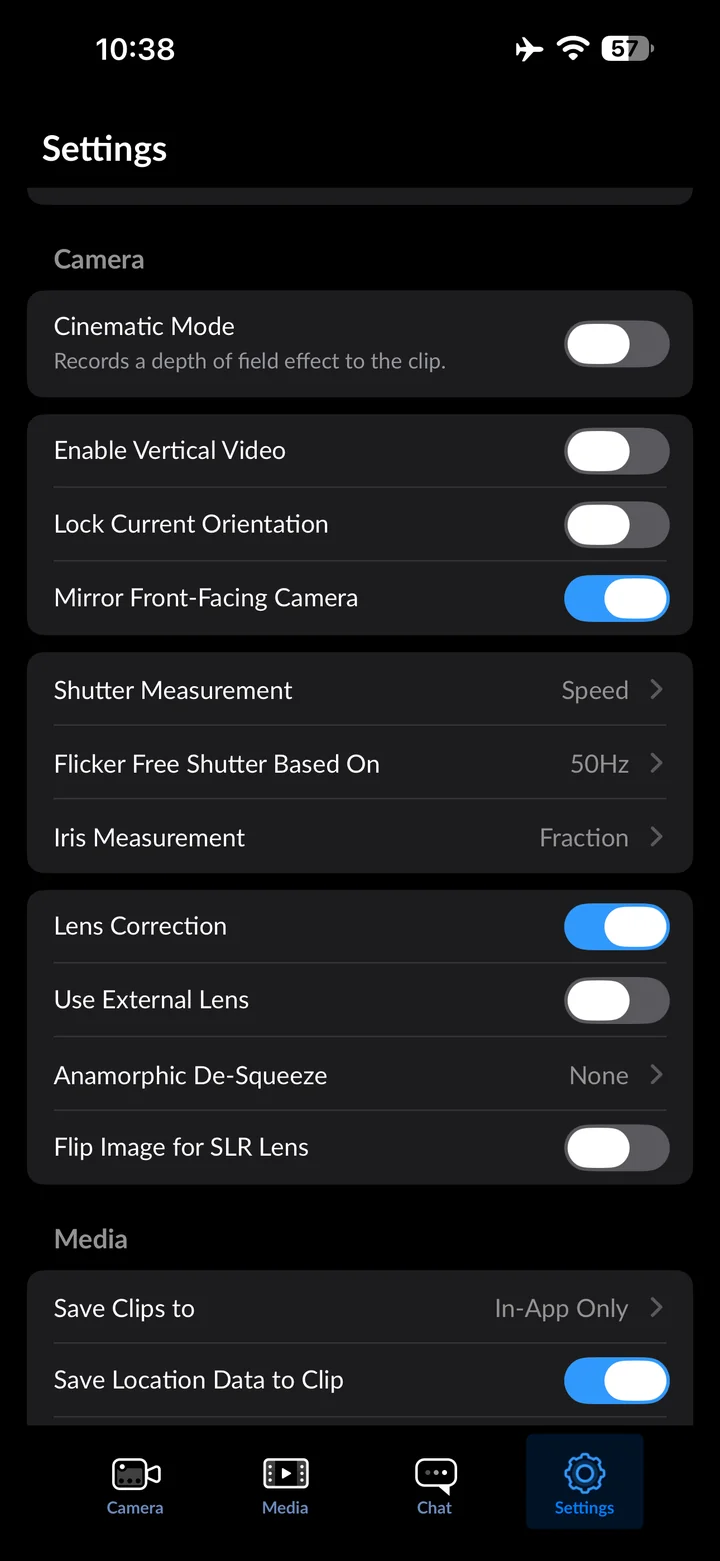
In Settings, tap Shutter Measurement.
Set Shutter Measurement to Speed
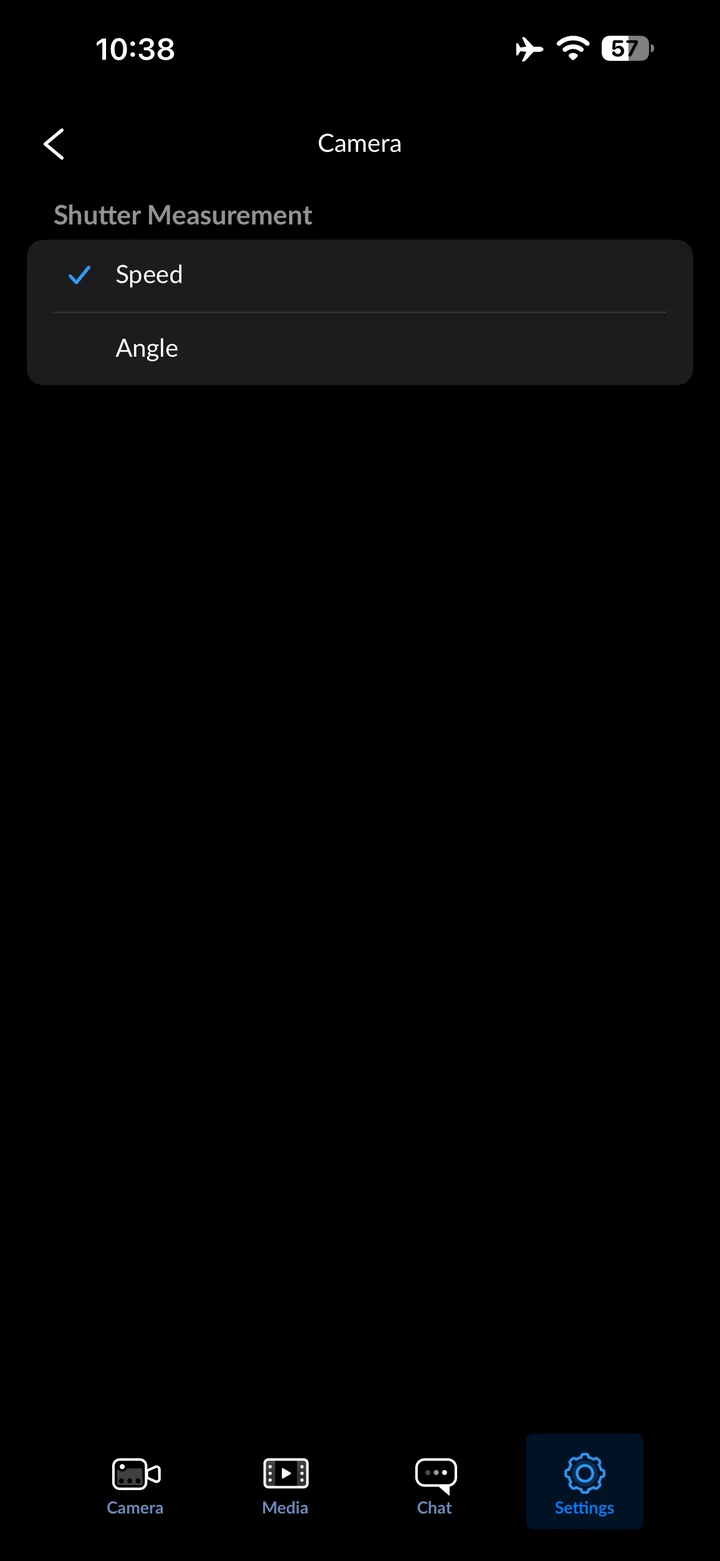
Use shutter speed so the camera displays an exposure time such as 1/50.
Open Flicker Free Shutter Based On
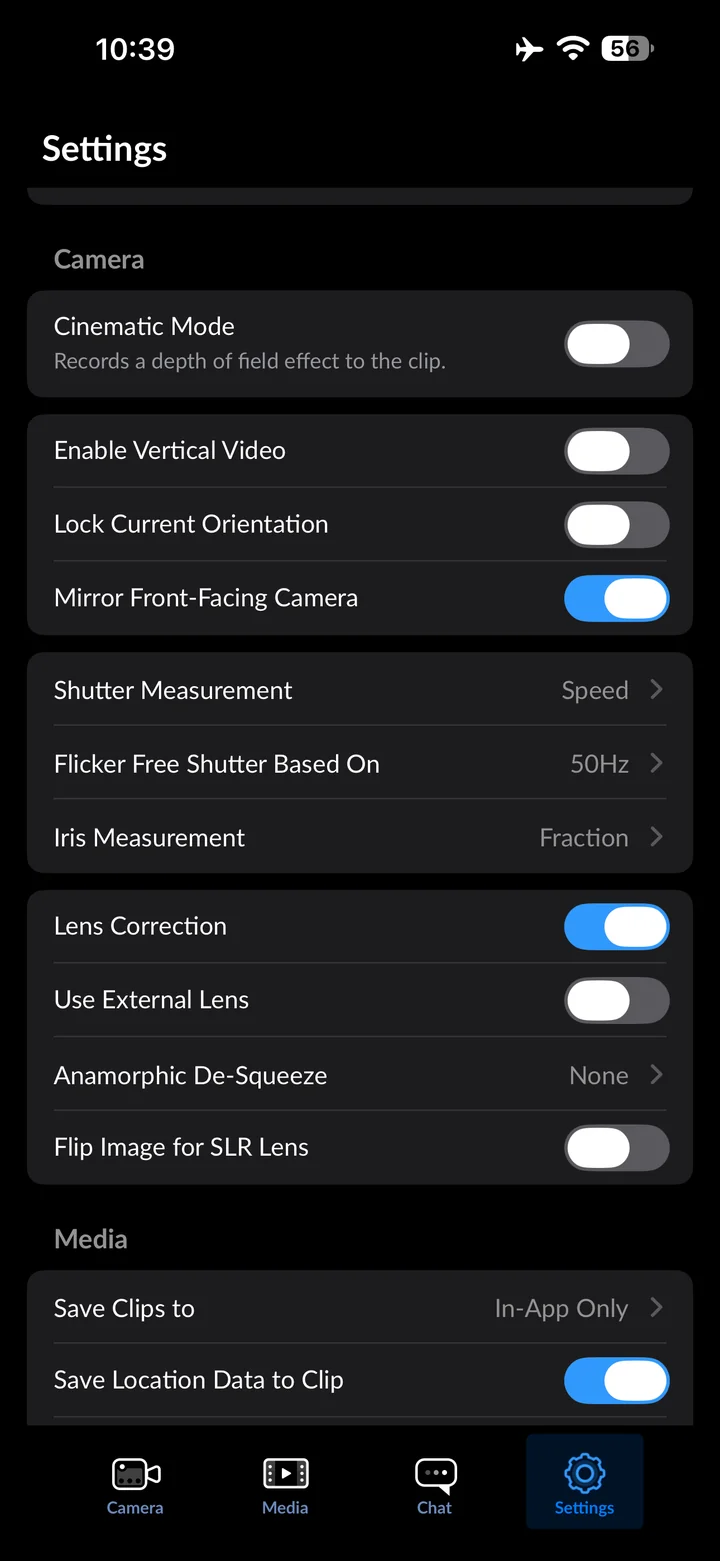
In Settings, tap Flicker Free Shutter Based On.
Set Flicker Free Shutter Based On to 50Hz
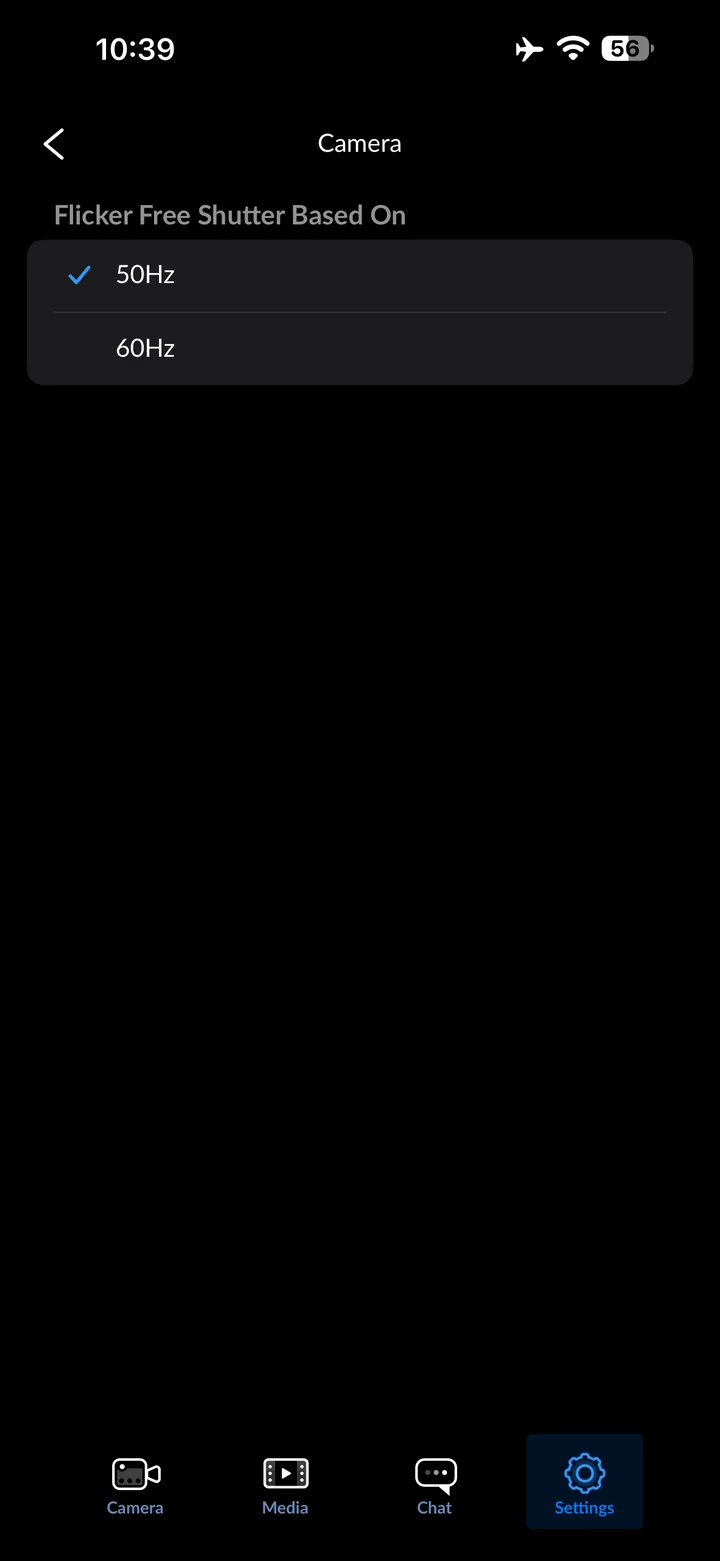
Choose 50Hz for lighting powered by a 50 Hz supply. LED dimmers can still flicker; test your actual lights.
Open the shutter control
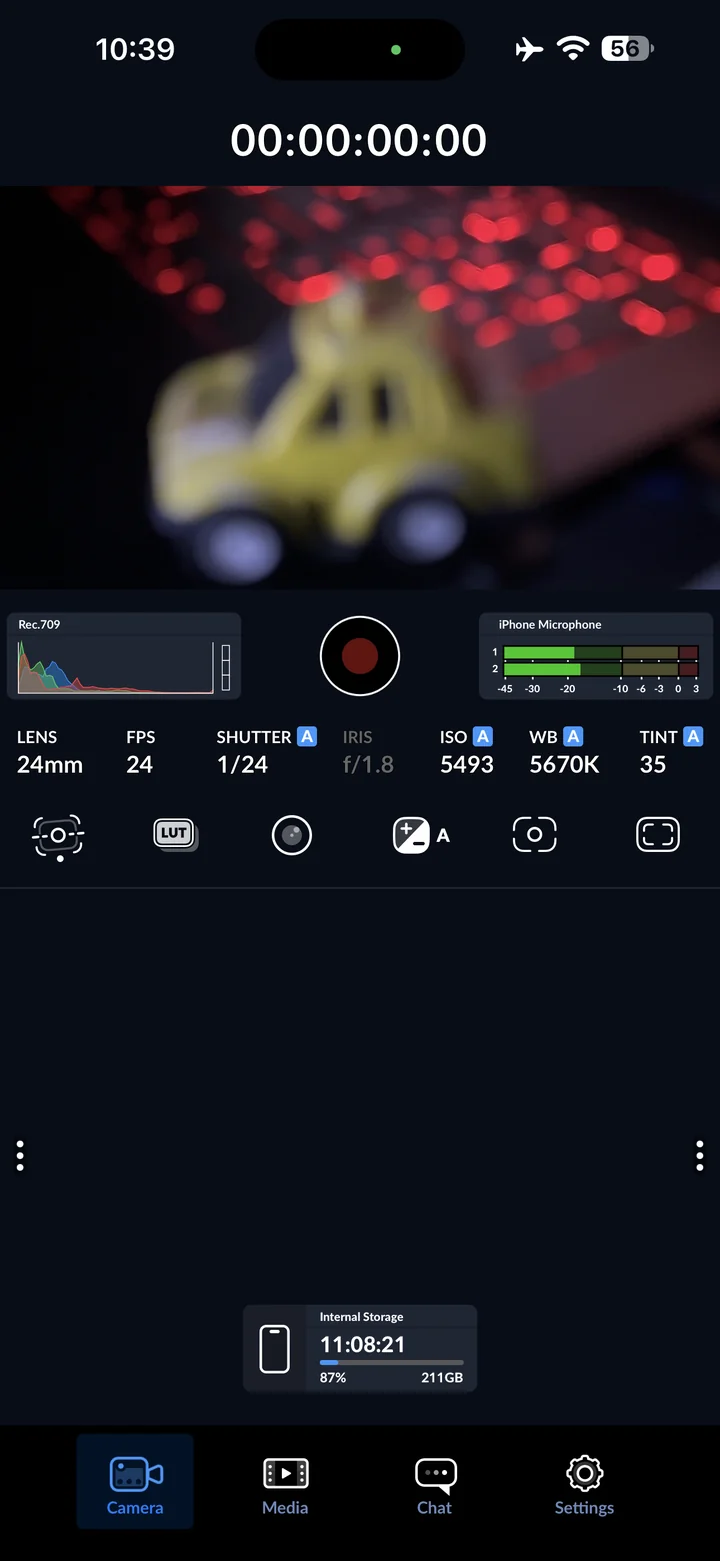
Return to Camera and tap SHUTTER.
Set shutter to 1/50
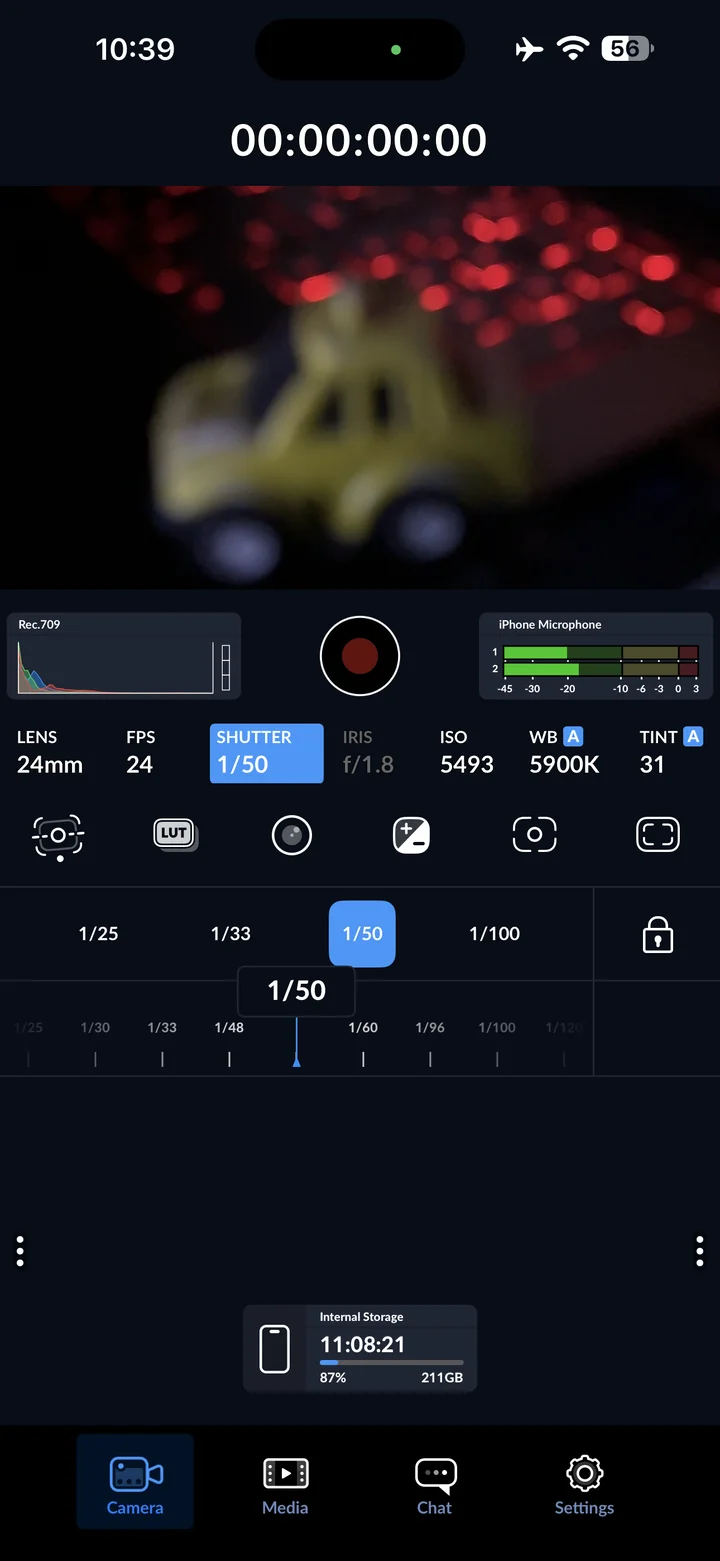
Choose 1/50 second. Inspect the preview for bands or brightness changes and adjust your lighting if they remain.
Check the camera before recording
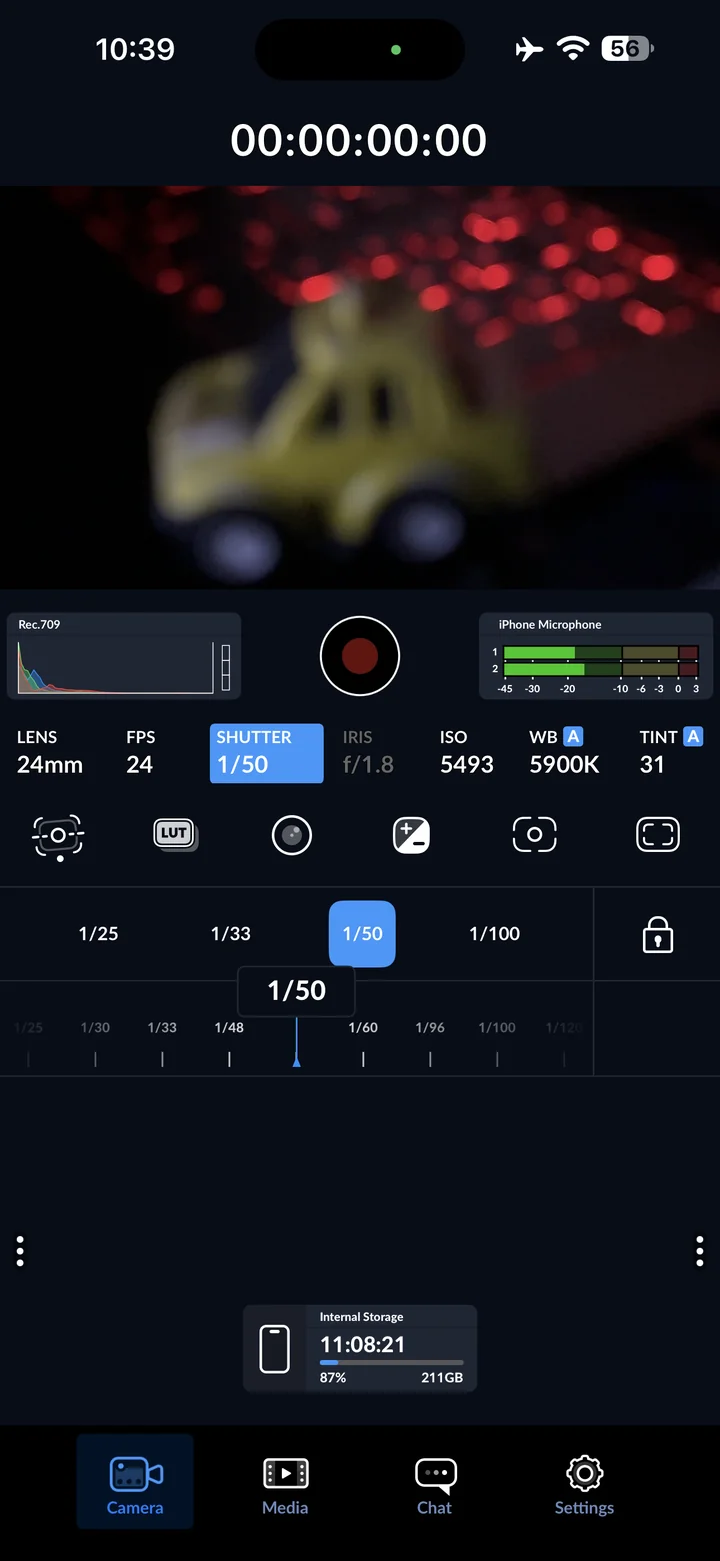
Return to Camera and check your framing, lighting and sound before recording. The screenshots demonstrate settings; they do not include a recorded clip.
Reference
By ProgramGuru
Published: 2026-10-14
Updated: 2026-10-14
Instructions reviewed against Apple documentation on 2026-10-14.