
How to Configure Focus Monitoring in Blackmagic Camera on iPhone
Configure colored focus-assist lines and guide opacity in Blackmagic Camera to prepare a repeatable product-shot monitoring setup.
Open Blackmagic Camera
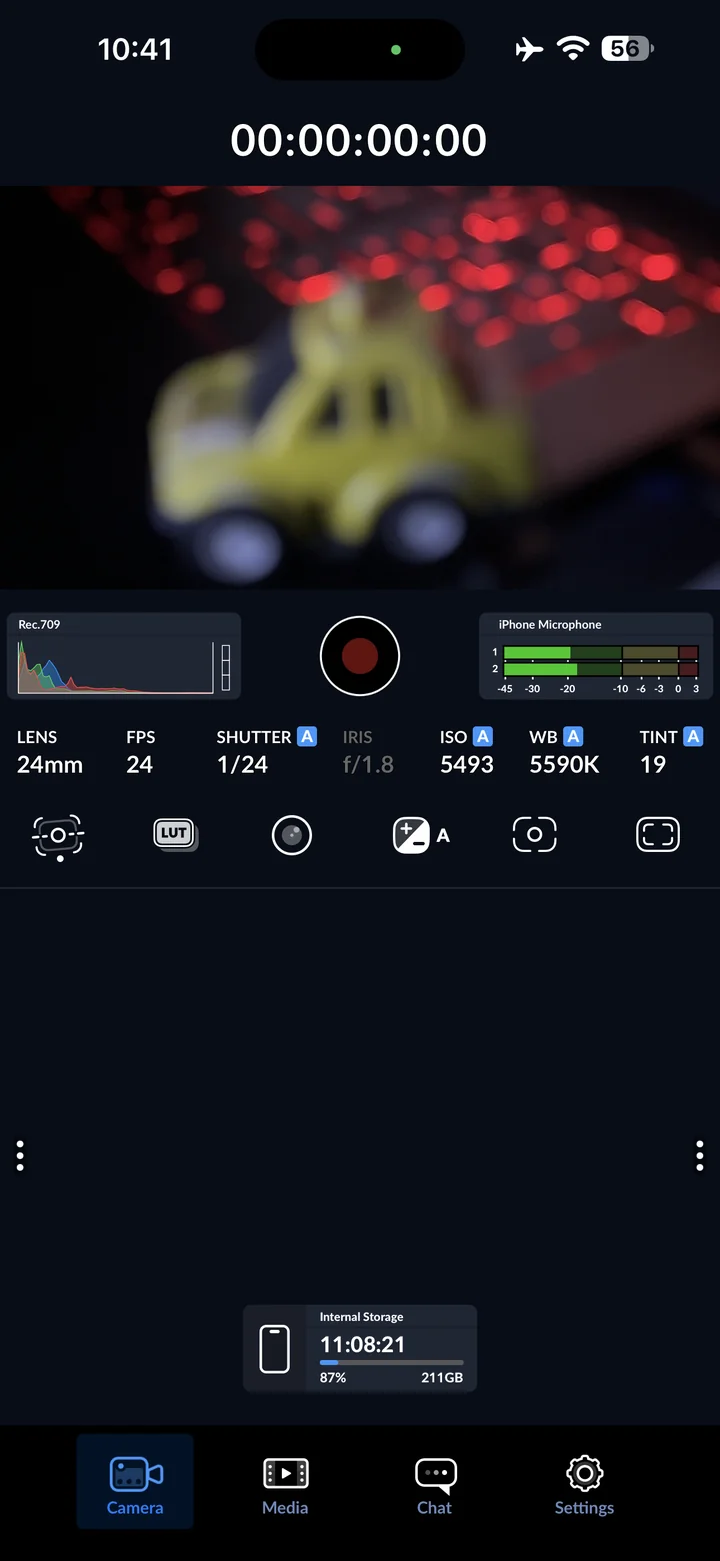
Before you begin: Blackmagic Camera for iOS. Screenshots: version 3.5.20 on iPhone 14 Pro Max. Start from your preferred baseline; changing these settings affects subsequent recordings.
Open Blackmagic Camera on your iPhone. Start in the Camera view. This walkthrough uses version 3.5.20 on an iPhone 14 Pro Max; available formats may differ on other devices.
Open camera settings
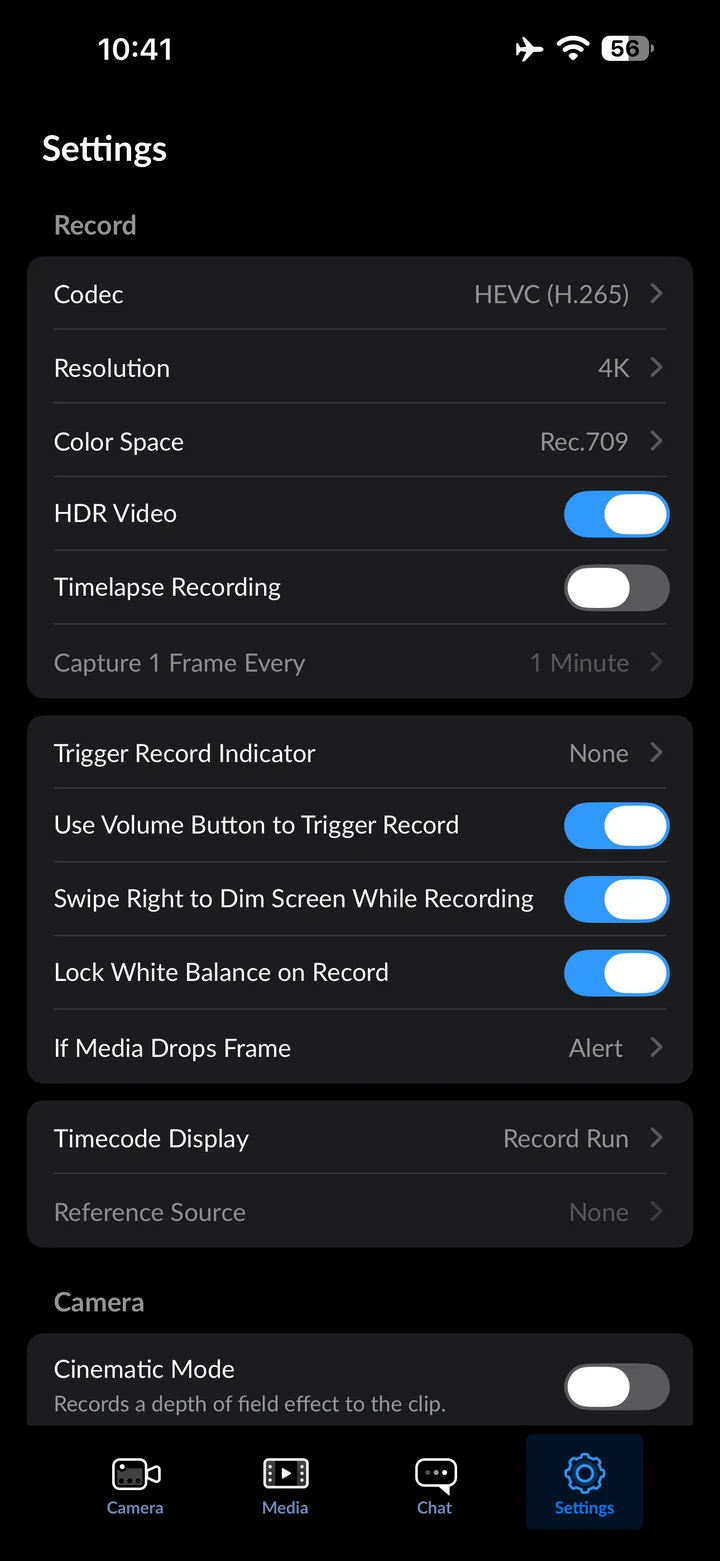
Tap Settings at the bottom. The recording, camera, audio and monitoring settings appear in this scrollable list.
Open Focus Assist
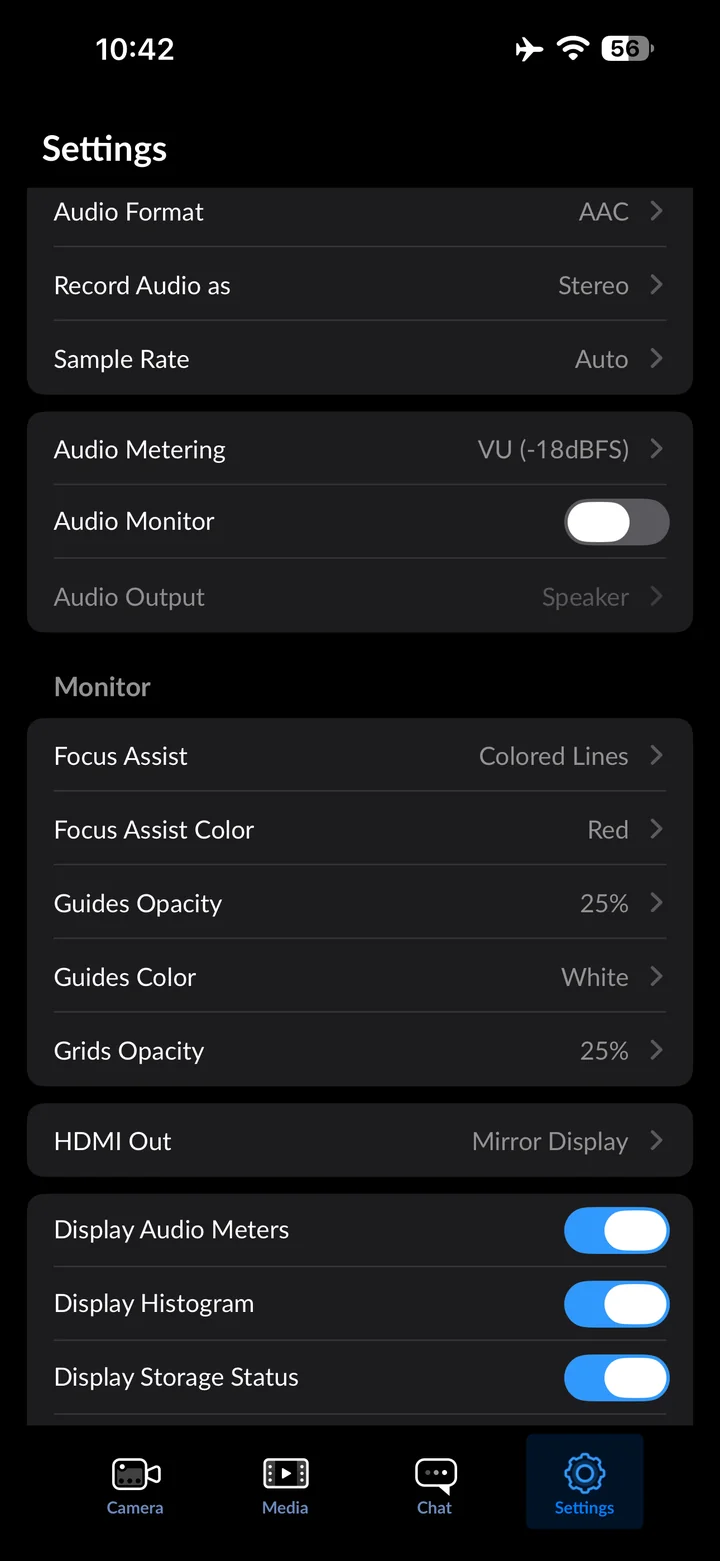
In Settings, tap Focus Assist.
Set Focus Assist to Colored Lines
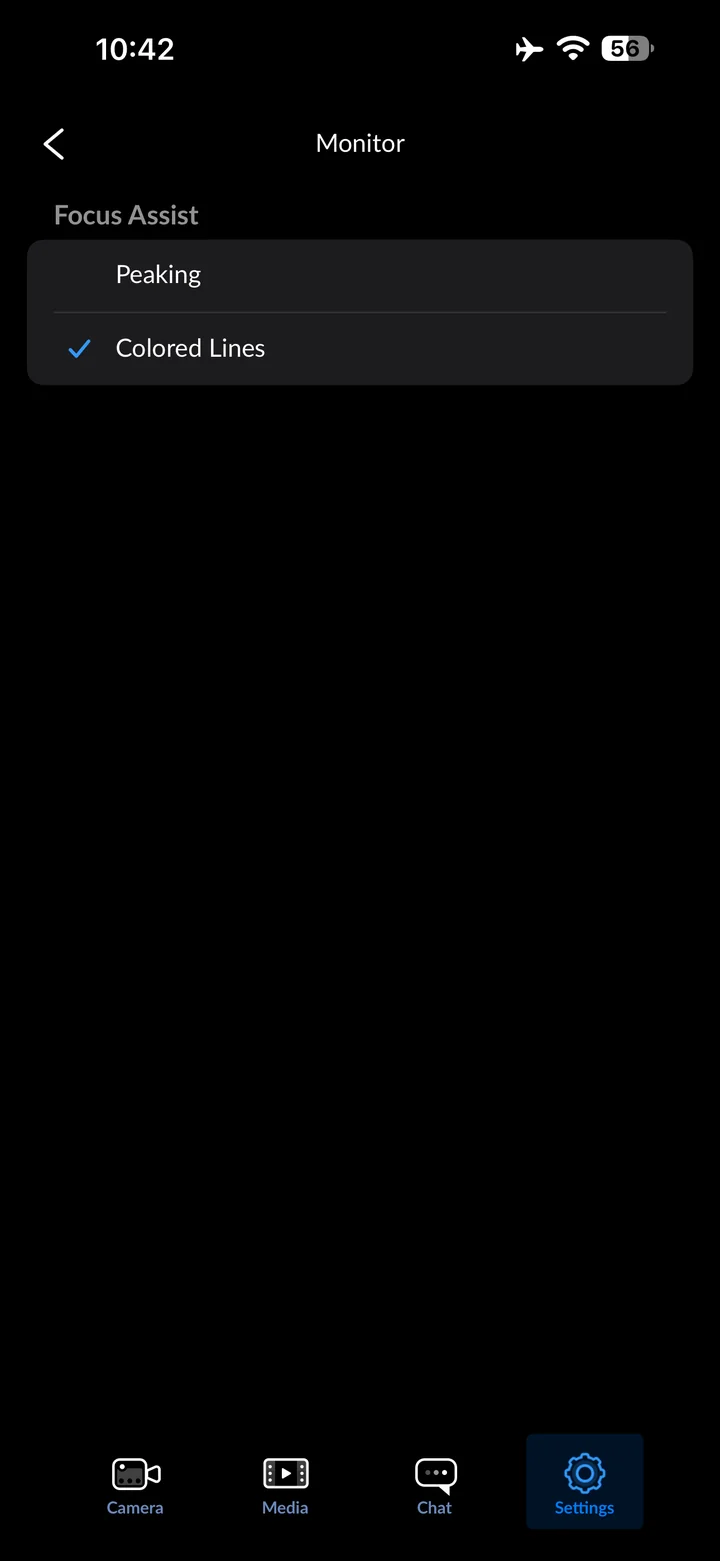
Select Colored Lines as the focus-assist display style. This is a monitoring aid, not an effect added to your video.
Open Focus Assist Color
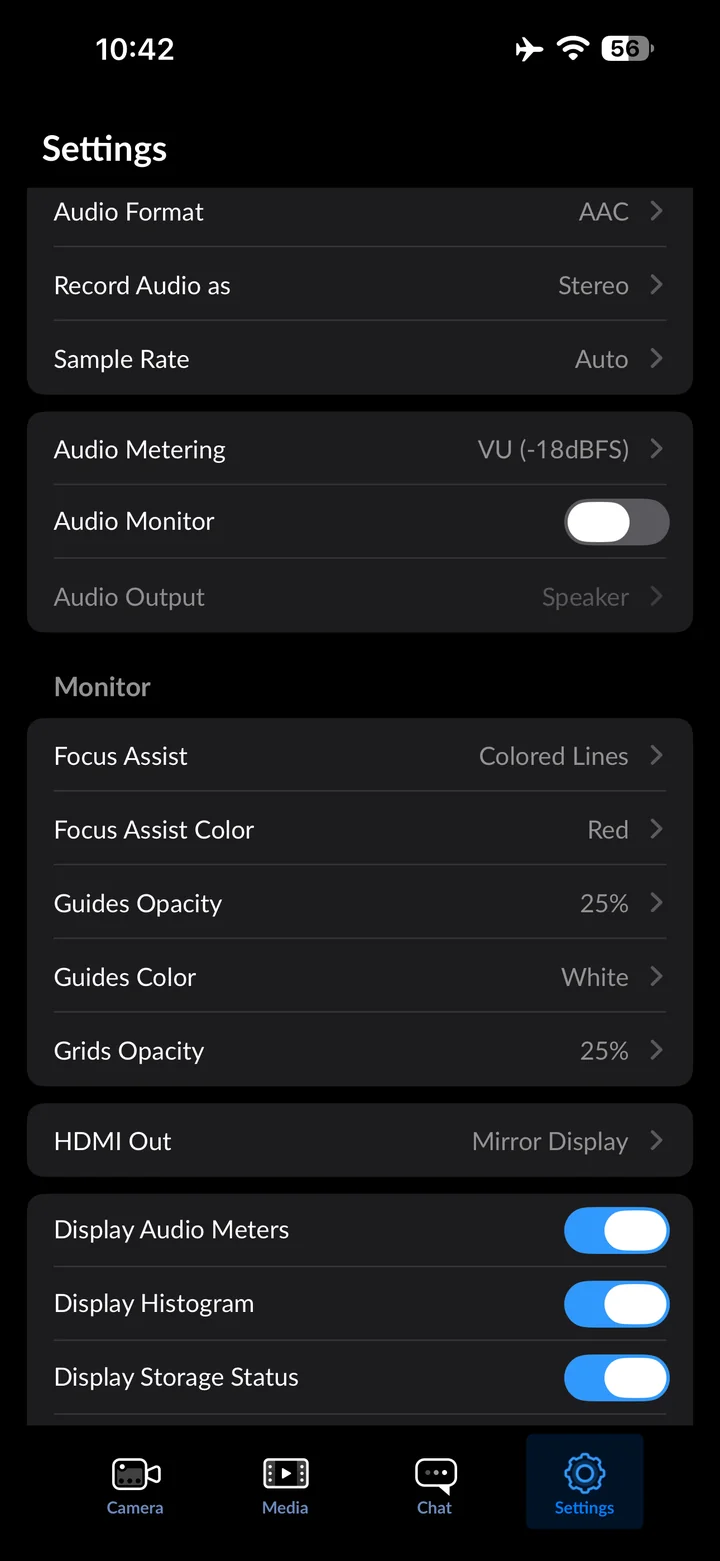
In Settings, tap Focus Assist Color.
Set Focus Assist Color to Green
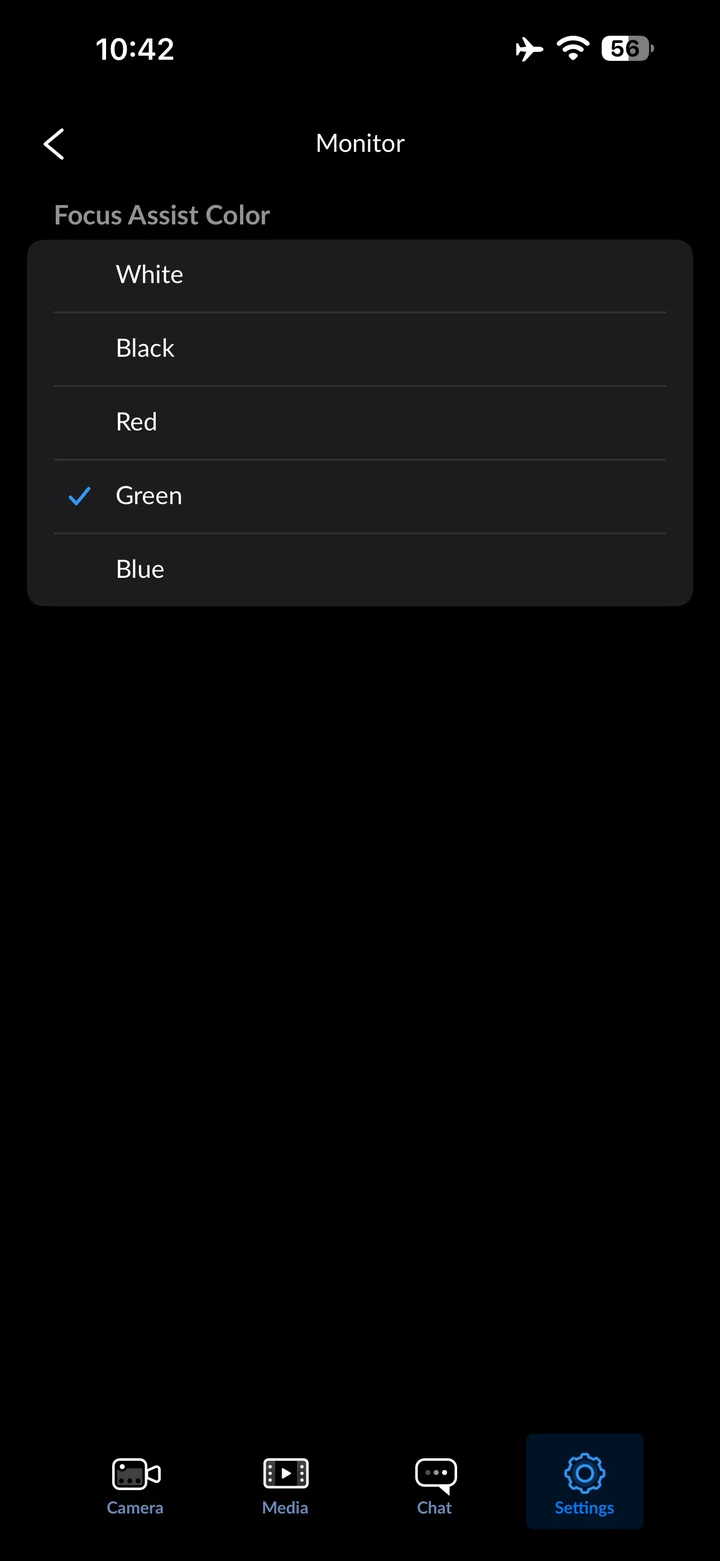
Choose green to distinguish focus-assist markings from other overlays. Pick a contrasting color for your subject.
Open Guides Opacity
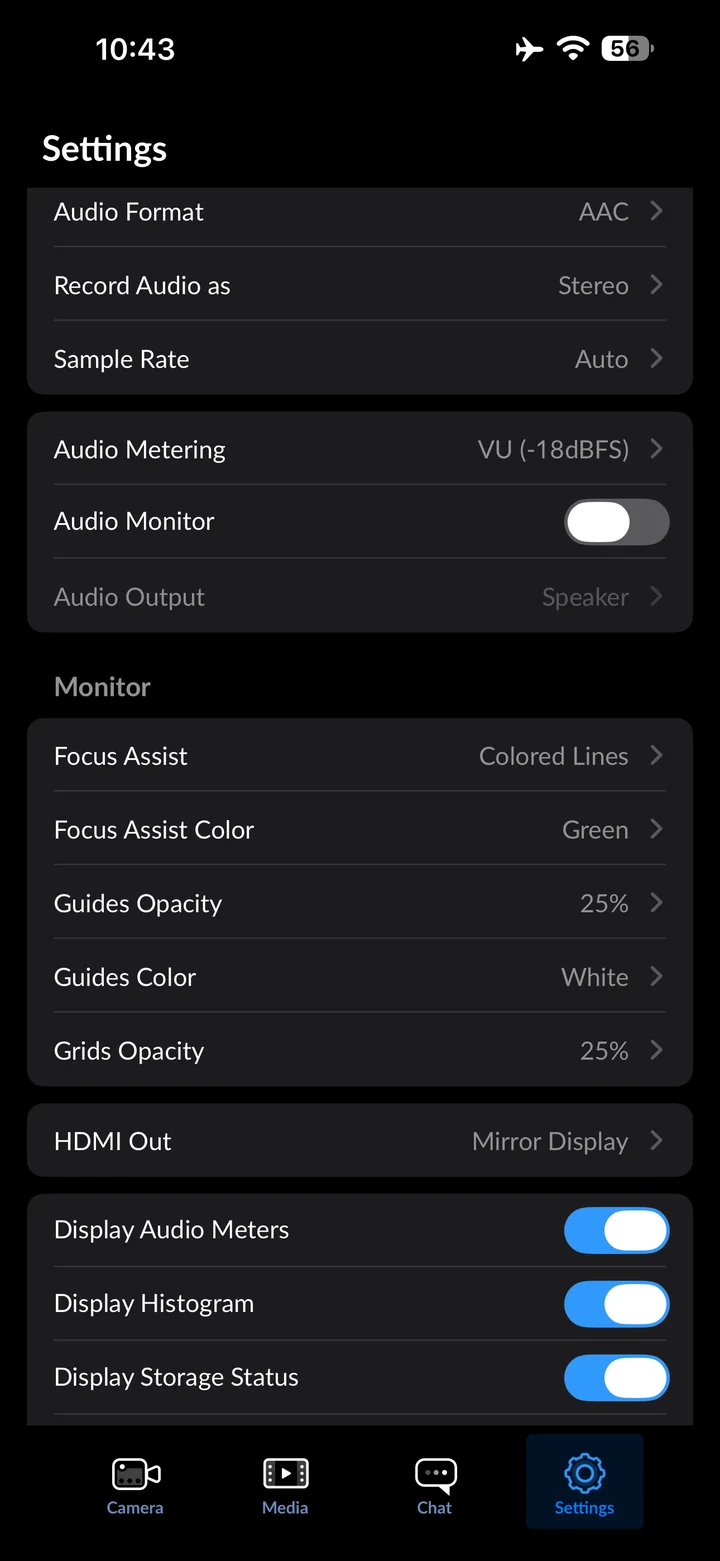
In Settings, tap Guides Opacity.
Set Guides Opacity to 50%
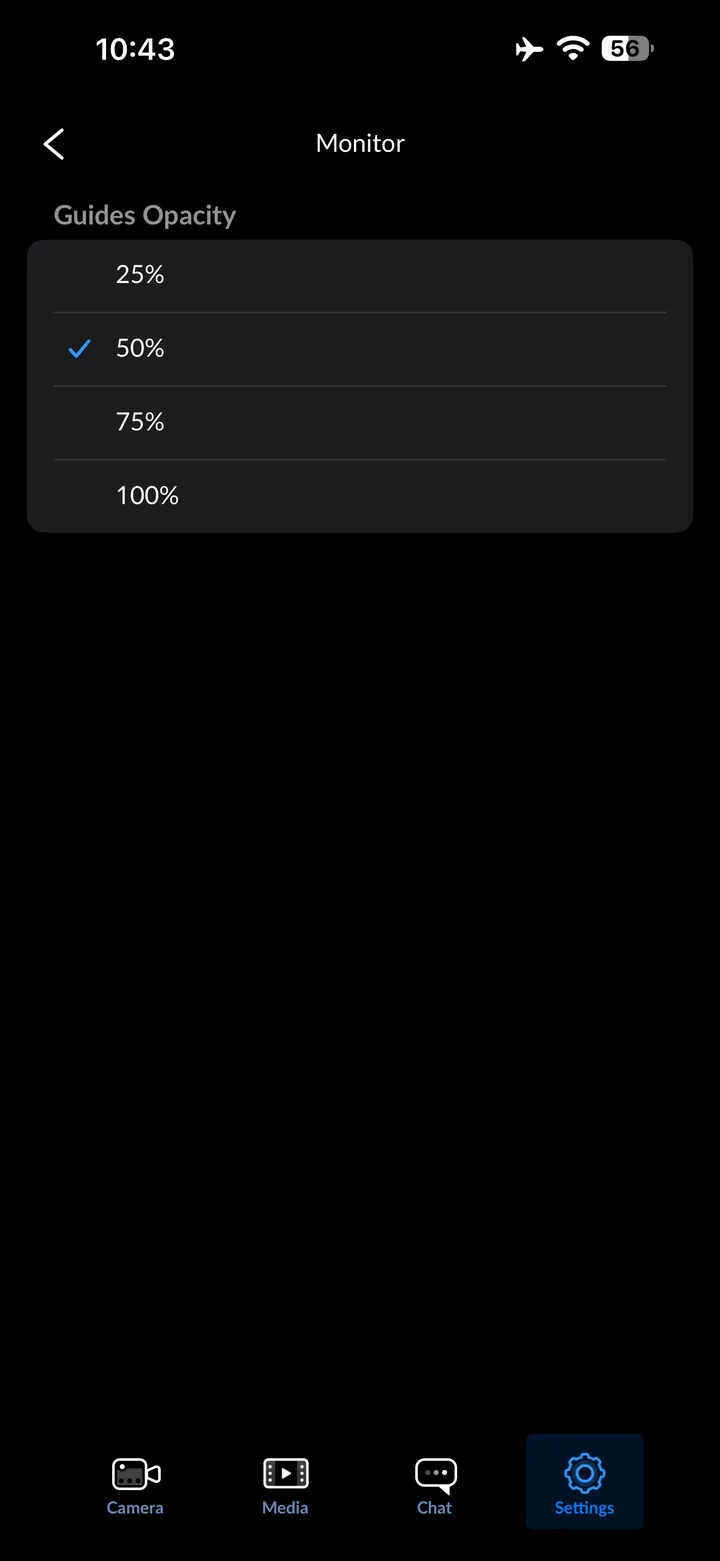
Set guide opacity to 50% so composition guides are easier to see when enabled. These settings configure the overlays; enable the relevant overlay in the camera view when composing.
Check the camera before recording
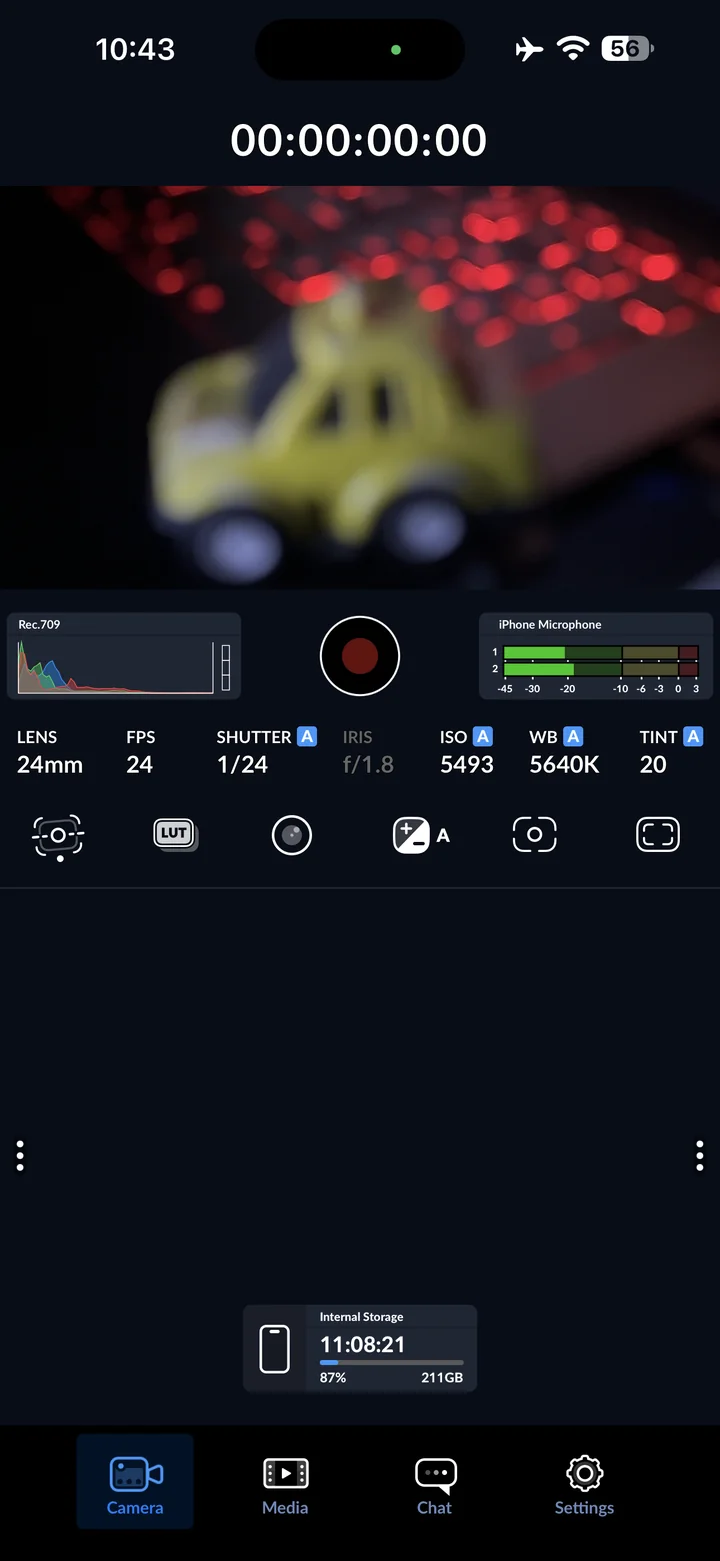
Return to Camera and check your framing, lighting and sound before recording. The screenshots demonstrate settings; they do not include a recorded clip.
Reference
By ProgramGuru
Published: 2026-10-14
Updated: 2026-10-14
Instructions reviewed against Apple documentation on 2026-10-14.